Linked Helper Review 2026: Features, Pros & Cons, Alternatives
Published:
March 21, 2024
Updated:
May 19, 2026
If you're not sure whether to give Linked Helper a chance or not, my honest Linked Helper review (tested and tried) will help you get rid of doubts.
I’ve recently started testing out different tools for LinkedIn outreach. As a result, let me share my experience with Linked Helper. In this review, I cover all the features, pros, cons, and alternative solutions to help you choose the best option for your needs.
Linked Helper at a glance
Linked Helper is a tool for LinkedIn that helps businesses find potential clients and communicate with them more easily.
It automates tasks like sending messages and managing contacts, making it simpler to grow networks and engage with prospects. Linked Helper offers features like data scraping, personalized messaging, and integration with other tools.
Pros
- LinkedIn outreach automation
- Convenient email finder tool
- Reliable and cost-effective
- Good customer support
- AI-driven message generation (30 messages/day)
- “Leave response unread" feature to keep your manual workflow clean
Cons
- Response management is challenging due to the lack of a unified inbox
- List segmentation, such as removing contacted prospects, is time-consuming
- It can make your computer slow because it doesn't have a cloud-based function
- The steep learning curve for new users
One of the biggest issues I faced was that once I turned off the program, prospecting stopped. That's quite frustrating, and there's room for improvement here.
User feedback
Linked Helper scores a 4.9 rating on Capterra and users mostly praise its automation features and smart campaign templates.
In contrast, some users find the interface cluttered and note potential risks with LinkedIn's policies.
Linked Helper feature overview
Linked Helper simplifies LinkedIn outreach for companies and helps them avoid restrictions and flags.
It offers automated personalized messages and efficient contact management through its CRM.

These are the core features:
- LinkedIn Automation Software: Automate personalized messages and connections and integrate with popular CRMs like HubSpot and Salesforce.
- Multi-source Lead Targeting: Source leads from various platforms and customize daily activity limits for better targeting. Use "Auto-collect" to gather profiles every X days without manual starts.
- Drip Campaigns: Build automated message funnels for outreach, personalize messages with custom variables and templates. LH supports SPINTAX and Message Variants for higher reply rates.
- Linked Helper CRM: Automate lead workflows, detect smart replies to avoid sending wrongful messages, analyze profile and campaign analytics.
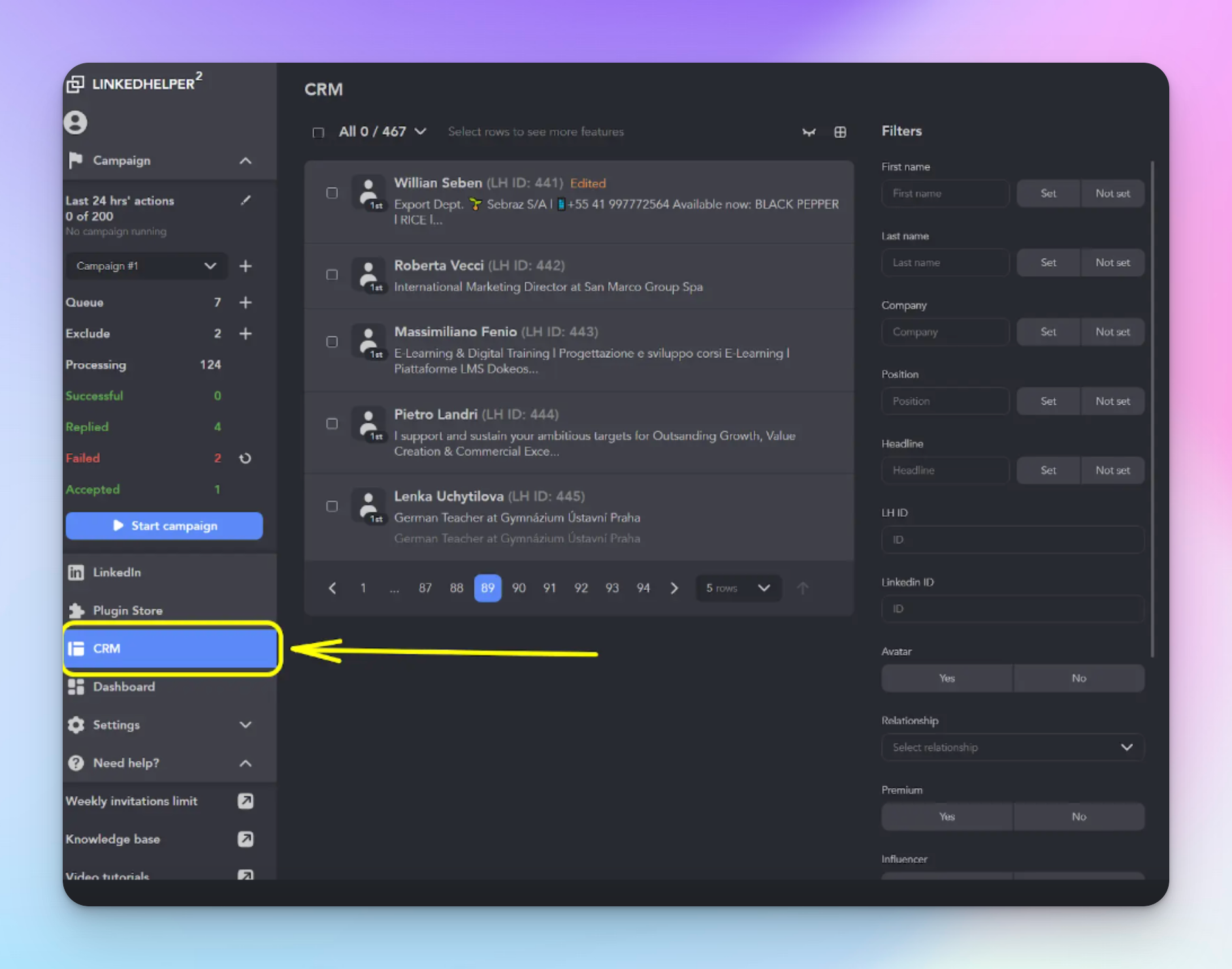
Aside from its great features for automating outreach, one major downside is the absence of a unified inbox—it’s a bit messy like this.
That’s why I like HeyReach's inbox more—all my LinkedIn messages come together in one place. In this way, I can reply faster, reduce response times, never miss a lead, and don’t need to constantly switch between profiles. Plus, I can engage on behalf of another teammate which is pretty cool.

1. LinkedIn outreach
The first and most important thing I tested with this tool is outreach.
So, here I'll take you through all the steps I took.
Step 1: Choose a template
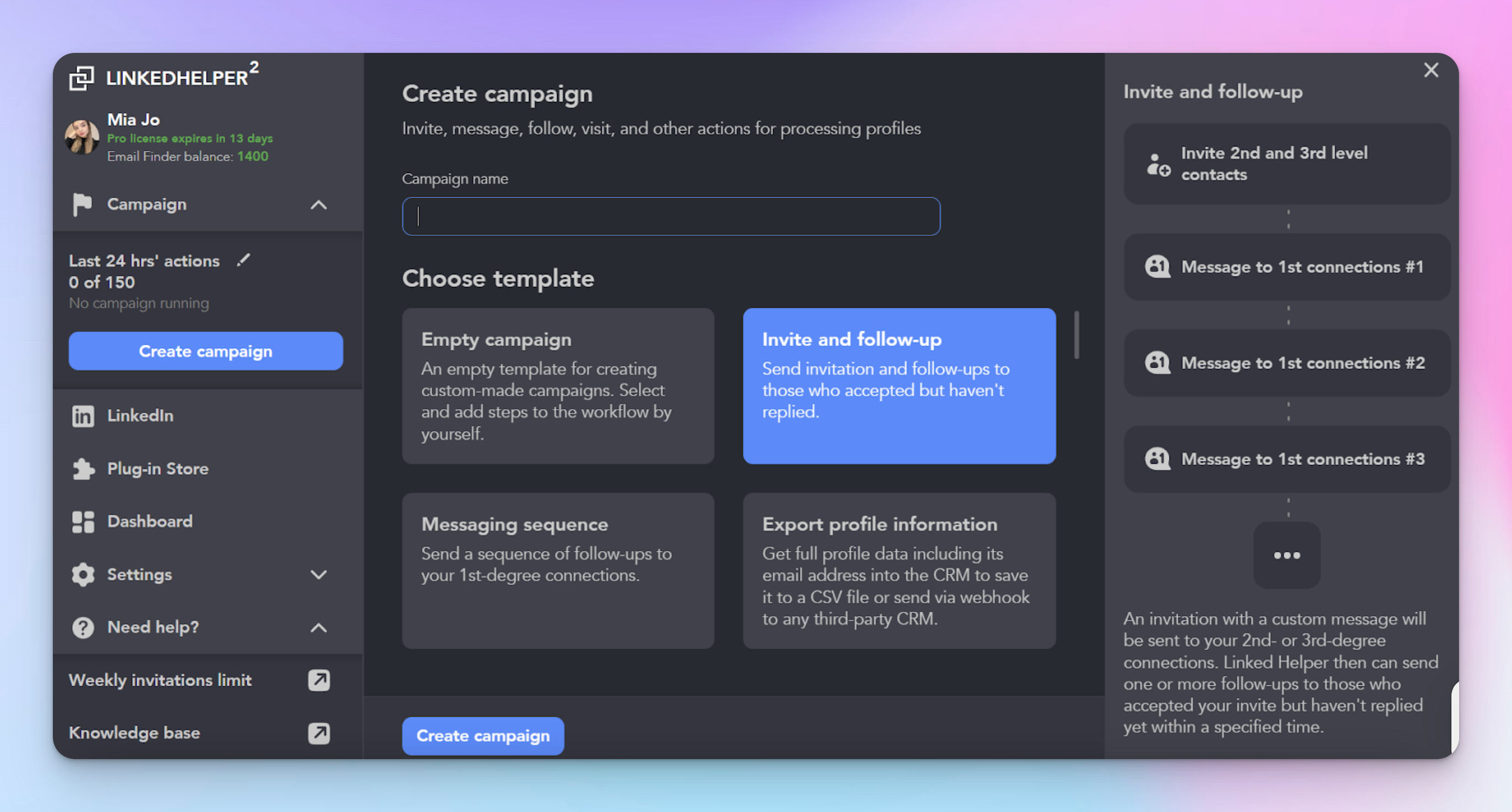
First, click on the “Create Campaign” button.
This will open a new window where you can name your campaign and choose a template. You can also choose to create a custom campaign from scratch.
For instance, I picked the “Invite and Follow-up” template.
Step 2: Create an invitation message template
After selecting the template, it came with pre-written outreach text, which didn't quite suit my style.
So, I decided to give it a personal touch, adding my own tone of voice. I made it friendlier and opted for the "first name" variable.
Of course, you can customize it further by choosing variables like last name, company, position, and more, depending on your preferences.

A cool feature is the “Smile Picker,” which lets you add emojis directly, and the integration with Hyperise for personalized images.
Step 3: Set up automatic invitation cancellation
The third step is about automatically canceling invitations that have not been accepted.
Tick the “Enable” box to activate the feature.
Then set the timeframe.
Linked Helper recommends that you delete invitations that have not been accepted after four weeks.
There is a drop-down menu labeled “Cancel invites sent” where you can choose how far back Linked Helper will look for invitations to cancel.
I selected a 30-day period, but feel free to adjust it to a timeframe that works best for you.
After you set it all up, click “Next”.
Step 4: Create your first message to newly added connections
Now you can create automated welcome messages for new connections. I personally tick the box because I prefer to completely personalize my welcome messages, so I didn’t want to use this feature.
But if you decide to send a message to newly added connections, simply untick the box and write your message in the box below. Keep it short and sweet and avoid boring, generic messages.
Click “Finish” and at that moment your campaign will be successfully configured.
Now it’s time to add profiles to the campaign.
There’s also a “ignore generic replies” plug in. It allows you to set common phrases—like “Thanks for connecting”—that shouldn’t count as “real replies”.
Step 5: Choose your profile source & LinkedIn website
Here you choose where you want to find the profiles that you’ll be messaging in your campaign.
There are two options:
- LinkedIn website: Target people you can find on LinkedIn, including people in your Sales Navigator or Recruiter (Talent) network if you have those subscriptions.
- External file: If you have a list of email addresses or profile URLs in a CSV, TXT, or HTML file, you can upload it here.
Since I didn’t have an external file, I selected the first option and then chose to select prospects directly from my LinkedIn.
Next, I had to select which exactly LinkedIn page I’d use for collecting connections and I picked the “Search page”.
Once I clicked "Next," I received the instructions page explaining the next steps.

Step 6: Start the campaign
This is the final phase of the process.
First, you'll see your LinkedIn page with a list of potential connections. Your next step is to click the button resembling a billiard balls triangle in the left sidebar below “Campaign”.
Once you hover your mouse over that icon, you'll have the option to choose from the current page that Linked Helper automatically loaded or select another source if you prefer.
I chose the “From current page” option, and then it started to collect profiles.
The final step is to click on the blue “Start campaign” button, and everything will be ready to go.
Pro tip: Linked Helper is initially set with a daily limit of 150 profiles per 24 hours, which is considered safe for your LinkedIn account.
To adjust these limits:
- Go to the "Settings" menu and choose "Limits."
- Here, you can change or disable the 24-hour activity limit. However, I recommend keeping it below 150 actions for account safety.
- You can also set "Action Working Hours" (e.g., messages only sent during 9-5 business hours) and use "Start Time Randomization" to mimic human behavior.
Honestly, Linked Helper serves its purpose well, but there are two things I simply can't overlook, and that's where HeyReach earns two extra points in my opinion:
- List Segmentation: It offers better and more advanced list segmentation for precise targeting.
- Multi-Sender Setup: Multiple team members can send personalized messages together. You can connect numerous accounts to send hundreds of invites daily, rotating through them automatically. Linked Helper does not offer this feature.
2. Linked Helper CRM & integrations
To check out available CRMs, simply click on the Plug-in Store located on the left sidebar. There, you'll find three options to choose from—Tagging system, Built-in CRM, and Inbox.
Tagging system
In Linked Helper, you can assign or remove tags to profiles manually or automatically. Tags help organize similar leads across campaigns, making it easier to track their progress.
You can automate tag actions or do them manually, which gives you more control over managing profile lists.
Use cases
- Automated replies: Linked Helper detects profile replies and sorts them into the "Replied" list. You can then tag profiles for different follow-up actions, making it easy to manage them separately.
- Industry filtering: If you need industry information but lack a Sales Navigator subscription, you can use Linked Helper to filter profiles by industry. Simply assign an industry tag to collected profiles for easy organization and filtering later.
- Withdrawn invitations: Keeping track of withdrawn invitations is useful for future reference. Linked Helper can automatically tag profiles based on invitation status, making it easy to identify and manage them accordingly in the CRM.
Built-in CRM
Linked Helper's integrated CRM is like a central hub for all the profiles you collect through campaigns or CSV files.
It helps you sort and organize profiles easily, add them to new campaigns, and download them as CSV files.
Linked Helper grabs profile data during its interactions and stores it on your computer. The amount of information available depends on whether the profile has been visited or just collected.
Use cases
- Campaign Tracking: When you're running different outreach campaigns, like Proposal A or Proposal B, you can tag profiles to see when they were messaged and which campaign they're in. Later, it's easy to reconnect by filtering profiles with these tags and adding them to a new campaign.
- Profile Organization: You can search for profiles based on the campaigns they were part of or the tags you assigned to them. This makes it simple to export them as CSV files for more analysis.
- Profile List: Sometimes, you just need a list of all profiles you've interacted with via Linked Helper. You can download all profiles from the CRM as a CSV file, share it, and analyze it further using tools like MS Excel or Google Sheets.

Inbox
This feature gathers all your Linked Helper campaign conversations in one spot. It shows profiles whose messaging history was collected from actions like messaging connections, checking for replies, or sending InMails to second and third-degree contacts.
Linked Helper recently added the “Leave response unread” option to its inbox, so you can keep messages unread and avoid missing phone notifications.
It also retrieves messaging history from all interactions, not just those started by LH.
The LH Messaging Hub tracks replies and lets you tag profiles for other campaigns, but in my opinion, it’s not the best way to manage responses.
Conversions happen within the LinkedIn inbox rather than the campaign, so the process feels inefficient and similar to managing responses directly on LinkedIn.
Conversely, HeyReach's unified inbox streamlines response management. Its unified inbox makes managing responses much easier and clearer. For example, I can filter all "unread" messages in a second and respond super fast. That's why I'd prefer HeyReach for this purpose.
Linked Helper integrations
When it comes to integrations, Linked Helper integrates with:
- Close CRM
- HubSpot CRM
- Pipedrive CRM
- Make (formerly Integromat) integration using a custom webhook
- Salesforce
- ActiveCampaign
- Zoho CRM
- Gmail
- Zapier webhooks
- Google Sheets
- Instantly.ai
- Capsule CRM
- Snov.io
Here’s one tip for Google Sheet integration: To switch Linked Helper data to a new sheet keep the original sheet and rename it. Then create a new sheet within the same document and name it "LH." Linked Helper will now send data to the newly created "LH" sheet.
3. Email finder tool
LH Email Finder helps users find emails of their 2nd or 3rd-degree connections through Linked Helper. It fills in email fields in the CRM by matching profile IDs with the database.
You can share data about your 1st-degree connections to get info on your 2nd/3rd-degree connections from other users.
If there's not enough data, it visits the profile for updated info and retries the search.
You can also perform "Data Enrichment" (emails and phones) without even visiting the profile, which saves tons of time.
What are email finder credits?
These credits come with a paid license. Each time you find an email for a profile, one credit is deducted from your account.
If you've already found and saved the emails in your CRM, you won't be charged again. But if you haven't saved them and try to extract them again, you'll need to use credits to pay.
And to purchase more Email Finder credits click on the Email Finder Credits menu in Linked Helper Launcher.
4. Analyzing profiles & company pages
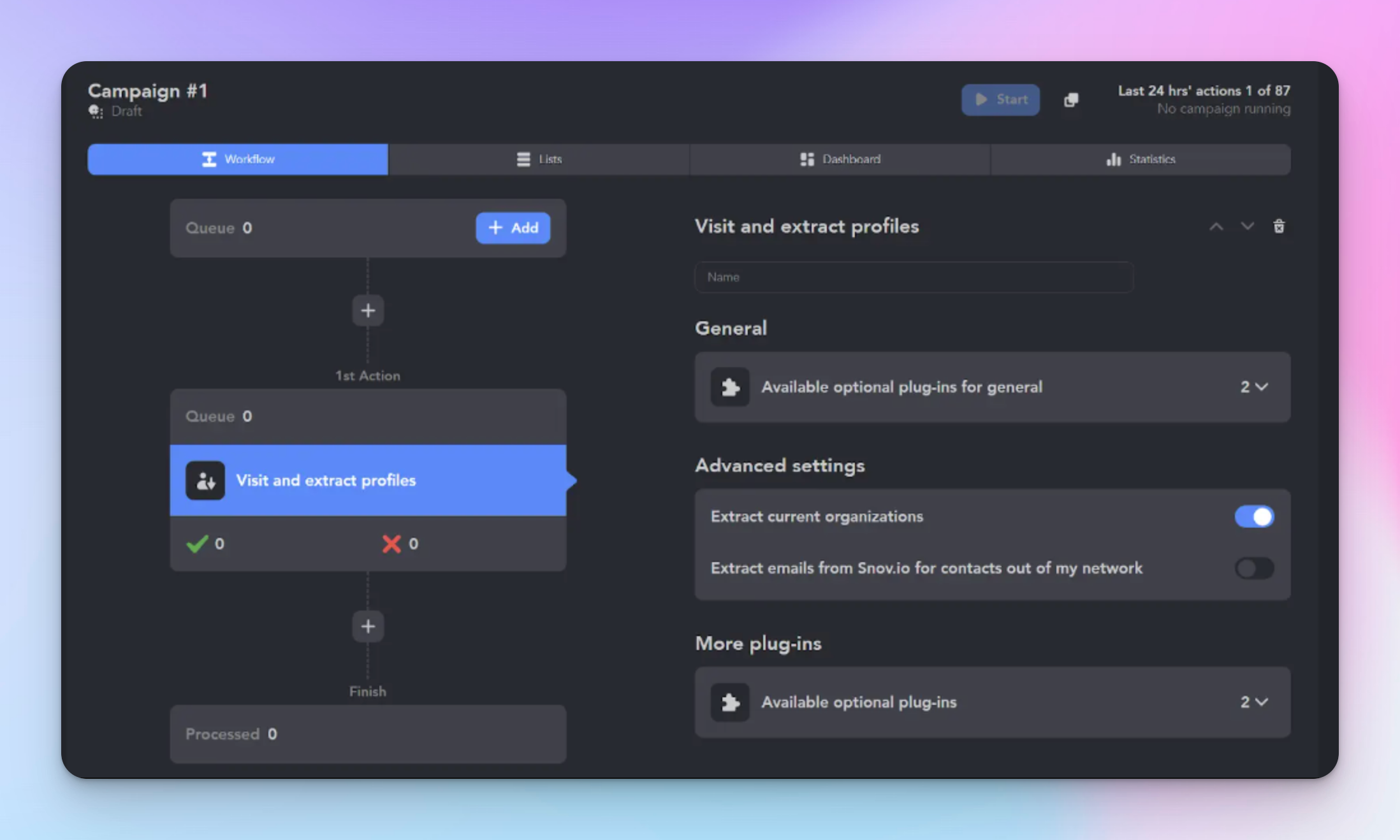
- Gain insights from various profiles with a Visit and Extract campaign and gather data about company pages using the Organizations Extractor.
- Use CRM filters to refine lead queues based on copied profile data.
- Easily import LinkedIn analytics into Excel for further analysis.
- Analyze logos, competitor links, and employee data for market insights.
- Extract company specialties to use as keywords in LinkedIn texts.
You can analyze competitor profiles for self-descriptions, headlines, and summaries, gather top wording for your account, integrate common words and skills, use these phrases in your texts, and find inspiration from competitors' photos.
You'll also find links to your competitors’ websites, contact details, and business page descriptions. With all this at your fingertips, you can quickly whip up the perfect commercial offers and get a great feel for the market.
Analyzing messages & scraping messaging history
Linked Helper checks all replies, too.
First, it looks at the last 200 chats in your inbox to see if any were started with Linked Helper. These chats are saved in your Linked Helper inbox.
The first check might take a while, but later checks are faster because Linked Helper remembers what it already checked.
When it checks, if there's no reply within a certain time, it either moves on or waits for a reply.
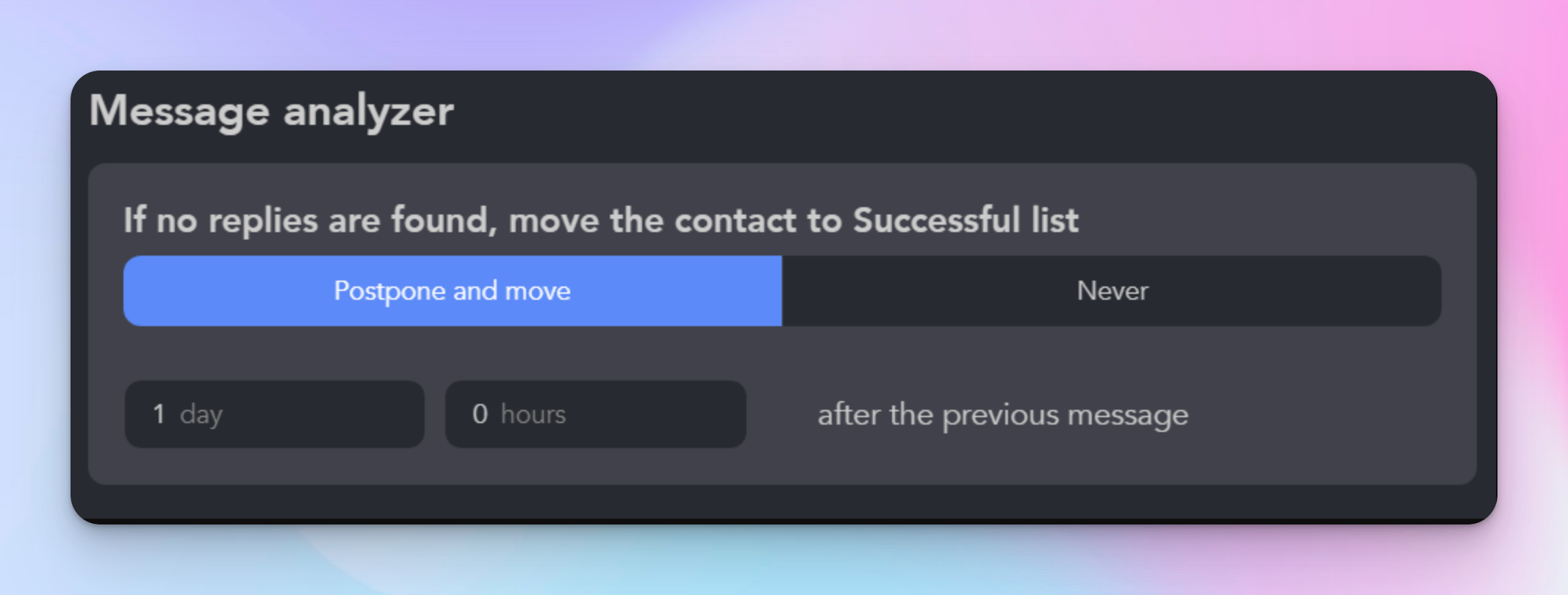
If someone needs more help after replying, they get put on a list. If someone needs to move forward but hasn't replied, they get moved ahead. If it's too early to move someone forward, they wait in line. If a campaign stops, people wait until it starts again. By default, it checks every 3 hours, but you can change that if you want.
Sometimes, if it can't find a chat, it searches by typing the person's name, but only for 40 people at a time.
Moreover, Linked Helper does three cool things with messaging history:
- Automatically scrapes it.
- Collects messages from profiles not interacted with via Linked Helper.
- Excludes chats with three or more participants for easier data collection.

You need to have the PRO license to download your chat history as a CSV file or send it to a webhook. Keep in mind that chat history is only collected once and won't update automatically when you chat with someone again.
Also, group chats aren't included in the download. To get the recent chat history, add the profile to the Queue and start the campaign again.,
5. Streamlining lead generation & tracking invite acceptance rate
- Use Linked Helper to find leads and check previous interactions.
- Simplify Ideal Customer Profile (ICP) analysis with Visit and Extract function.
- Set stop words or filters for focused campaigns.
Building a LinkedIn sales funnel with Linked Helper is quite simple.
First, gather potential leads using the built-in CRM. Then, engage with their content by liking and commenting on their posts automatically.
Next, connect with them and send a friendly message introducing yourself and your offer. After that, follow up with more details about your product or service. Keep nurturing the relationship with tailored messages.
- Track bulk invite acceptance rates (100-200 invitations per week).
- Analyze acceptance percentages provided during and after campaigns.
- Set intervals for estimating campaign outcomes with the "Action steps delays" plugin.
If you're experiencing a zero acceptance rate for connection requests, you might have a surplus of pending invitations in your account. In such situations, withdraw all pending requests.
I've found that using the Profiles Auto-visitor tool helps as well. It's good to interact a bit before sending connection requests to 2nd and 3rd-degree connections.
Also, trying to send requests at different times, like in the evening, seems to work.

Linked Helper pricing
Linked Helper offers three pricing plans to suit varying needs:
Free Trial
- All basic features needed to begin with LinkedIn automation.
- Trial duration: 14 days
Standard
- Cost: $15 per month
- Ideal for growing businesses; it includes a standard suite of features for messaging and data scraping on LinkedIn.
Pro
- Cost: $45 per month
- Perfect for businesses seeking advanced lead generation on LinkedIn—maximum features and capabilities.
- The only package with full AI features, Snov.io sync, and downloading chat history to CSV.
Overall, Linked Helper is a pretty cool and reliable tool in the industry, offering affordable plans with a bunch of features.
Linked Helper alternatives
If you're still on the lookout for something different—whether it's more scalable multi-account management, a unified inbox for handling conversations in one place, deeper segmentation, or more advanced automation—you might like these Linked Helper alternatives.
HeyReach
HeyReach is a great tool for improving your LinkedIn outreach efforts.
With features like automating multiple LinkedIn accounts simultaneously and reaching over 1000 prospects per week, it's perfect for lead generation agencies and sales teams.

HeyReach allows managing 50+ accounts efficiently, resulting in an average revenue growth of 4.2x. It offers a unified inbox for all accounts, native CRM integrations, and agency-tailored analytics and reports.
You can build smart automated sequences, and manage hundreds of LinkedIn inboxes in one place.
Also, you can track where your leads drop off, which message copy works best, the current stage of each lead, and how each account compares to others.
Besides all of that, HeyReach supports MCP – a bridge that lets AI models talk directly to your HeyReach account. No more manually clicking buttons or setting up complex API "zaps". You can now control your outreach logic by simply talking to your favorite AI assistant in plain English.
How MCP simplifies your workflow:
- AI-to-action: You can prompt an AI to Find all leads who replied positively today and move them to my Demo booked campaign in HeyReach. The AI understands the command and executes the move for you.
- Intelligent filtering: You can tell your AI to Archive all 'Not Interested' replies and tag leads by their job seniority across all 50+ accounts at once.
- Cross-platform connectivity: HeyReach plugs directly into the rest of your AI stack. Your AI doesn't just write the messages anymore. It actually manages the entire outbound sequence.
Here’s how HeyReach additionally differs from Linked Helper:
- Built for agencies: It meets the needs of agencies and comes with advanced features for efficient client management.
- Affordability: More budget-friendly for agencies, as it doesn't have per-seat pricing. This makes it easier and more cost-effective to scale an agency's operations.
- List segmentation: More precise targeting with advanced segmentation options.
- Multi-sender setup: It allows multiple team members to send personalized messages at the same time, automating invite sending across multiple accounts.
- Workspaces & permissions: Organize client accounts and teams into separate workspaces with role-based permissions for cleaner client management.
- Integration stack: Native integrations with CRM and GTM tools (like HubSpot, Pipedrive, Clay, Trigify, Make, Zapier) plus robust API/webhooks to plug outreach into your broader workflow.
- Proxies & account infrastructure: Supports adding your own proxies (or using provided ones), giving agencies more control over proxy setup for safety and scalability.
- Unified inbox: It has a unified inbox, unlike Linked Helper where conversations are managed within the LinkedIn inbox.
Other Linked Helper competitors
Other Linked Helper competitors worth considering include Expandi, Waalaxy, and Dripify, as well as Zoho CRM, Apollo.io, ZoomInfo SalesOS, HubSpot Sales Hub, Revenue Grid, Reply, Fathom, and Instantly.

Try it for free
Frequently Asked Questions
1. What is a Linked Helper?
Linked Helper is a LinkedIn automation tool that helps you find leads, send connection requests and messages, and manage outreach campaigns automatically.
2. How much does Linked Helper cost?
Linked Helper has a 14‑day free trial. After that, the Standard plan is around $15 per month and the Pro plan is around $45 per month.
3. What are the alternatives to Linked Helper?
Alternatives include HeyReach, Expandi, Waalaxy, Dripify, HubSpot Sales Hub, Apollo.io, and ZoomInfo SalesOS.
4. Is Linked Helper safe to use?
Linked Helper is generally safe if you follow LinkedIn’s limits, but any automation tool carries some risk of account restrictions if overused.
5. What is the difference between HeyReach vs Linked Helper?
HeyReach has a unified inbox and better response management, supports multiple accounts/senders, and offers more advanced segmentation; Linked Helper focuses on automated outreach tasks without a centralized inbox or multi‑sender support.