HeyReach + Smartlead integration: Complete setup guide
Published:
December 17, 2025
Updated:
December 19, 2025
Ready to turn your LinkedIn outreach into a full multichannel operation? The HeyReach x Smartlead native integration lets you coordinate LinkedIn and email campaigns seamlessly—no Zapier, no manual exports, no data gaps.
Whether you're pushing LinkedIn responders into email sequences or routing email replies back to LinkedIn nurture campaigns, this integration gives you the infrastructure to run coordinated, high-converting outreach at scale. Perfect for agencies managing multiple clients, sales teams running ABM plays, or anyone serious about multichannel prospecting.
This guide walks you through both workflows: sending leads from HeyReach to Smartlead, and vice versa. By the end, you'll have a fully automated multichannel outreach system that can double or triple your response rates.
The building blocks: What's what?
HeyReach
LinkedIn outreach automation platform that helps you run multi-account campaigns, manage team collaboration, and generate leads through LinkedIn.
Smartlead
Email outreach platform designed for cold email campaigns, deliverability optimization, and automated email sequences.
What they solve together
This native integration powers true multichannel outreach by combining LinkedIn (HeyReach) and email (Smartlead) into one seamless workflow. You can now:
- Automatically push LinkedIn leads into email follow-up sequences
- Route email responders back into LinkedIn nurture campaigns
- Coordinate timing between channels to avoid message overlap
- Increase response rates by 2-3x through coordinated multi-touch outreach
🍿 Watch the full integration walkthrough:
Setup instructions (step by step)
Workflow 1: Send leads from HeyReach to Smartlead
Step 1. Generate your Smartlead API key
- Open Smartlead and navigate to Settings → Profile → Smartlead API Key
- Copy the API key
Step 2. Connect Smartlead in HeyReach
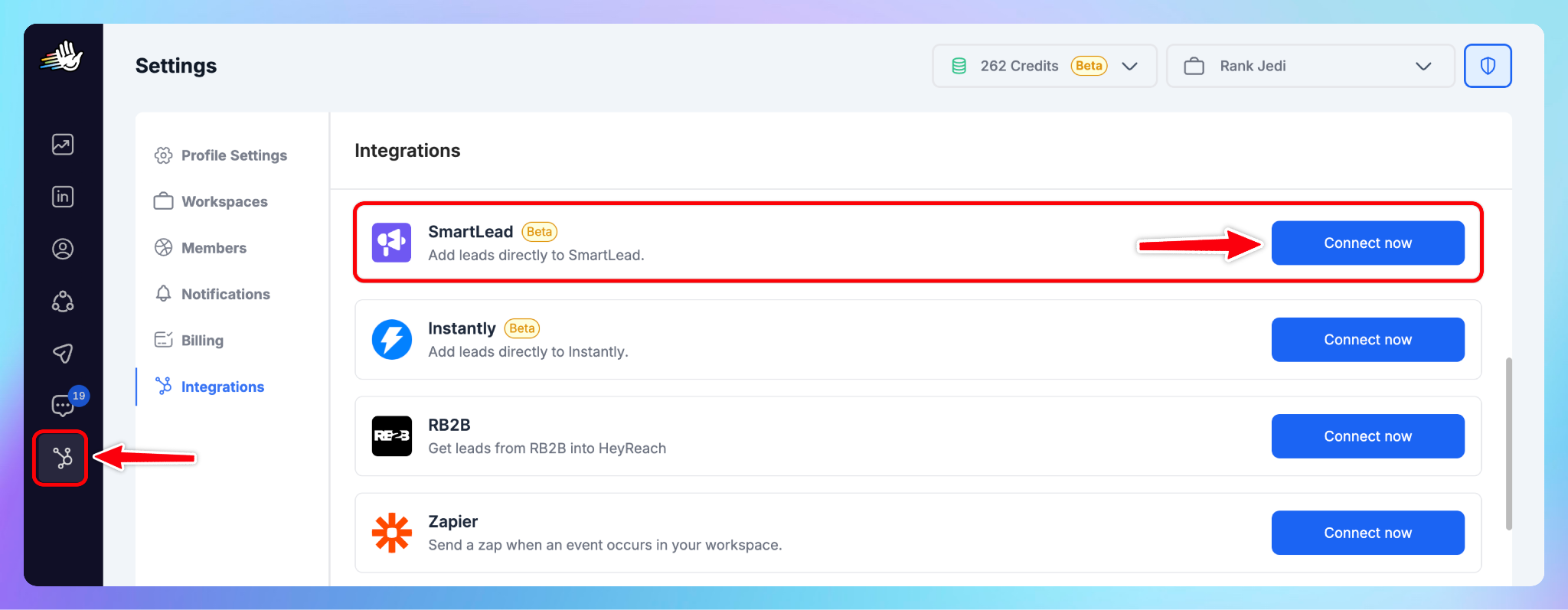
- In HeyReach, go to Integrations → Smartlead
- Click Connect Now
- Paste your Smartlead API key
- Save
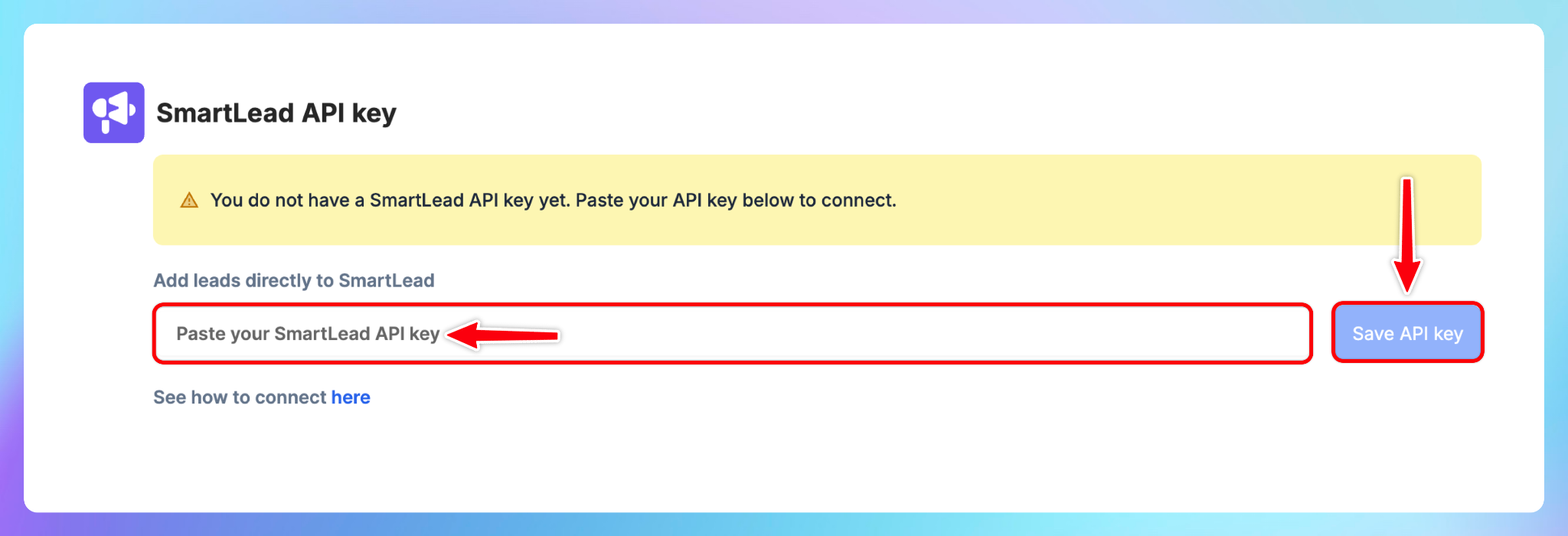
Once saved, you'll see the integration marked as connected. ✅
Step 3. Add the "Add to Smartlead" action to your campaigns
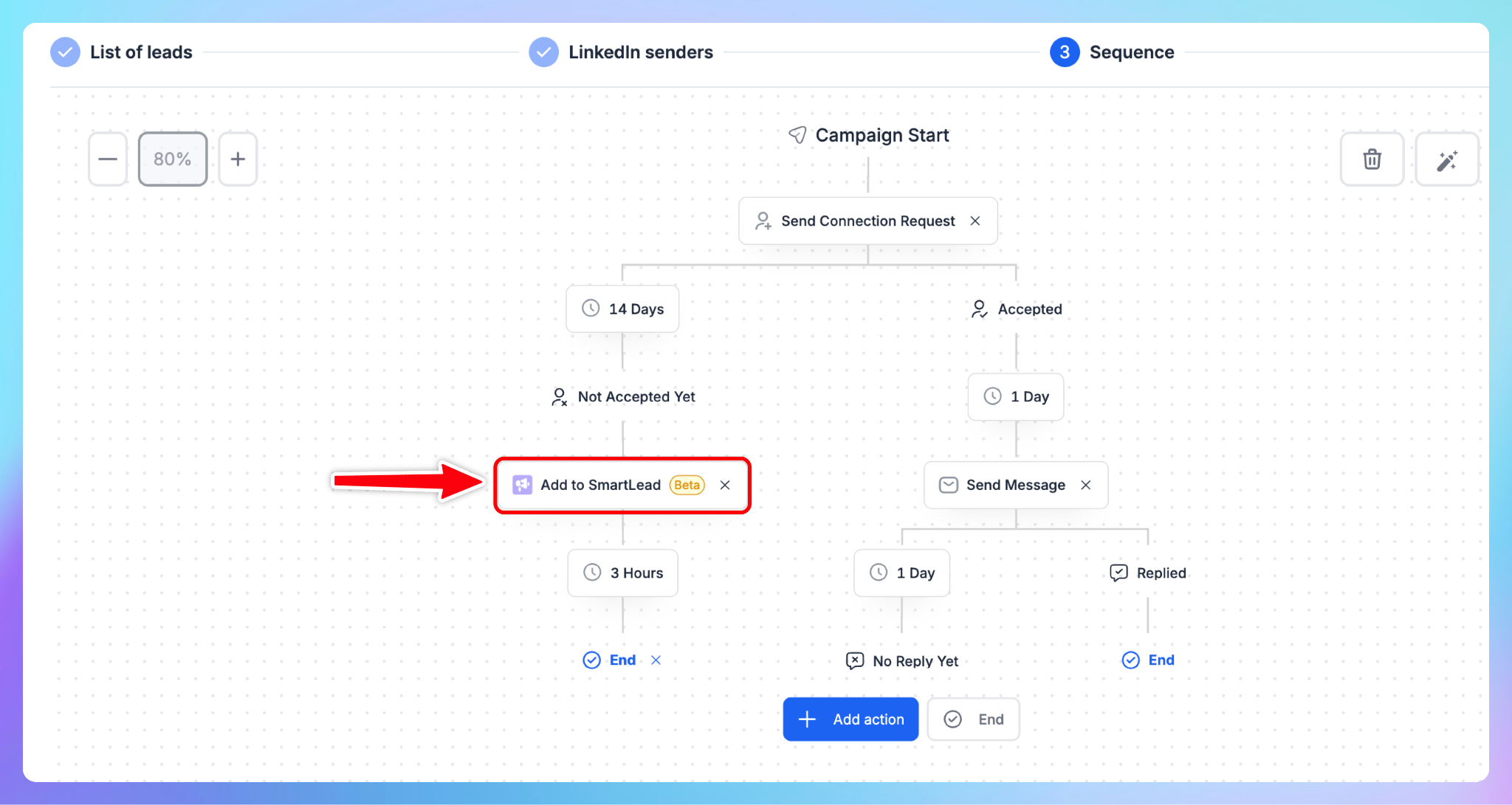
- Choose the Add to Smartlead action in your HeyReach campaign
- From the dropdown, select the Smartlead campaign you want to send leads to
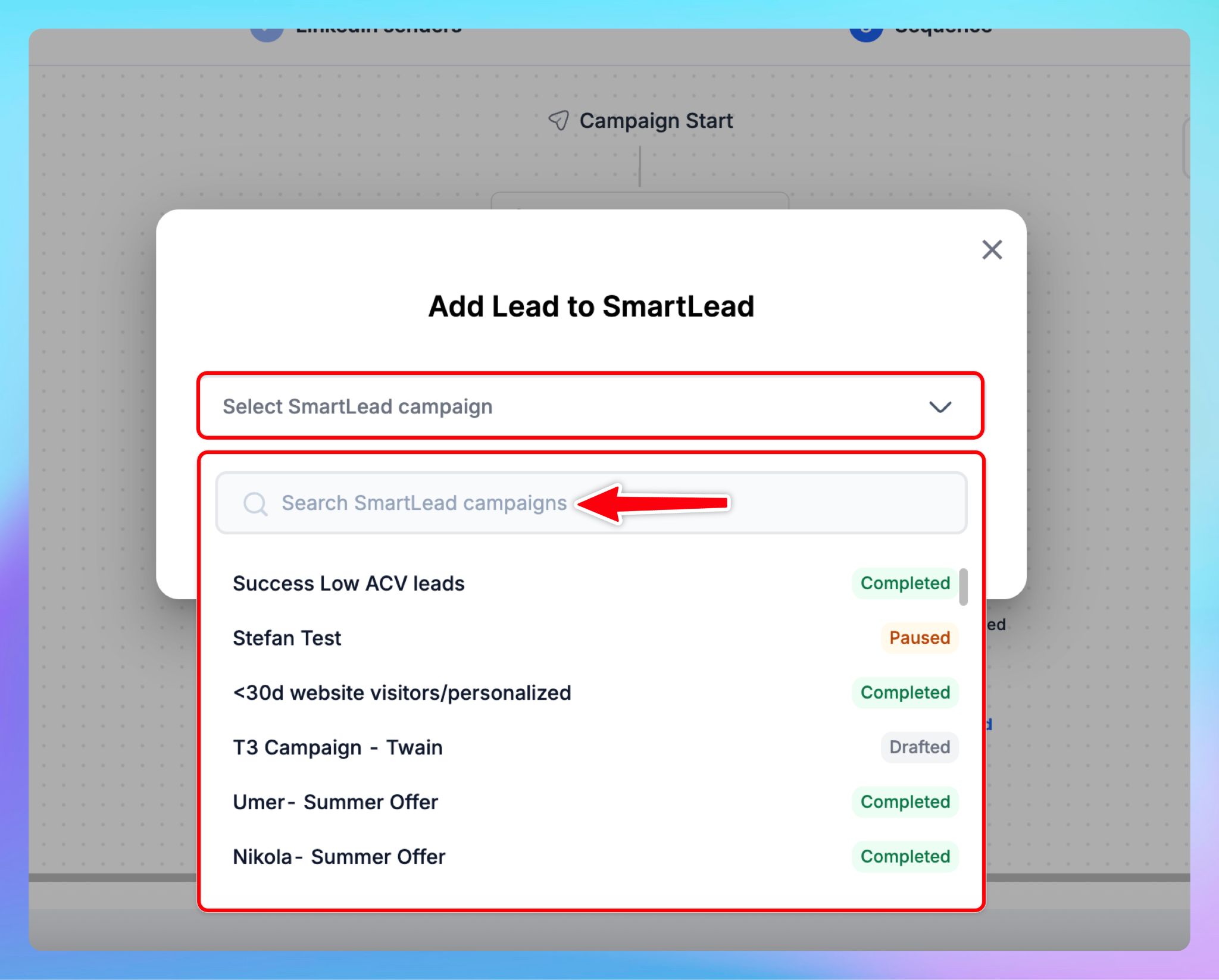
💡 Important: Campaigns must already exist in Smartlead before they'll appear in the HeyReach dropdown.
🚨 Note: The Smartlead integration is not available for white-label users.
Workflow 2: Send leads from Smartlead to HeyReach
Step 1. Create a SmartAgent in Smartlead
- Open SmartAgents in Smartlead
- Choose one of two options:
- Option A: Build your own SmartAgent by typing custom prompts/instructions
- Option B: Use a template (e.g., "Push Replied Lead to a HeyReach Campaign")
- If using a template, click Use This Template
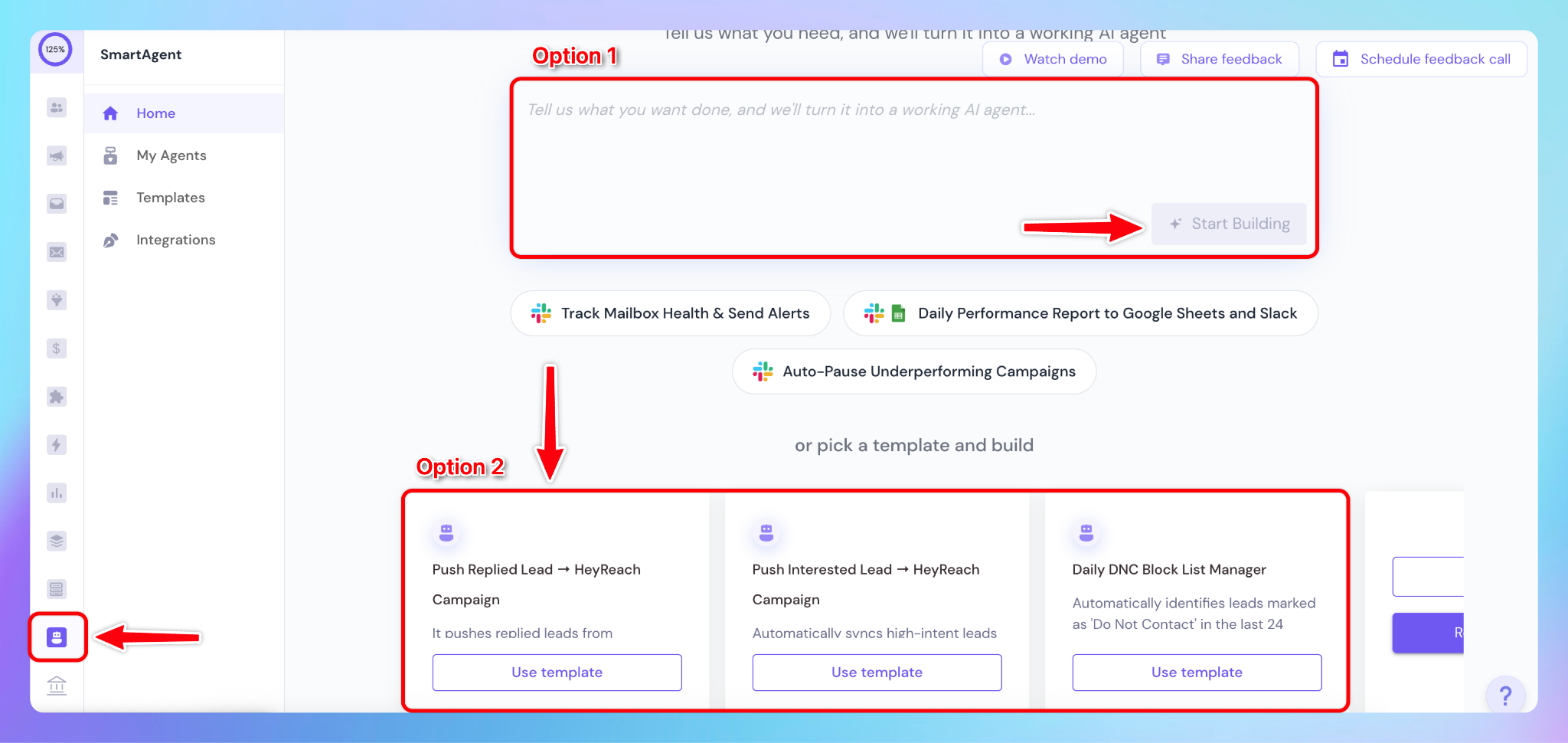
🧠 If building from scratch: Make sure to set up a SmartAgent Trigger before proceeding.
Step 2. Generate your HeyReach API key
- In HeyReach, go to Integrations → HeyReach API → Get API Key
- Click Generate and copy the API key
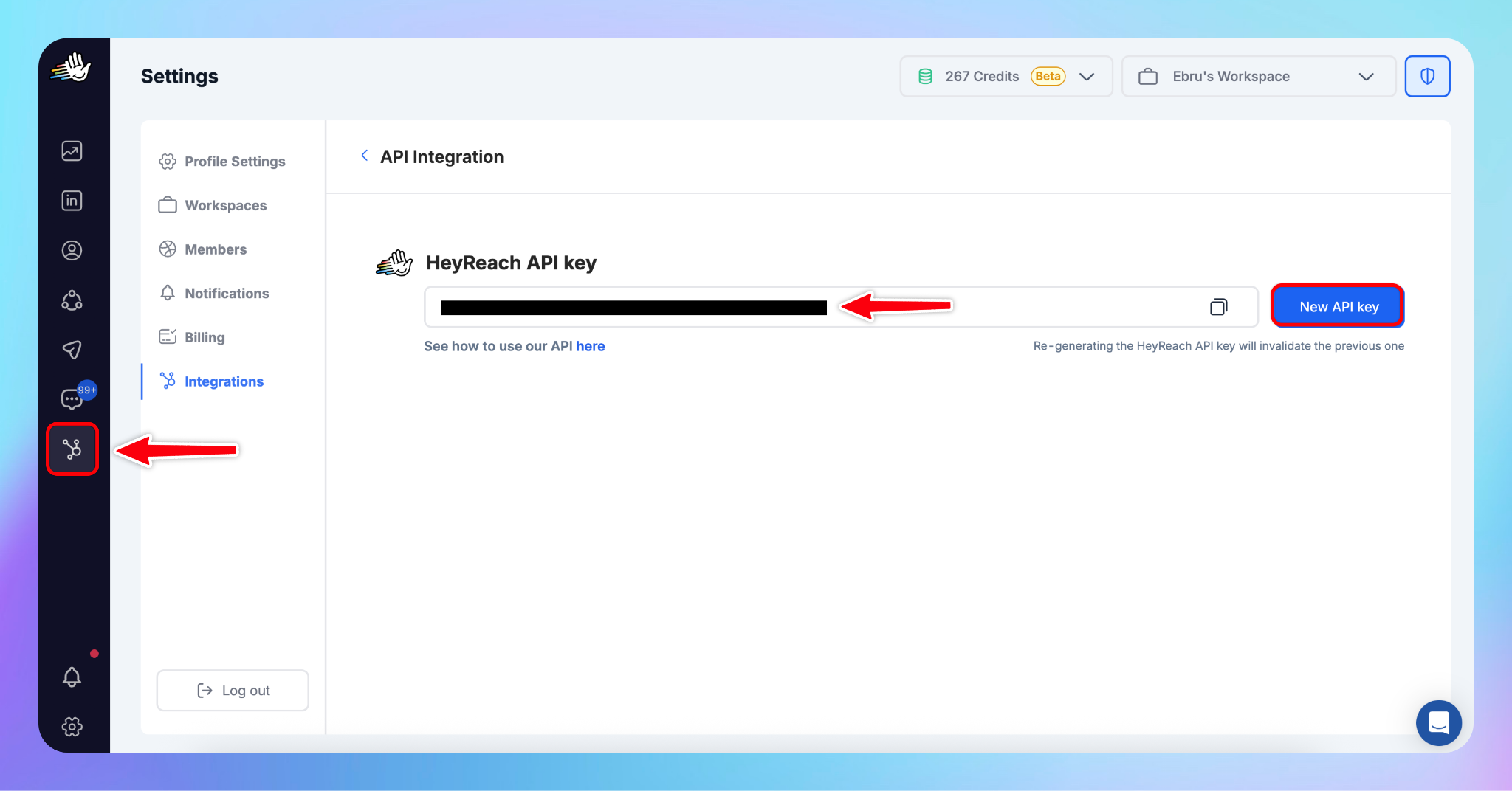
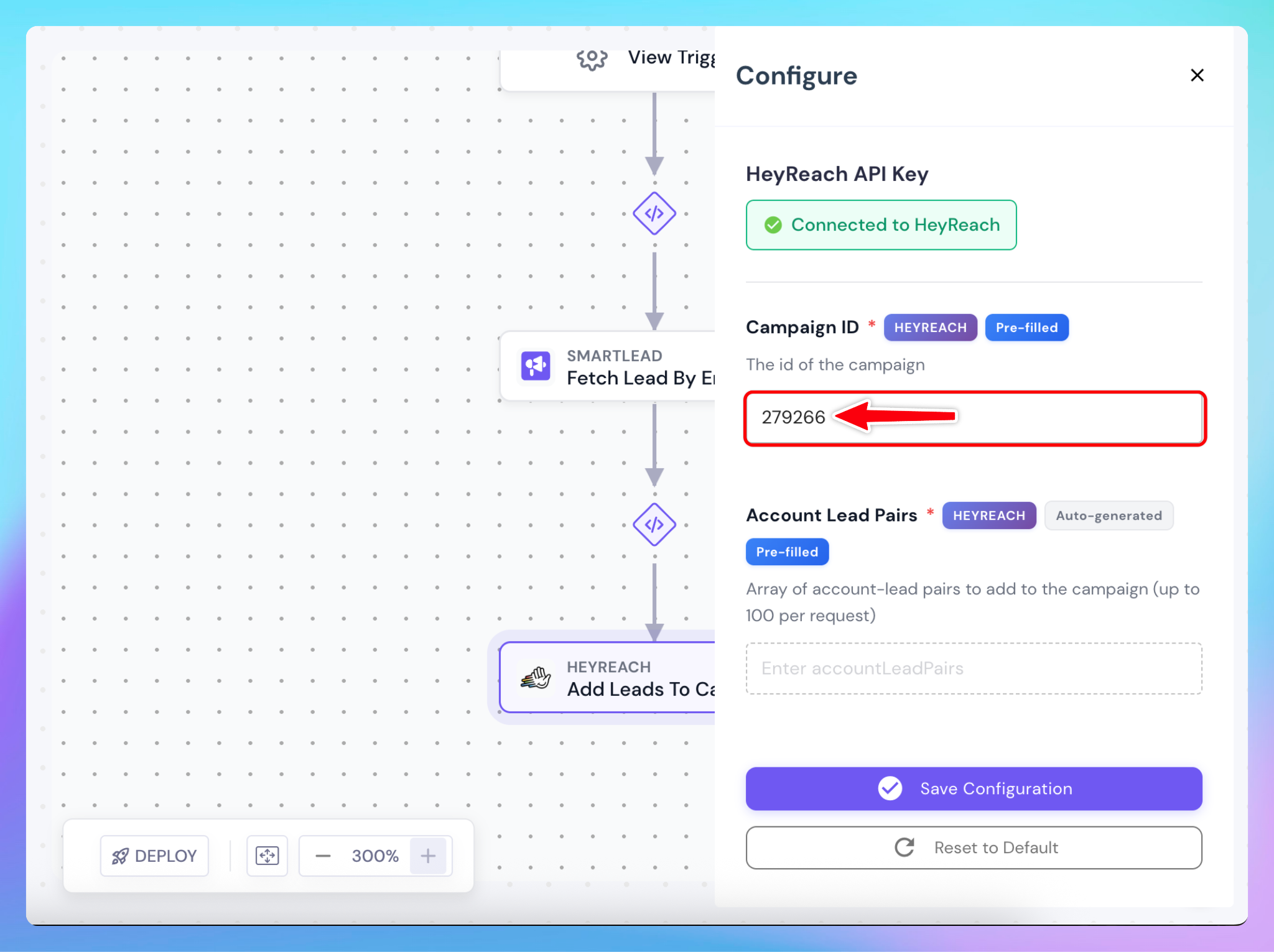
Step 3. Connect HeyReach in Smartlead
- Return to the SmartAgent Builder in Smartlead
- Click Connect HeyReach
- Paste your HeyReach API key
- Click Connect
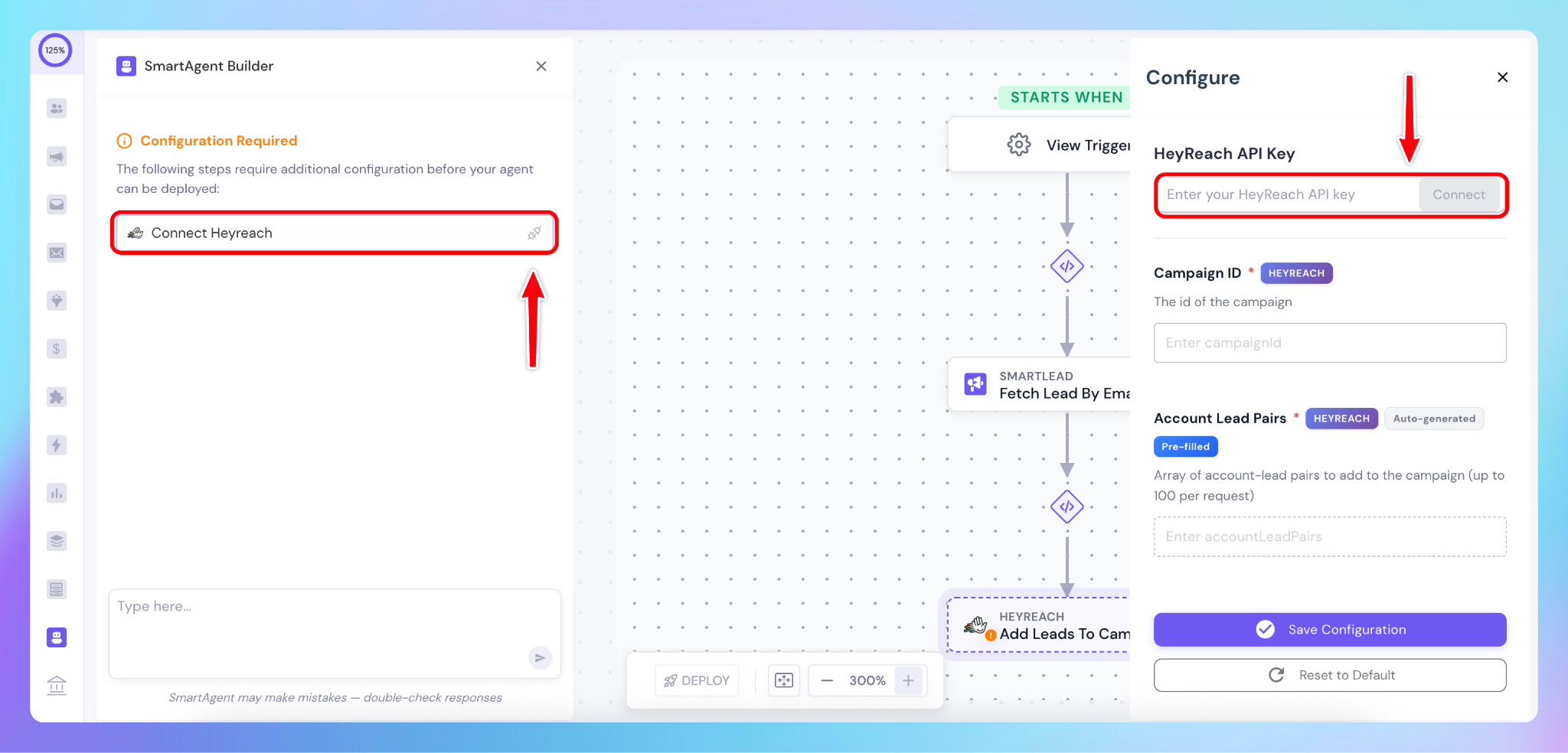
You'll see a green confirmation label once connected. ✅
Step 4. Add your HeyReach Campaign ID
- In HeyReach, open Campaigns
- Select the campaign you want to receive leads
- Copy the campaign ID from the browser URL
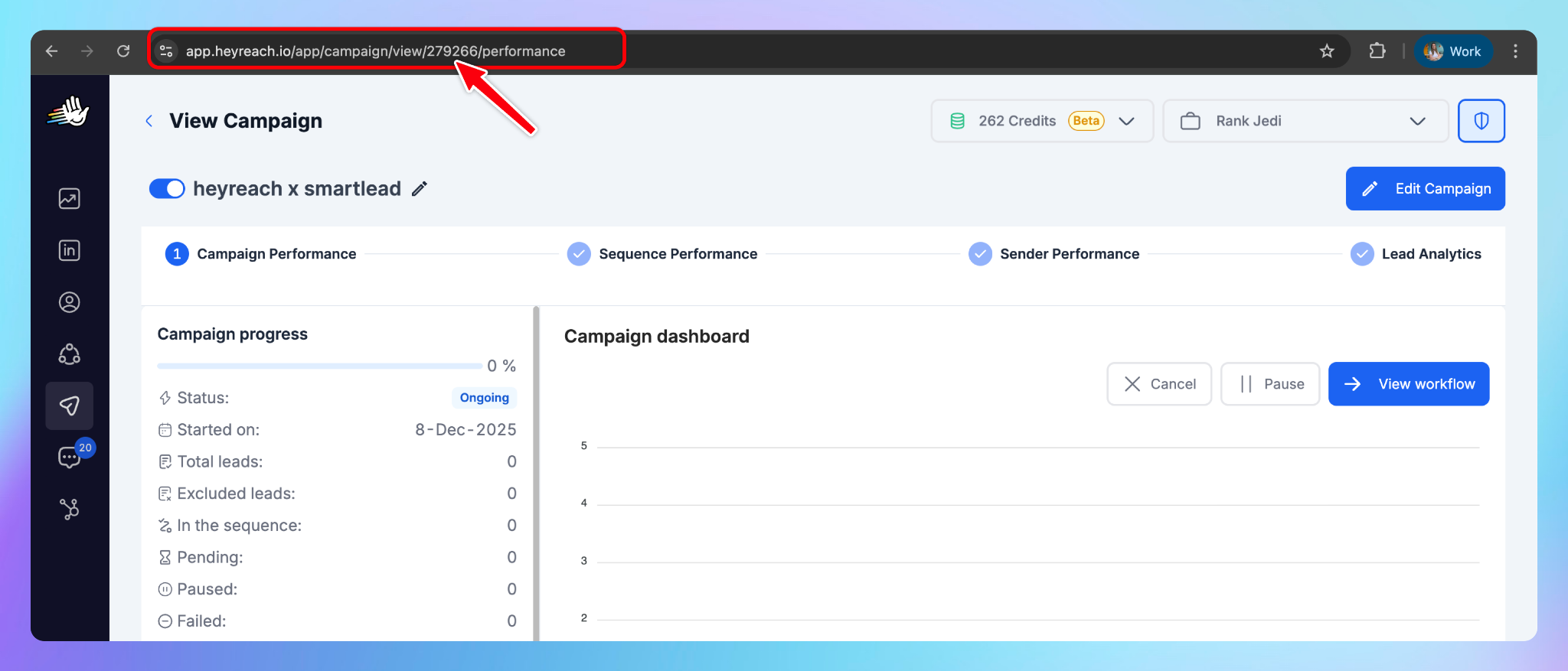
- Paste this ID into Smartlead and save
Step 5. Choose your Agent Trigger
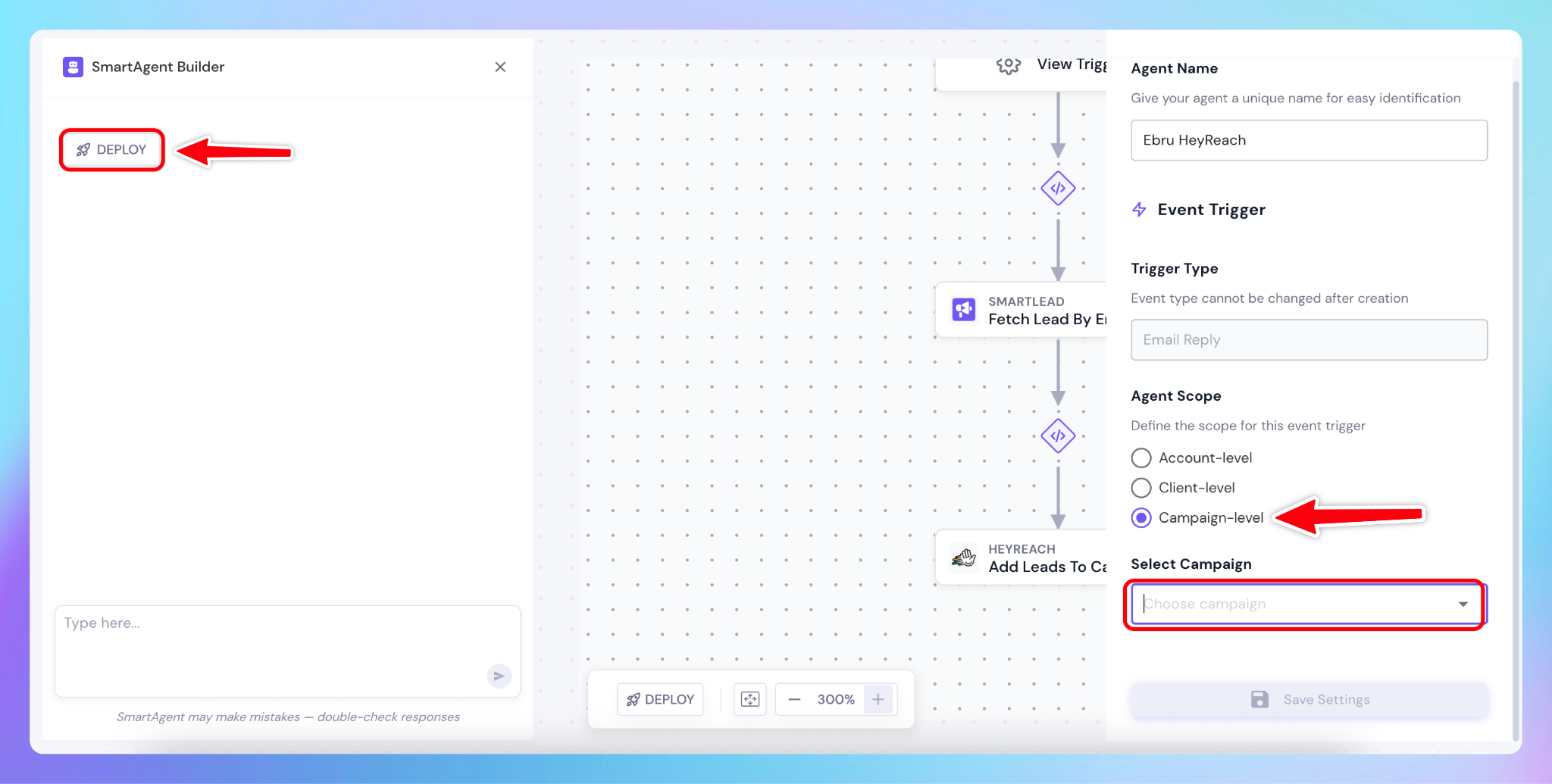
- Select your trigger level:
- Account-level (all accounts)
- Client-level (specific client)
- Campaign-level (specific Smartlead campaign)
- Click Deploy in Smartlead
- If using Campaign-level, select the campaign from the dropdown
- Save your configuration
Quick-start checklist
For sending HeyReach → Smartlead:
- Smartlead API key copied from Settings → Profile
- API key pasted into HeyReach under Integrations → Smartlead
- Smartlead campaigns created and visible in HeyReach dropdown
- "Add to Smartlead" action added to HeyReach campaign
- Email enrichment configured (if needed)
For sending Smartlead → HeyReach:
- SmartAgent created in Smartlead (custom or template)
- HeyReach API key generated from Integrations → HeyReach API
- API key pasted into SmartAgent and connected (green label visible)
- HeyReach Campaign ID copied from browser URL
- Campaign ID pasted into Smartlead configuration
- Agent trigger level selected (Account/Client/Campaign)
- SmartAgent deployed and active
🎯 You're all set! Your multichannel outreach machine is now running.

Try it for free
.avif)