HeyReach + Bitscale: Turn signals into LinkedIn outreach, automatically
Published:
May 6, 2026
Updated:
May 6, 2026
You've built a solid ICP. You're running campaigns. But somewhere between "person visits your pricing page" and "person gets a relevant LinkedIn message," the workflow falls apart — usually because there's a human in the middle copying data between five tools.
Meanwhile, the leads that actually matter — the ones showing intent right now — sit in a queue. By the time someone gets to them, they've moved on or signed with a competitor. And the static lists you keep grinding through? They're missing the people who are actually in-market this week.
The HeyReach + Bitscale integration closes that gap. Bitscale picks up the signal, runs the enrichment, and pushes a ready-to-go lead into HeyReach — which fires off the LinkedIn sequence while the intent is still warm.
Here's how to set it up.
🍿 Watch the full integration walkthrough:
The building blocks: What's what?
HeyReach – A LinkedIn automation platform built for scale. It lets you run personalized outreach campaigns across multiple LinkedIn accounts, manage sequences with smart delays and conditions, and track every connection request, message, and reply. Whether you're an agency managing dozens of accounts or a sales team running high-volume prospecting, HeyReach handles the LinkedIn side — safely, efficiently, and at scale.
Bitscale – A signal-driven GTM platform for lead sourcing, enrichment, and automated outbound. It pulls from 50+ data sources and runs enrichment as a waterfall — if one provider misses an email or phone number, the next one runs, and so on, until it finds a verified result. The starting point can be almost anything: a LinkedIn post's comment section, a job board, a competitor's follower base, an inbound form, or anonymous website visitors. Once contacts are enriched, Bitscale pushes them straight into HeyReach.
What they solve together
- Signal → outreach in the same hour. A lead that hits your pricing page can be in a HeyReach sequence before they've finished their coffee.
- No more dead lists. Stop running outbound on the same static ICP file from three months ago — feed HeyReach with fresh, qualified, signal-based leads.
- Personalization that holds up. Bitscale's BitAgent can generate a custom opening line per contact (referencing the post they commented on, the role they just opened, the page they visited), then map it directly to a HeyReach variable.
- Waterfall enrichment kills the "missing data" problem. If one provider doesn't have a LinkedIn URL or work email, the next one fills it in — so more of your leads actually make it into the campaign.
- Credits stay clean. Run conditions in Bitscale make sure enrichment only fires on rows that pass your ICP check.
Setup instructions (step by step)
The flow is one-directional: Bitscale builds and enriches the lead, then pushes it into a HeyReach campaign. Setup takes under five minutes.
Step 1: Grab your HeyReach API key
- Open HeyReach and go to Settings → Integrations.
- Find the API key section and either copy your existing key or generate a new one.
- Keep this tab open — you'll paste the key into Bitscale in a moment.
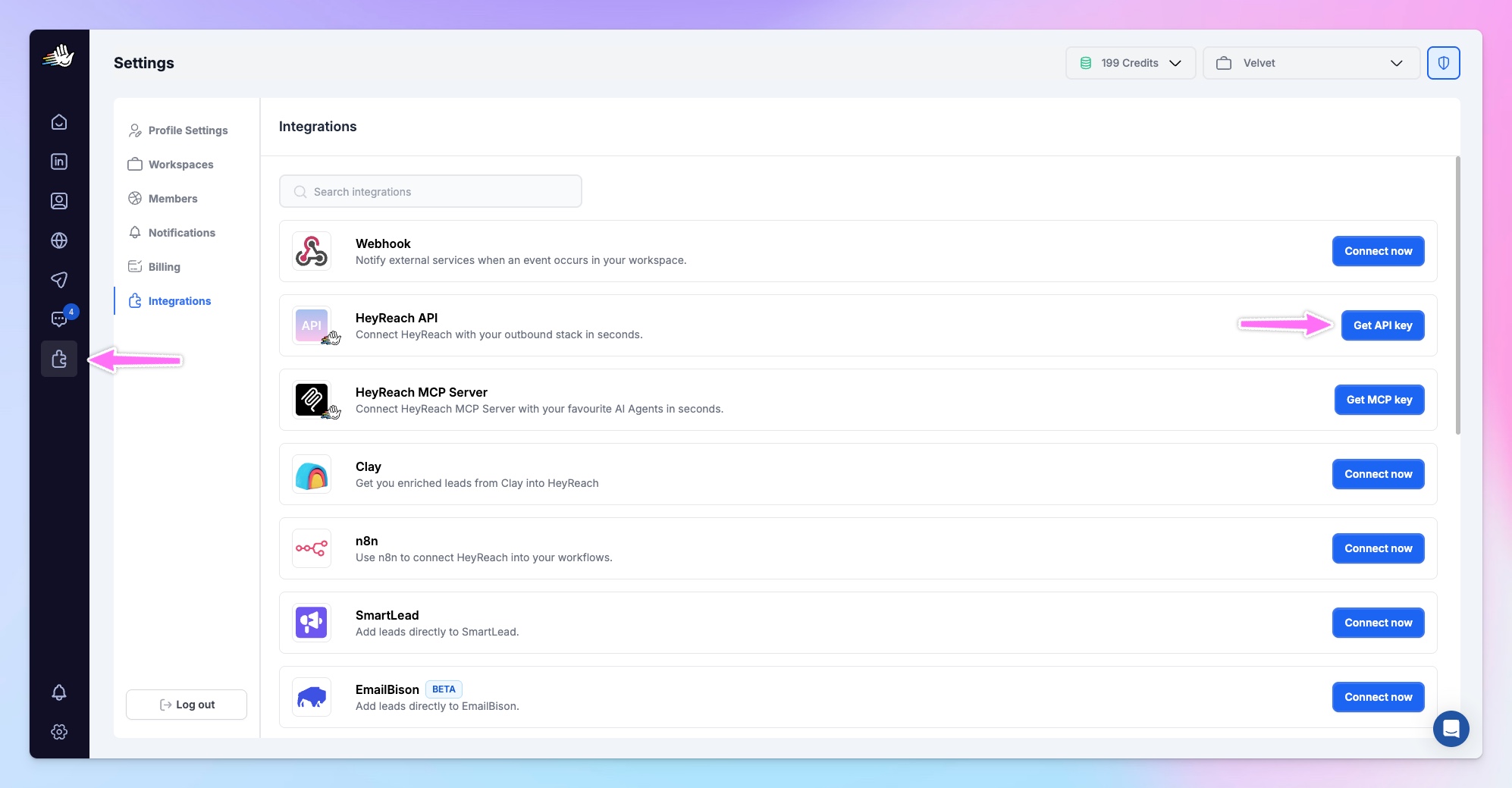
🚨 Don't skip: Your API key is account-level. Treat it like a password — anyone with it can push leads into your HeyReach workspace.
Step 2: Connect HeyReach inside Bitscale
- In Bitscale, go to Integrations → Add Integration.
- Select HeyReach from the list.
- Paste the API key you copied in Step 1.
- Save the connection.
✅ Success state: HeyReach now appears as an active integration in your Bitscale workspace, and you'll see it as a destination option when you build your push action.
Step 3: Build your grid in Bitscale
This is the lead source. The "grid" is Bitscale's working table — think of it as a smarter spreadsheet where each row is a company or contact, and each column can run an enrichment, a check, or an AI prompt.
Pull leads from any of the following:
- Sales Navigator searches (people or companies)
- LinkedIn search results
- Comment scrapers (everyone who commented on a specific post)
- Job board scrapers (companies hiring for specific roles)
- CSV upload
- CRM sync (HubSpot, Salesforce, etc.)
- Webhooks (e.g., website visitor data, form fills)
💡 Pro tip: The narrower and more signal-driven your starting point, the higher your reply rates downstream. "All SaaS founders in the US" is a list. "Founders whose company posted a 'Head of Sales' role this week" is a signal.
Step 4: Run the waterfall enrichments
Add columns to your grid for the data you actually need before pushing into HeyReach. At minimum, you'll want:
- First name
- Last name
- LinkedIn URL (this is what HeyReach uses to identify the lead)
- Company name
- A personalization column (more on this below)
Chain enrichments in sequence — email finder, phone finder, tech stack lookup, firmographics — and Bitscale will skip to the next provider if one returns empty.
💡 Pro tip: Add a run condition to your enrichment columns so they only fire on rows that pass your ICP check (e.g., company size 50–500, role contains "VP" or "Director"). This saves enrichment credits and keeps junk out of your campaigns.
Step 5: Generate a personalization line with BitAgent
This is where the integration earns its keep. Add a column with a BitAgent prompt that writes a short opener for each contact, based on whatever signal triggered the row.
Examples of what to feed BitAgent:
- "Write a one-sentence opener referencing the LinkedIn post they commented on. Keep it under 20 words. No 'I noticed' or 'I saw.'"
- "Write an opener that references the role this company just posted on LinkedIn. Tie it to how our product helps with [your value prop]."
- "Write a one-sentence note about why someone in their role would care about [problem you solve]."
This column becomes your {personalization} variable in HeyReach.
Step 6: Push to HeyReach and map your fields
- In Bitscale, select Push to HeyReach from your grid actions.
- Choose the destination HeyReach campaign from the dropdown.
- Map your columns to HeyReach fields:
- First Name →
{first_name} - Last Name →
{last_name} - LinkedIn URL → LinkedIn profile (required)
- Your BitAgent column →
{personalization}(or whatever custom variable you've set up in your sequence)
- First Name →
- Confirm and push.
⚠️ Watch out: Make sure the HeyReach campaign you're pushing to actually uses the {personalization} variable in its message templates. If the variable doesn't exist in the sequence, your custom line won't render — and you'll just send the fallback.Step 7: Set a fallback in HeyReach
Inside your HeyReach campaign, open the message step that uses {personalization} and set a fallback value. If a row pushes through with an empty personalization column (it happens), HeyReach will use the fallback instead of breaking the message.
💡 Pro tip: A safe fallback is a soft, generic opener that still sounds human — something like "Quick one" or "Wanted to reach out directly". Avoid anything that pretends to reference something specific.
Step 8: Let the campaign run
Once leads are pushed, HeyReach takes over and fires the sequence:
Connect request → View profile → Message → Stop on reply
You can monitor performance in HeyReach's analytics, and any new leads Bitscale pushes will land in the same campaign automatically — as long as you keep the integration mapped.
Common workflows
Here's what teams actually build with this integration.
Workflow 1: Outreach from a competitor's post comment section
Trigger: Someone comments on a competitor's LinkedIn post (announcement, product launch, hiring post).
What happens:
- Bitscale scrapes the comment section.
- Waterfall enrichment runs on each profile (LinkedIn URL, role, company, email).
- BitAgent generates a one-line opener referencing the post itself.
- Qualified leads push into a dedicated HeyReach campaign.
Your sequence opens with a natural reference to the post, which beats cold outreach by a wide margin.
Workflow 2: Catch companies the day a hiring signal appears
Trigger: A company posts a job for an SDR, AE, or other ICP-relevant role.
What happens:
- Bitscale monitors job boards for new postings matching your filters.
- It qualifies the company against your ICP (size, industry, tech stack).
- It finds the relevant decision-maker (e.g., VP of Sales).
- Waterfall runs to fill in contact data.
- Lead pushes into HeyReach with messaging tied to the hiring trigger.
You're reaching out the same week the pain is on their roadmap, not three months later.
Workflow 3: Inbound that doesn't sit in a queue
Trigger: Someone fills out a form on your website, books a demo that no-shows, or visits a high-intent page (pricing, demo, comparison).
What happens:
- Bitscale receives the webhook or resolves the anonymous visitor.
- It enriches their profile (role, company, recent activity).
- BitAgent writes an opener referencing the specific behavior ("Saw you checked our pricing page…").
- The lead drops into a warm-inbound HeyReach campaign within the hour.
Inbound intent stops dying in a queue. No SDR needed for the first touch.
Workflow 4: Re-engage your CRM's cold pile
Trigger: Old closed-lost or nurture-stage leads in your CRM.
What happens:
- Bitscale syncs the segment from HubSpot or Salesforce.
- It re-enriches contact data (people change roles, companies change size).
- It filters out anyone who's now out of ICP.
- Pushes the still-relevant ones into HeyReach for a fresh LinkedIn touch.
Old data becomes new pipeline without buying a new list.
Troubleshooting
Problem: Leads push to HeyReach but the campaign doesn't start.Solution: Check that the HeyReach campaign is active (not paused or in draft). Bitscale can push leads into any campaign state, but HeyReach will only run sequences on active ones.
Problem: {personalization} shows up as a literal {personalization} in messages.Solution: The variable name in your HeyReach sequence doesn't match the one Bitscale is mapped to. Open the campaign, check the exact variable spelling in your message template, and re-map the column in Bitscale's push action.
Problem: Some leads aren't pushing through, even though they're in the grid.Solution: Bitscale skips rows that are missing required fields — most often the LinkedIn URL. Check your waterfall: if the LinkedIn finder didn't return a result for some rows, those rows won't push. Either add a backup provider or filter them out before pushing.
Problem: API key isn't working.Solution: Regenerate the key in HeyReach (Settings → Integrations), then paste the new one into Bitscale. Make sure you're copying the full string — partial copies fail silently.
Problem: Same lead getting pushed twice and landing in two campaigns.Solution: Use HeyReach's exclude lists. Add the campaigns you don't want to overlap, and HeyReach will block any lead already present in those lists from being added again.
Quick-start checklist
In HeyReach:
- ☐ Create the destination campaign and add the LinkedIn sequence
- ☐ Add a
{personalization}variable (or your chosen custom variable) in the message templates - ☐ Set a fallback value for that variable
- ☐ Generate or copy your API key from Settings → Integrations
- ☐ Add exclude lists if you're running multiple campaigns
In Bitscale:
- ☐ Connect HeyReach via Integrations → Add Integration
- ☐ Build your grid from a signal-driven source (not a static list)
- ☐ Add waterfall enrichment columns for email, LinkedIn URL, and firmographics
- ☐ Add a BitAgent column for personalization
- ☐ Set a run condition so enrichments only fire on ICP-qualified rows
- ☐ Map columns to HeyReach fields and push
🎯 You're all set! Signals flow in, enrichment fires automatically, and HeyReach turns them into LinkedIn conversations — without a human in the middle.

Try it for free
.avif)