HeyReach x ElevenLabs integration: setup guide
Published:
November 10, 2026
Everyone's LinkedIn inbox looks the same: a connection request, a "thanks for connecting," and a follow-up that reads like the last ten. Your prospects can spot a templated message in about two seconds.
Voice notes cut through that. Hearing an actual voice feels personal in a way text can't. The problem? Recording a separate voice note for every lead doesn't scale. Record one generic clip and you lose the personalization that made voice notes worth sending.
With HeyReach's ElevenLabs integration, you write the script once, drop in variables like {FIRST_NAME}, and HeyReach generates a unique voice note for every lead, in the voice of your choice — including your own.
This guide walks you through preparing your ElevenLabs account, connecting it to HeyReach, assigning voices to your LinkedIn senders, and adding voice notes to your campaigns without risking a broken sequence.
The building blocks: What's what?
HeyReach – A LinkedIn automation platform built for scale. It lets you run personalized outreach campaigns across multiple LinkedIn accounts, manage sequences with smart delays and conditions, and track every connection request, message, and reply. Whether you're an agency or a sales team, HeyReach handles the LinkedIn side — safely, efficiently, and at scale.
ElevenLabs – An AI voice platform known for lifelike text-to-speech in 90+ languages. You can clone your own voice from a short audio sample, design a new voice from a text description, or pick from thousands of community voices in the ElevenLabs Voice Library.
What they solve together
- Personalized voice notes at scale. One script, a unique audio file for every lead — with their name, company, or any custom field spoken out loud.
- Your voice, not a generic one. Use any voice from your ElevenLabs account, including your own clone, on any LinkedIn sender.
- No HeyReach credits spent. ElevenLabs voice notes run on your own ElevenLabs balance.
- Campaigns that never stall. If a voice note can't be generated or delivered, HeyReach sends a text fallback and the sequence keeps moving.
💡 Don't have ElevenLabs? You can still use voice notes. HeyReach comes with built-in voices (labeled Included), and you can always upload or record your own audio with Static recording.
Before you start
Make sure you have:
- ✅ A paid ElevenLabs plan (Starter or higher). The free plan won't work with HeyReach voice notes.
- ✅ Workspace settings permission in HeyReach.
- ✅ A HeyReach workspace that isn't white-label.
🚨 Why a paid plan? On the free plan, ElevenLabs doesn't make Voice Library voices available through its API, and free accounts are limited to personal, non-commercial use. Outbound campaigns are commercial, so you'll need at least the Starter plan.
Part 1: Prepare your ElevenLabs account
HeyReach doesn't create voices — it imports the voices that are already in your ElevenLabs account (up to 500). So get your voices ready first.
1. Add the voices you want to use
Pick whichever fits:
- Clone your own voice (Instant Voice Cloning). In ElevenLabs, go to Voices → + Create Voice → Instant Voice Cloning, upload a short, clean recording of your voice, confirm consent, and save. Available on the Starter plan and up.
- Use a community voice. Browse the Voice Library, then click + on a voice to add it to My Voices.
- Design a new voice. Use Voice Design to generate a voice from a text description (age, accent, tone).
💡 Pro tip for cloning: Record in a quiet room, with one speaker, at a steady distance from the mic. Background noise and phone recordings make the clone sound off — and that shows up in every voice note.
⚠️ Watch out: Only clone voices you have permission to use. ElevenLabs requires it, and so does common sense. If you're cloning a client's voice, get their sign-off first.
2. Create an API key
- Open your ElevenLabs API keys settings (elevenlabs.io/app/settings/api-keys).
- Click Create API Key and give it a clear name, like "HeyReach".
- Copy the key and keep it somewhere safe. You won't be able to see it again.
💡 Pro tip: ElevenLabs lets you set a credit quota on each API key. Set one on your HeyReach key to cap how much of your ElevenLabs balance your campaigns can use.
⚠️ Watch out: ElevenLabs keys can be set to expire. If you set an expiry, your voice notes will switch to fallback messages the moment the key expires. For campaigns, leave expiry set to Never or put a reminder in your calendar to rotate the key.
Part 2: Connect ElevenLabs to HeyReach
You only do this once per workspace.
1. Open the integrationGo to Settings → Integrations → ElevenLabs.
2. Add your API keyPaste your ElevenLabs API key and select Connect.
3. Let HeyReach import your voicesOnce connected, HeyReach pulls in your available ElevenLabs voices.
✅ Success: Your ElevenLabs voices now show up as an option whenever you assign a voice to a LinkedIn sender.
💡 Good to know:
- Your API key is stored encrypted.
- The connection is workspace-wide: one key, one voice library, shared by every sender in the workspace.
- Added or deleted a voice in ElevenLabs? Hit refresh on the integration page to sync your library.
[VERIFY THIS STEP: exact button label]
Part 3: Assign a voice to a LinkedIn sender
Every sender needs an assigned voice before it can send AI voice notes.
1. Go to LinkedIn AccountsFind the sender you want to set up.
2. Select Assign voice
3. Choose a voice provider
- HeyReach Included — built-in voices, no setup needed
- ElevenLabs — your imported voices (only visible once connected)
4. Pick a voice and confirmBrowse the list, select a voice, and confirm with Assign voice.
💡 Pro tip: You can also assign voices right inside a campaign, in the LinkedIn Senders step. Handy if you're setting up a new campaign and forgot to do it beforehand.
You can change or unassign a voice at any time.
Part 4: Add a voice note to your campaign
1. Open the campaign editorUnder Build your sequence manually, select Voice note (currently in Beta).
2. Choose how to create the voice note
- AI voice from message — write a script and HeyReach turns it into audio
- Static recording — record or upload an audio file
Option A: AI voice from message
1. Write your scriptUse variables like {FIRST_NAME} to personalize it. The estimated playback length shows below the script.
2. Select the sender's assigned voice
3. Generate a previewListen to it and regenerate if something sounds off.
4. Add your fallback message (see Part 5)
5. Save your sequence
💡 Script rules:
- Scripts need at least three words to generate usable audio. Each variable counts as one word.
- Previews only read the first 250 characters of your script, but the full script is used for the actual voice notes.
- You can rate each preview from one to five stars and leave feedback on pacing, pronunciation, or tone.
💡 Pro tip: Write the way you talk. Short sentences, contractions, no bullet-point phrasing. If it sounds awkward when you read it out loud, it'll sound awkward in the voice note too.
🚨 Critical: If your script uses a custom field and a lead has no value for it, the voice note won't be generated for that lead. They'll get your fallback message instead. Clean your data before launching.
Option B: Static recording
1. Record or upload your audio
2. Wait for processing to finish
3. Review the waveform and transcript
4. Save your voice note
💡 Static recordings are the same for every lead, so they're best for general messages that don't need personalization.
Part 5: Set up your fallback message
Every voice note step needs a fallback message. It's the text HeyReach sends when a voice note can't be generated or delivered, so your campaign keeps running instead of stalling.
HeyReach sends the fallback when:
- The lead is missing a custom field used in your script
- Your ElevenLabs API key is revoked, expired, or invalid
- Your ElevenLabs account runs out of credits
- LinkedIn rejects the audio
- You disconnected ElevenLabs
🚨 Critical: Fallback messages are plain text only. You can't use variables like {FIRST_NAME} here, so write something that reads naturally for every lead.
💡 Pro tip: Keep the fallback close to what your voice note says. The lead never knows a voice note was planned, so the conversation still flows.
Managing your ElevenLabs connection
From Settings → Integrations → ElevenLabs, you can:
- Check your connection status
- Refresh your voice library
- Disconnect your account
⚠️ Watch out: Disconnecting doesn't remove voices already assigned to senders. Senders using ElevenLabs voices will send fallback messages until you reconnect or assign them a different voice.
💡 Working via API? Voice note sequence steps, sender voice assignments, and static recordings are also supported through HeyReach's public API v2 and MCP tools.
Common workflows
Workflow 1: Personal voice follow-up after connection

Trigger: A lead accepts your connection requestAction: HeyReach sends an AI voice note in your cloned voice, greeting them by name
Example script:
"Hey {FIRST_NAME}, thanks for connecting! Quick one — I noticed you're leading growth at {COMPANY_NAME} and had an idea I wanted to run by you."
This is the highest-impact spot for a voice note. They just said yes to you, so a real voice right after feels like a natural next step, not a pitch.
Workflow 2: Agency setup — one voice per client sender

Trigger: You're running campaigns from multiple client LinkedIn accounts
Action: Clone each client's voice in ElevenLabs (with their sign-off), refresh your HeyReach library, and assign each voice to the matching sender
Every client's voice notes sound like them, and you manage it all from one workspace.
Workflow 3: Voice note as a "bump" in a quiet thread
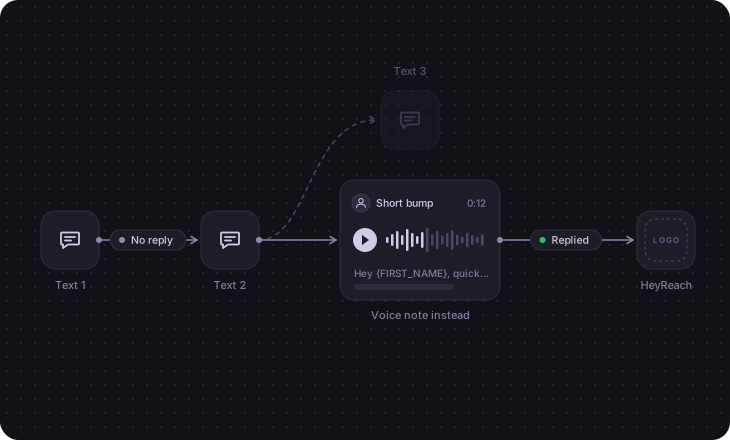
Trigger: A lead hasn't replied to your first two messages
Action: Instead of a third text follow-up, send a short voice note
Three texts in a row start to feel like spam. A short voice note breaks the pattern and gives the lead a new reason to reply.
Workflow 4: Evergreen static recording
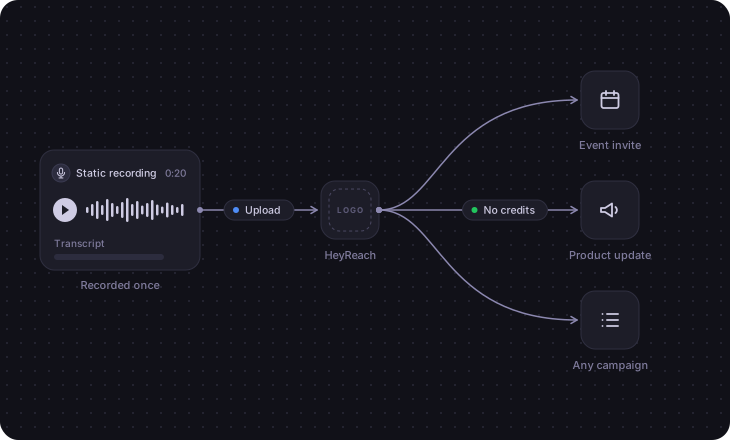
Trigger: You want to share a quick intro that doesn't need personalization (e.g., an event invite or a product update)
Action: Record it once with Static recording and use it across campaigns
No script rules, no ElevenLabs credits, same message for everyone.
Troubleshooting
Problem: You can't see ElevenLabs under Settings → Integrations.
Solution: You need workspace settings permission. The integration also isn't available in white-label workspaces.
Problem: You connected ElevenLabs, but voices won't generate.
Solution: Check your ElevenLabs plan. The free plan doesn't work with HeyReach voice notes, so upgrade to Starter or higher.
Problem: A voice you just created in ElevenLabs doesn't show up in HeyReach.
Solution: Make sure it's saved under My Voices in ElevenLabs (Voice Library voices need to be added with + first). Then refresh your voice library in Settings → Integrations → ElevenLabs.
Problem: Some leads are getting the text fallback instead of a voice note.
Solution: Check whether those leads are missing a custom field used in your script.
Problem: All leads are suddenly getting the text fallback.
Solution: Check your ElevenLabs credit balance and any credit quota on the key, and make sure the key hasn't expired or been deleted. If needed, create a new key and reconnect in HeyReach.
Problem: You can't select a sender for a campaign with voice notes.
Solution: That sender doesn't have a voice assigned yet. Assign one from LinkedIn Accounts or the campaign's LinkedIn Senders step.
Problem: The preview won't generate.
Solution: Your script needs at least three words (variables count as one).
Quick-start checklist
In ElevenLabs:
- ☐ Upgrade to a paid plan (Starter or higher)
- ☐ Clone, design, or add the voices you want to My Voices
- ☐ Create an API key (optional: set a credit quota, avoid expiry)
In HeyReach:
- ☐ Connect ElevenLabs in Settings → Integrations → ElevenLabs
- ☐ Assign a voice to each sender that will send voice notes
- ☐ Add a Voice note step to your sequence
- ☐ Write your script (3+ words) and generate a preview
- ☐ Write a plain-text fallback message (no variables)
- ☐ Check your lead list for missing custom fields used in the script
- ☐ Save and launch
🎯 You're all set! Your LinkedIn sequences now speak for themselves — literally.

Try it for free