How to use HeyReach MCP to monitor and improve LinkedIn campaigns
Published:
August 27, 2026
What is your actual workflow after the LinkedIn outreach campaign is finished? Do you just check the main numbers, report them, and get on to creating another one, or do you actually have the time to analyze what failed and what worked?
Our clients usually share that reaching quotas doesn’t leave much time to analyze after the campaign is finished. This is why we wanted to show you how you can improve your campaign numbers with HeyReach MCP (Model Context Protocol) without any spreadsheet or pivot table gymnastics.
.gif)
When you finish reading this article, you will have a full structure for your weekly loop that you can run in Claude. I will show you how to pull the data, use prompts in plain English, and identify patterns to help you improve your lead generation and get more qualified leads each time you start a new campaign. You will get all that in the form of a chat, not as another file you will never open again.
But before we start, if you are not yet familiar with connecting HeyReach MCP and pushing a campaign through it, we have a beginner's guide that will help you with the basic setup.
Pull, analyze, find patterns, and pivot
So the real moat is the way you use the data you already have, and MCP can be helpful as it surfaces patterns fast, and runs a quick analysis of LinkedIn messages sent in your previous campaigns.
- Step 1: MCP reads your campaign data from HeyReach dashboard + Benchmark study
- Step 2: Claude analyses segment, timing and openers
- Step 3: It reads replies, clusters them by sentiment, and places objections into themes
- Step 4: Each problematic pattern is signaled to you, so you can change it in the next campaign
Before we begin working trough each step of this process, I must highlight that this tactic works only for finished campaigns. There are occasions when LinkedIn outbound metrics fall in the middle of the campaign, and that requires another job that we call diagnosis. We have created a playbook around broken outbound workflows, which shows our users how to know if the drop came from targeting, copy or execution.
Step 1: Get the data with a simple prompt in Claude
To determine what is actually going on with your outreach, you have to use numbers that are not anecdotal. Don’t check out social media posts to learn about average reply rates, as these are created with branding purposes. Feed Claude with our benchmark report so it can compare your results with results from typical campaigns built in HeyReach.
That way, you will know if the 19% reply rate is any good.
Here is the prompt:
Pull acceptance rate, reply rate, and reply-to-acceptance conversion for my last campaign, broken down by lead list and segment. Then compare each metric against the HeyReach benchmark averages and flag the segments that clearly beat or missed them.
Here is what Claude will use based on our 96,051 campaign data:
After a few seconds, Claude will show you the data you need, all sliced nicely, so you can spend time thinking what to change in the next campaign, instead of going through tons of data in spreadsheets.
Step 2: Find out which parts of the campaign actually worked
Let’s dig deeper into what is behind the numbers your campaign has reached.
Someone less experienced would just check acceptance rate and call it a day.
But if you have been doing campaigns on LinkedIn long enough, you know that there are many people who accept connection requests, and then vanish. This explains why only 18% of all connection requests turn into conversation.
So, if your acceptance rate is around 20% and you feel good about it, it is also worth checking the percentage of reply-to-acceptance conversion. If it is under 9.62%, you have a problem with what is happening after you connect.
Here is a prompt to check that out:
Rank my segments by reply-to-acceptance conversion. Show me the two that beat the campaign average and the two that dragged it down, and tell me how each compares to the HeyReach benchmark.
Our VP of Sales, Nadja Komeninc, explained in her new Substack publication that a huge role in this acceptance-to-reply rate plays the timing of your first message. The moment you get the most attention from your prospect is the moment when they accept your connection request, so don’t wait too long to send a message. Our usual strategy is 2-3 hours tops for initial messages, which you can set up when creating your sequence.
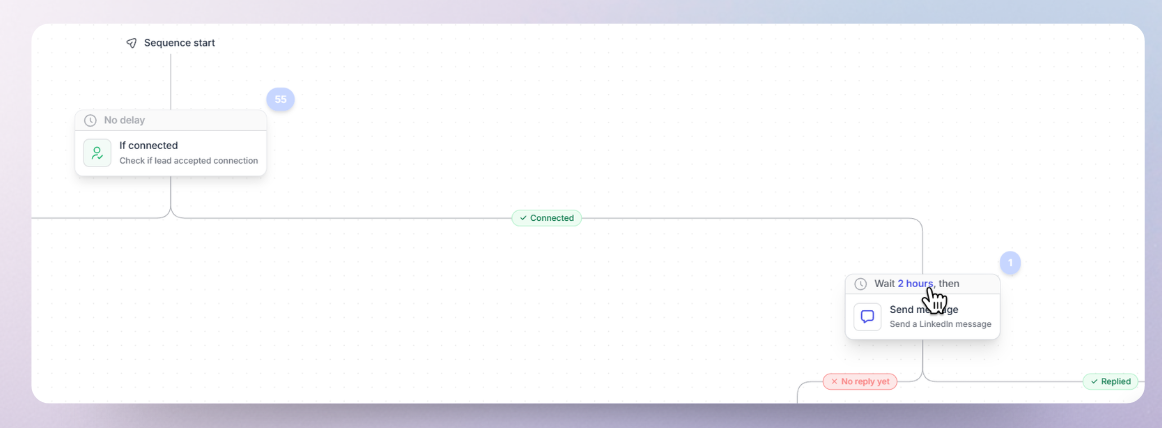
Another important thing that can make or break this process is the opener message.
To find out which opener worked well, use this prompt:
Compare reply-to-acceptance conversion across my opener variants and my send timing after acceptance. Tell me which opener and which timing window earned the most replies.
Step 3: Find what actually worked (analyze by segment)
Looking at numbers will give you a clearer picture, but there are so many nuances you can miss if you rely only on numbers. For example, you can see the number of replies and think that the campaign was solid, but when you dive deeper into the sentiment of those replies, you might get a different picture. Some of the prospects might answer negatively, or they might ask questions that will help you create a better opener next time.
So now, let’s point Claude into your Unibox, so it can show you answers based on sentiment:
Pull my replies from this campaign in Unibox and cluster them into themes: interested, wrong timing, wrong person, price or priority pushback, and not relevant. Tell me what share of the negative replies fall into each theme.
Be careful with this step, as this one will need your professional judgment. Claude can group by sentiment, but only you can see if the objection from the prospect was real.
Step 4: Turn objections into new designed campaigns
In this step, we will gather all the information about segmentation and numbers that are failing, and use them to create your next campaign.
Go through grouped answers, and map out strategy for each type of answer like this:
1) If you are getting “This is not a priority message”, this is an issue with timing, and targeting, and you need to get better at list hygiene and finding better signals
2) If you are getting “Wrong person” messages, you need to check out your how you are filtering leads in LinkedIn Sales Navigator or in Clay and set up the seniority of prospects correctly
3) “What is this” in your inbox usually means that you are trying to sell too early. First connect on a pain point you see your ICP has, and move to the selling part when the connection exists.
We are not huge fans of messages created by LLMs, but Claude can help you draft personalized messages based on the language your leads are using.
You can use this prompt to get the initial draft for openers in your next campaign:
Based on the objections in this campaign, draft three opener variants that address the most common one head-on. Use the wording my prospects actually used in their replies.
Tip: Read through the things you get, polish it, and make it sound like something you would say out loud.
15 minute loop to improve campaign management
Outbound teams and marketing agencies that use this 4-step tactic once their campaign is finished, see the real effect. Their greatest strength is the knowledge they pull from previous campaigns.
If you make it work as a ritual, it will take you only 15 minutes. Here is how the loop looks like:
1. Connect to your HeyReach MCP server - only need to do this once
2. Pull the numbers and check them against the benchmark (2 minutes)
3. Rank segments by conversion, pick one to scale, and one to remove (4 minutes)
4. Cluster replies and objections into themes that can help you improve next campaign (9 minutes)
How our customers are actually using HeyReach MCP
We went into our Slack community and asked a few customers how they actually use HeyReach MCP on live campaigns. Here is what came back.
Sönke Venjacob uses it to skip the busywork: "I can instantly pull everyone who hasn't replied and relaunch to just them, no manual list-building. That single feature has probably added a full extra campaign cycle to my month."
Kellen Casebeer runs an agency The Deal Lab, so he sees two sides of it. For his team, it is one place to build, manage, and iterate on LinkedIn campaigns across every client, instead of jumping between five different tools and tabs. For his clients, it lowers the barrier: rather than learning another platform, they just work with their campaigns through the AI tools they already use every day.
Then there is Nenad Pavlov from SimplyGrow, who took it a step further. He wired up an AI agent inside an n8n workflow that talks to HeyReach MCP, and he runs the whole thing from Slack. Sometimes he drops clients into the channel so they can "chat" with HeyReach directly and pull their own numbers. His reporting time basically disappeared.
Campaign never really ends
The prompts above are a starting point, not a checklist you have to follow. Once you get the hang of it, ask your own questions, poke at your data from angles we never thought of, and pair devices like Nenad. That is the whole beauty of chatting with an LLM instead of staring at a spreadsheet. If you hit a wall or something doesn't behave, our support team is one message away. And if you are new here and just want to see what all this looks like in practice, grab our free trial and set it up yourself.

Try it for free
Frequently Asked Questions
How do I monitor campaign performance with HeyReach MCP?
Connect HeyReach MCP to Claude, then ask for your campaign metrics in plain English. Claude reads the activity logged in your HeyReach account, acceptance, replies, and inbox conversations, and returns it broken down however you ask. Start with a pull of acceptance rate, reply rate, and reply-to-acceptance conversion by segment.
What campaign metrics should I actually track after launch?
Acceptance rate and reply rate are the headline numbers, but reply-to-acceptance conversion is the one that tells you where you're leaking. It measures how many of your accepted connections actually reply. Track it by segment, not just at the campaign level, so you can see which slices convert and which only connect.
How can Claude find patterns in my LinkedIn replies?
Point it at your Unibox conversations and ask it to cluster the replies into themes like interested, wrong timing, wrong person, and price pushback. Claude reads the words your prospects wrote and groups them; you confirm what the groups mean. It surfaces the pattern, you make the call.
How do I know if my reply rate is good or bad?
Compare it to the benchmark. Across 96,051 campaigns, the typical campaign runs around a 20.75% acceptance rate and a 22.22% reply rate, with about 18.1% of accepted connections converting to replies. A number near those is normal. A conversion rate below roughly 9.62% is a real leak worth fixing.
Can MCP change my campaign automatically, or do I stay in control?
You stay in control. MCP reads and analyzes what's already logged in HeyReach and drafts changes when you ask. It doesn't send messages or rewrite campaigns on its own, and it doesn't predict or scrape anything. Every change ships because you approved it.