Voice Notes V2: Connect ElevenLabs, run campaigns from Claude
Published:
November 11, 2026
Voice Notes just got its second version.
When we launched voice notes in September, we ended the post with a promise: API and MCP were coming in v2.
This is v2 - you can now bring your own ElevenLabs voices into HeyReach. You can build voice note steps from Claude, the HeyReach MCP or the API. And every voice step gets a text fallback, so a voice note that can't be produced never stops a campaign.
Here's what changed and how to set it up.
TL;DR
Bring your own voices
Connect ElevenLabs under Settings → Integrations → ElevenLabs, and every sender in your workspace can use the voices in your ElevenLabs library. Assign a voice to a sender, write the script, preview it and send.
How teams use it:
- Founder-led sales: Clone the founder’s voice in ElevenLabs, with their consent, and let the CEO “personally” follow up with every tier-one account.
- Agencies: Give each client’s senders the voice that client already built and perfected in ElevenLabs.
- Multi-region teams: Give the senders working each market a voice from your ElevenLabs library with that market’s accent, like British, Australian or Spanish.
Run voice note campaigns from Claude
Voice Notes V2 works through the HeyReach API and MCP, so you can build a full voice campaign without opening the editor. Tell Claude who to reach and what to say. It creates the sequence, adds the voice step, writes the script, sets the fallback and assigns the voices. You describe it, Claude builds it, HeyReach sends it.
A few smaller upgrades
- Voice replies, transcribed: Incoming voice notes show up in Unibox with their length and a live transcript. No more playing a 47-second reply at your desk with the volume up.
- Auto-tagged replies: [CONFIRM] Voice replies are auto-tagged from what the lead actually said. For now, that covers positive replies.
- New webhook: A new Voice Note Received (with transcript) event, and existing message events now carry transcripts too.
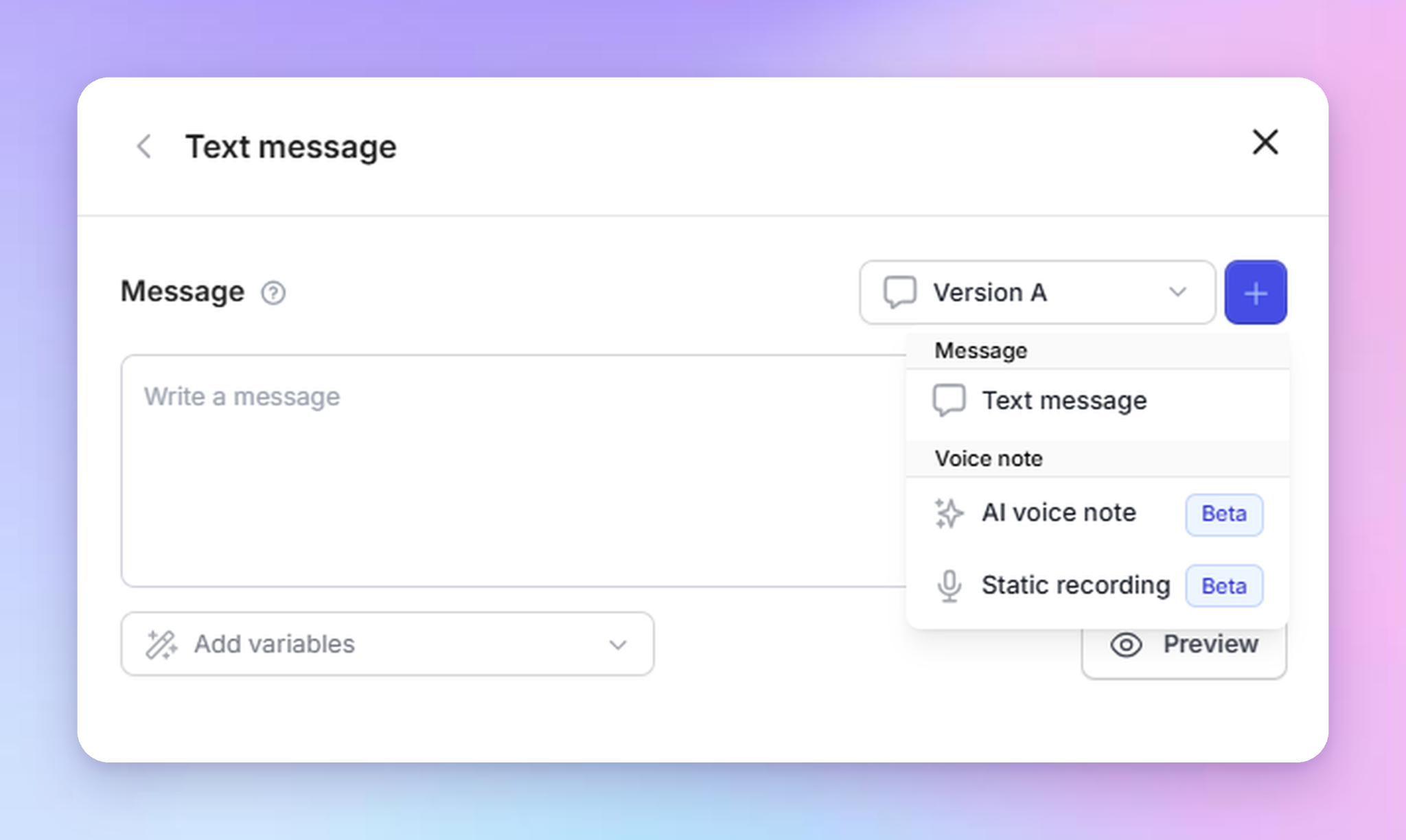
- Versions: Test a text message, an AI voice note and a static recording in the same step.
What it costs
Nothing in HeyReach credits. ElevenLabs voices run on your own ElevenLabs balance, and you’ll need a paid ElevenLabs plan. Built-in voices are marked “Included.”
Available to all users (ElevenLabs isn’t available in white-label workspaces).
Bring your ElevenLabs voices
If your team already built voices in ElevenLabs, you don't have to recreate them in HeyReach. You need a paid ElevenLabs plan: voices on the Free plan can't be used.
- Go to Settings → Integrations → ElevenLabs.
- Paste your ElevenLabs API key and click Connect.
- HeyReach imports your voices.
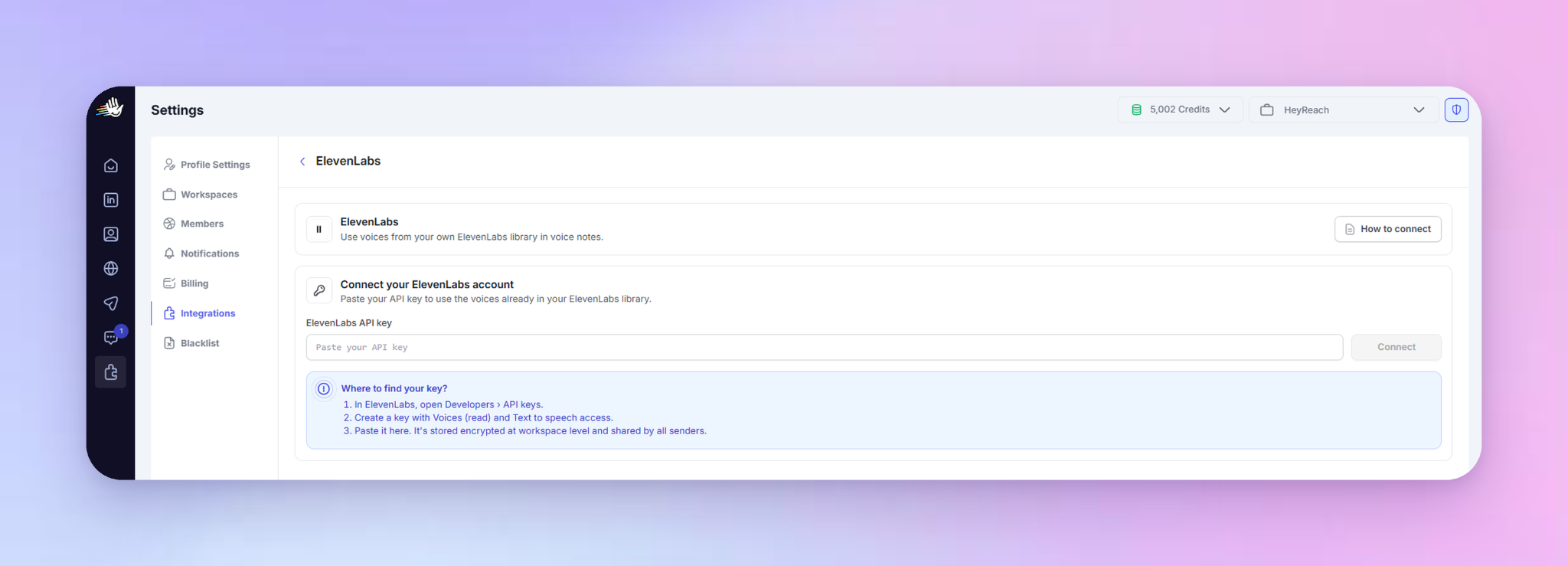
The key is stored encrypted, once per workspace, and the imported library is shared by every sender in it.
HeyReach imports the voices in your ElevenLabs My Voices, up to 500: voices you recorded there or added from the ElevenLabs voice library. The default voices ElevenLabs puts in My Voices aren't imported.
Connecting needs the workspace settings permission. When you add or remove voices in ElevenLabs, refresh the library from the same page. You can also check the connection status or disconnect there.
*Good to know: disconnecting ElevenLabs keeps your sender voice assignments. Senders on an ElevenLabs voice send the text fallback until you reconnect or assign them another voice.
Give each sender a voice
AI voice notes play in the sender's own assigned voice, so every sender in the campaign needs one.
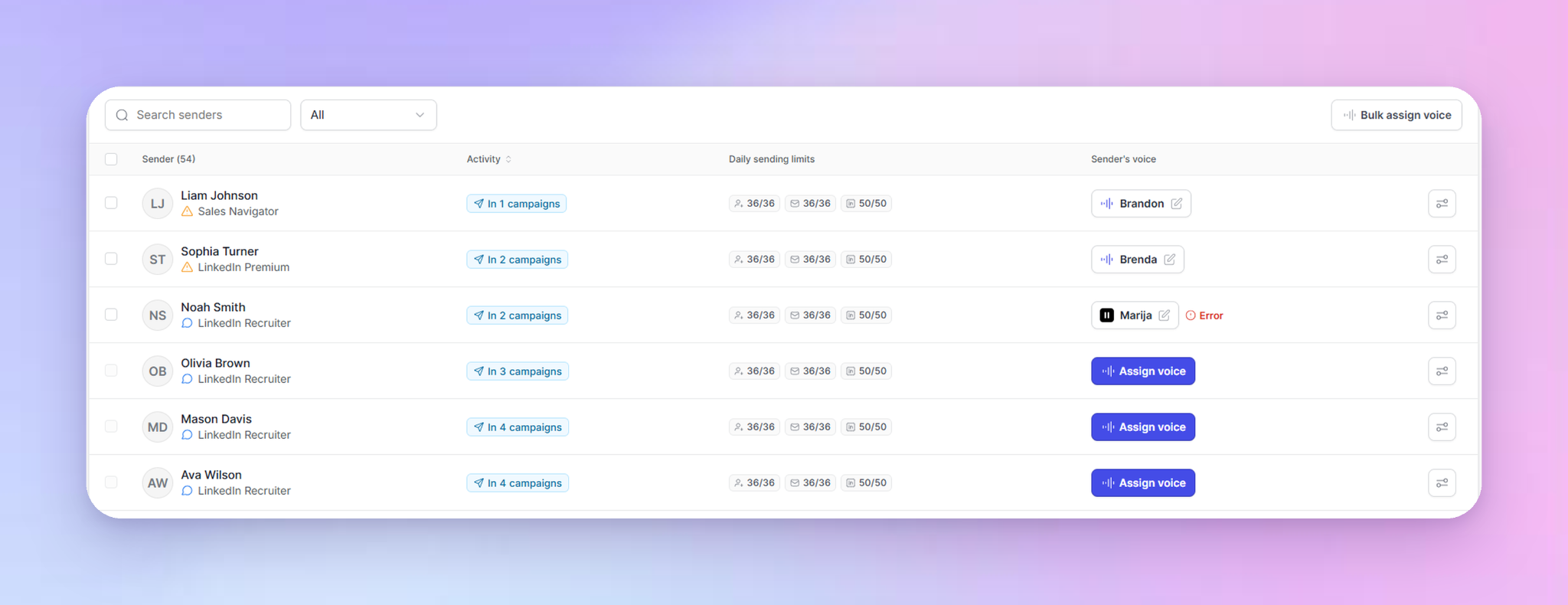
Go to LinkedIn Accounts, find the sender and click Assign voice. Choose a provider: HeyReach Included, or ElevenLabs if you connected it. Pick a voice and confirm with Assign voice.
You can also assign voices in the campaign's LinkedIn Senders step, and change or unassign a voice at any time. Before you pick senders for a sequence with voice note steps, HeyReach shows which ones still need a voice.
Setting up several senders at once? Select them in LinkedIn Accounts and use Bulk assign voice.
Cloning a new voice now asks you to confirm consent with a checkbox first.
Build a voice note step
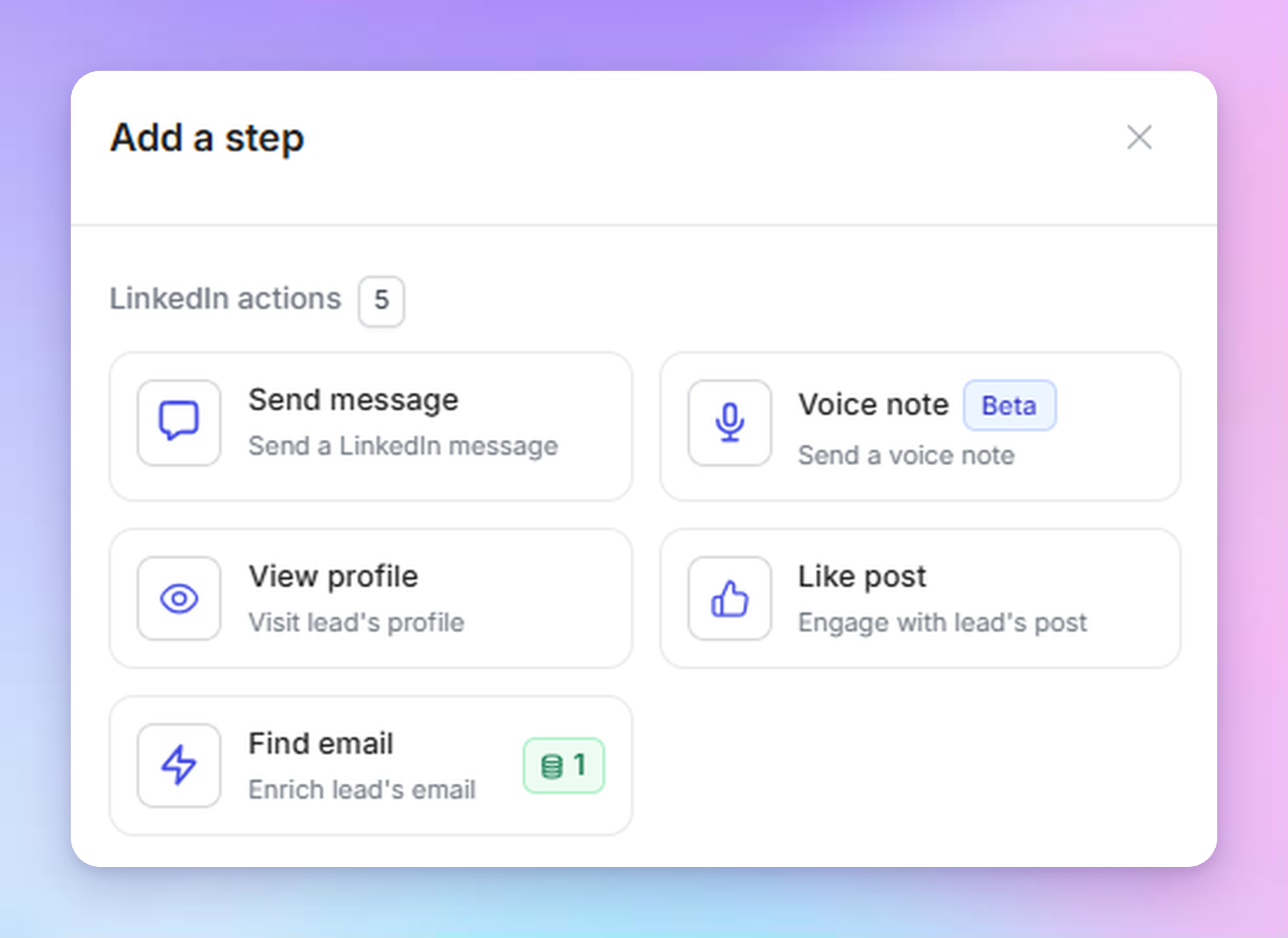
In the campaign editor, when you build your sequence, add a Send message step; you’ll see it displays a Has voice notes badge.
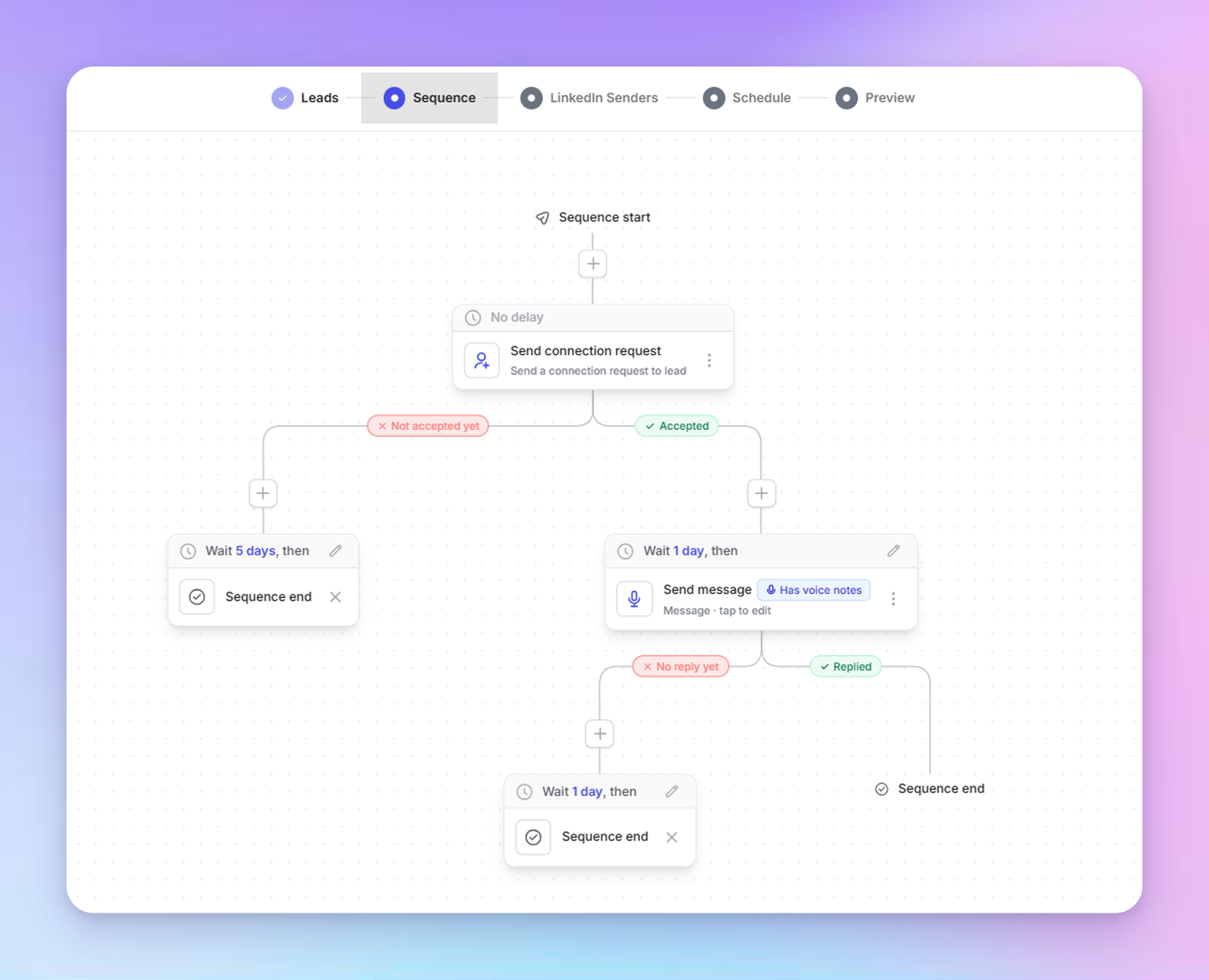
You have two ways to fill it:
- AI voice from message: write a script with variables, and HeyReach turns it into audio for each lead, in each sender's assigned voice.
- Static recording: record or upload one clip. Every lead hears the same audio, and senders don't need an assigned voice.
For an AI voice script:
- Write the script: It needs at least 3 words, and a variable like {FIRST_NAME} counts as one word. The limit is 800 characters. You’re also gonna write your fallback message here too, or you can add it later. But you will have a notification saying that you need it if you skip.
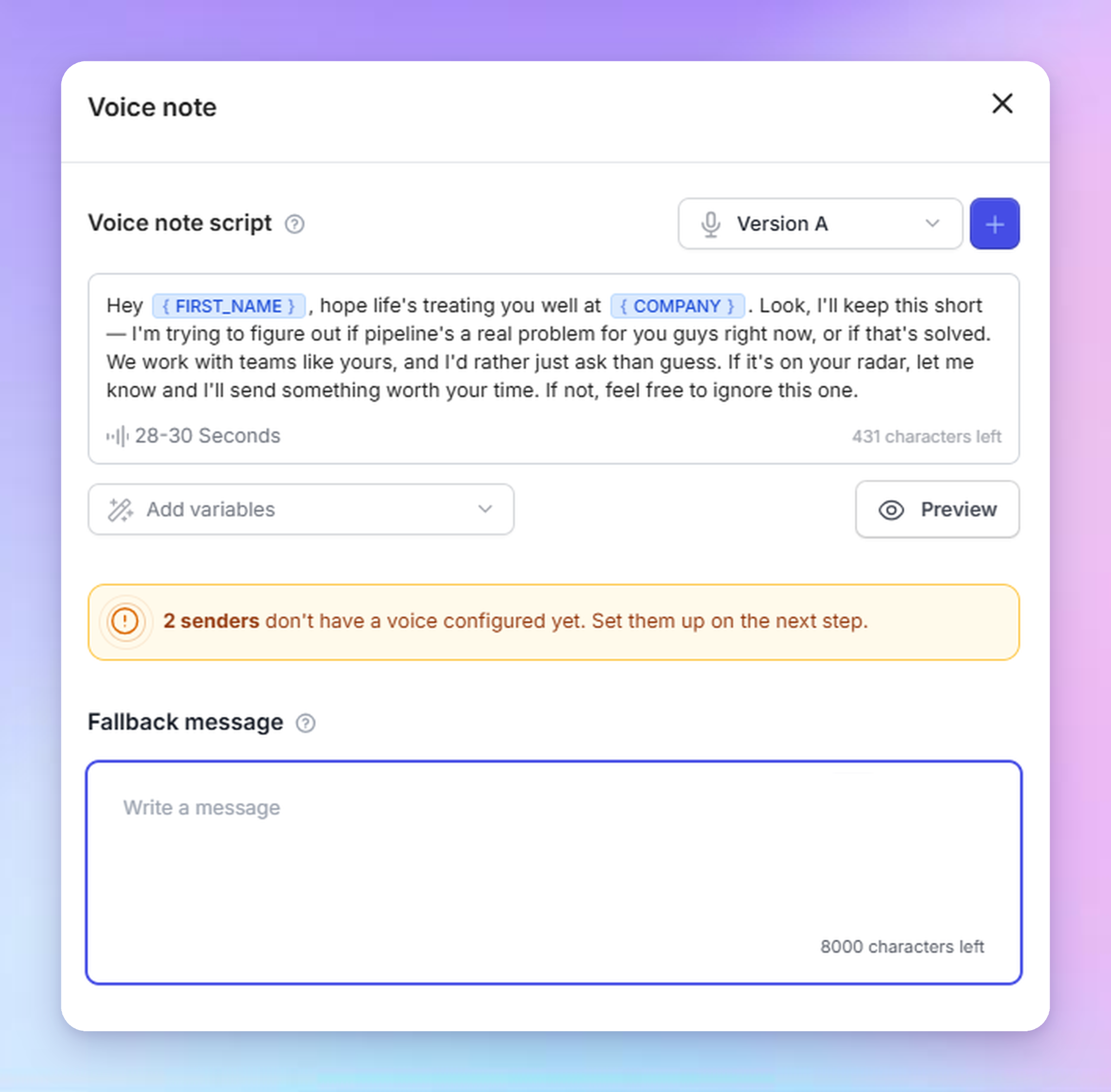
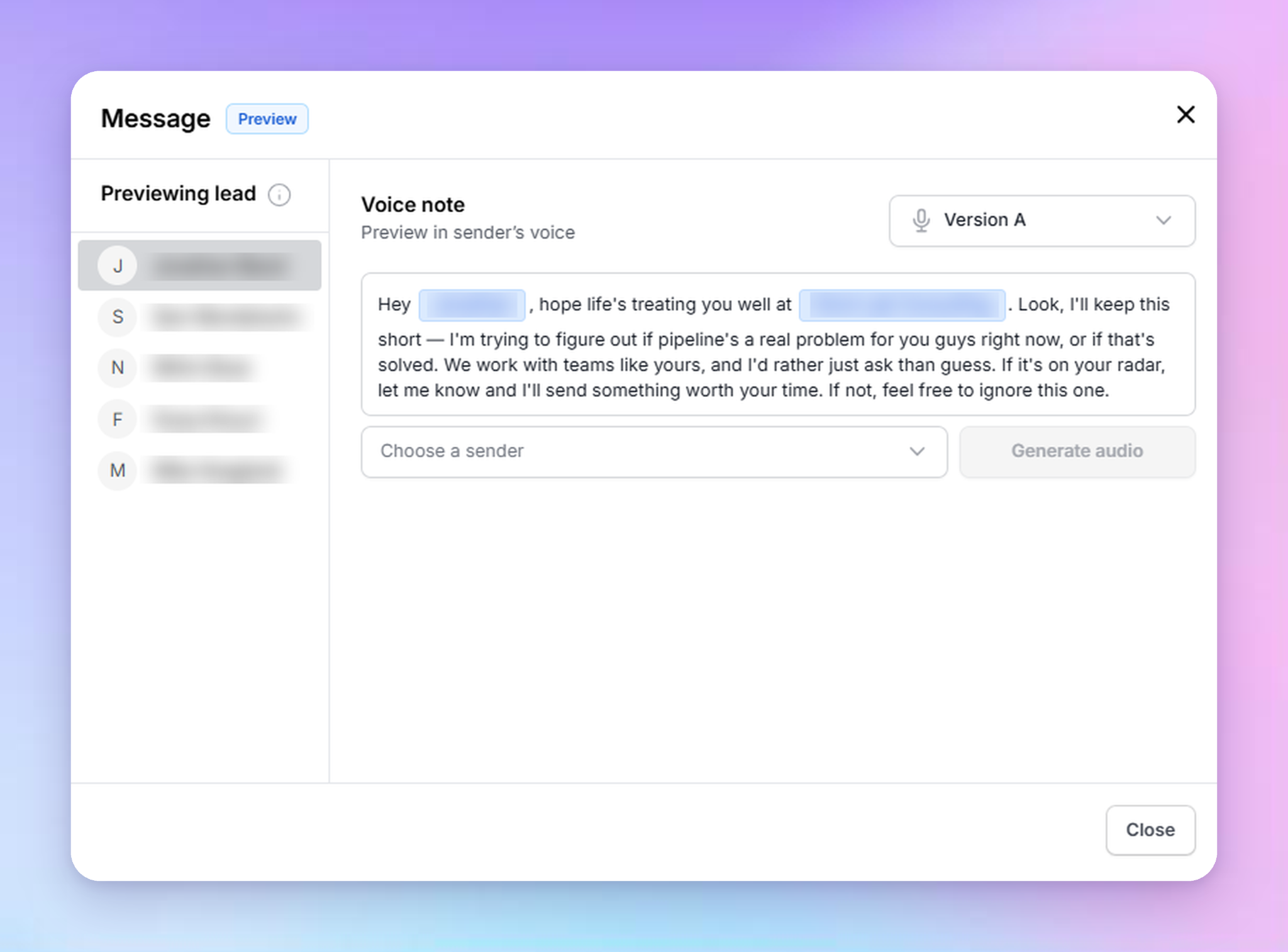
- Preview it: You need to choose a sender first, then pick or assign a voice (if you haven’t already) and generate audio.
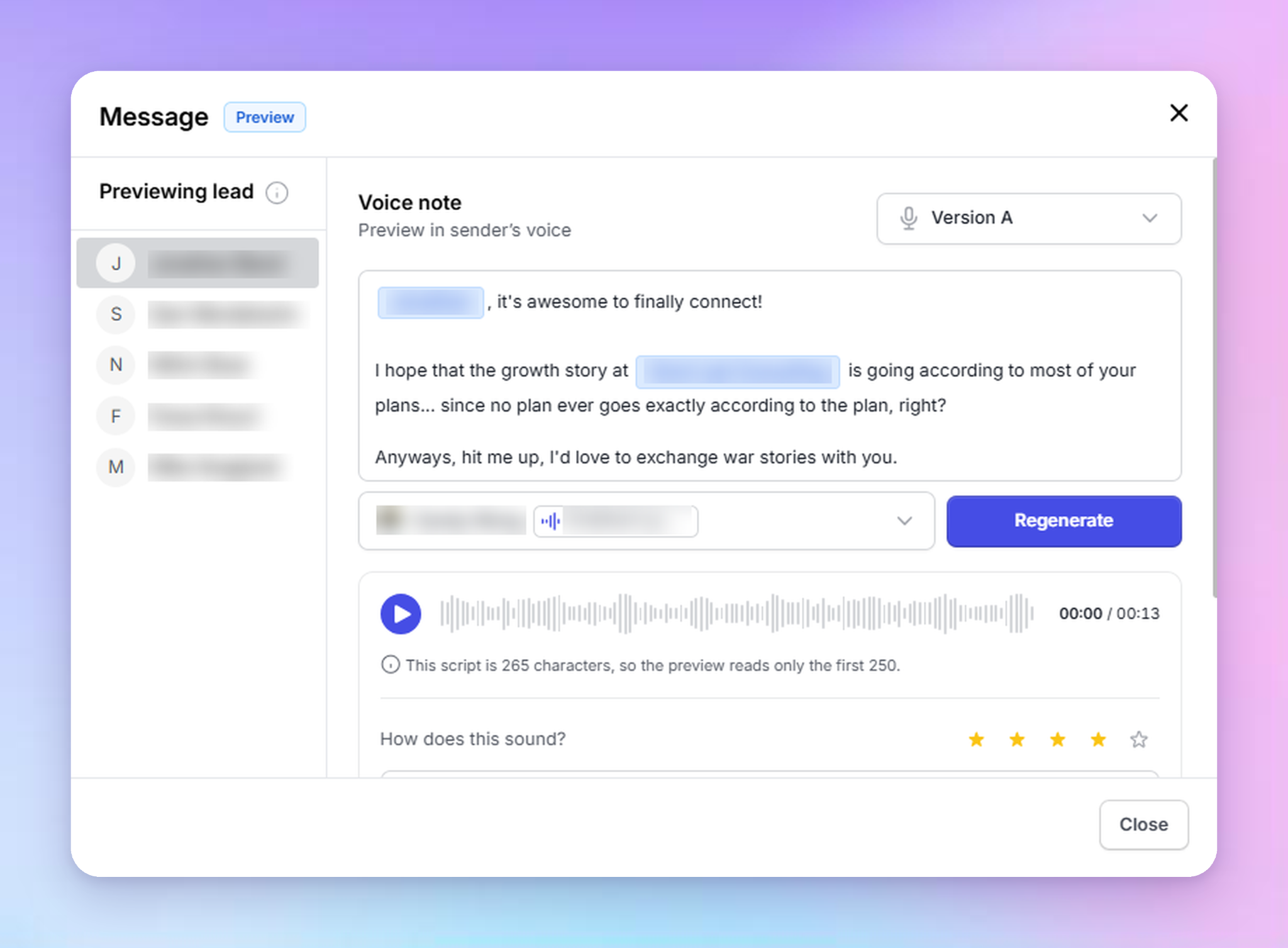
- Rate it: Previews read up to the first 250 characters. Regenerate if the take sounds off, and rate it from 1 to 5 stars, with optional notes on pacing, pronunciation, or tone - this helps us improve.
- Set the fallback and save.
For a static recording, record or upload the clip and wait for processing. Then review the waveform and transcript, set the fallback and save.
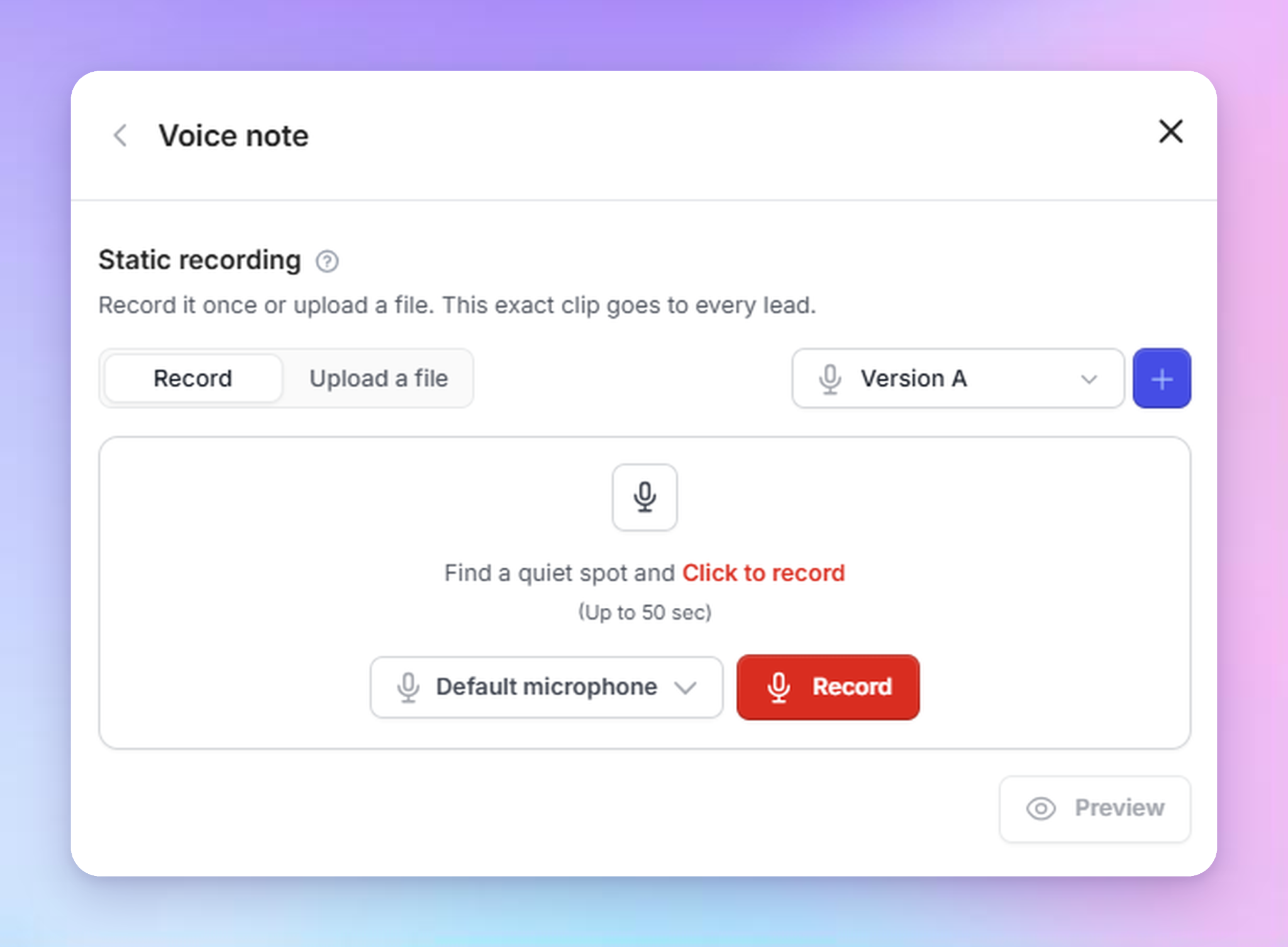
You can also add versions to the same step, like Text message, AI voice note, and Static recording, so you can test a voice note against a plain text message.
The fallback keeps the campaign running
Every voice note step needs a fallback: a text message sent when the voice note can't be generated or delivered. That covers cases like a revoked ElevenLabs key, your ElevenLabs balance running out or LinkedIn rejecting the audio. A lead with no value for a custom field used in your script gets the fallback too.
Either way, the lead still gets a message and the campaign keeps going.
- Watch out: write the fallback like a normal first message. A voice note fallback is plain text: it can't use variables at all.
Hear the replies
When a lead replies with a voice note, Unibox shows how long it is and transcribes it live.
If you send replies to other tools, the new Voice Note Received (with transcript) webhook fires for incoming voice notes, and the existing message events now carry the transcript too. The audio itself is fetched separately through the API.
Run voice notes from Claude and the API
This is the part we promised in v1. Voice notes v2 works through API v2 and the HeyReach MCP. You can create and edit campaign sequences with voice note steps, manage sender voices and manage static recordings.
If you already connected HeyReach to Claude, you can ask for it in plain words:
"Check which senders in my workspace don't have a voice yet, assign each one a HeyReach voice, and add an AI voice note step with a fallback to my draft campaign."
Two things to know:
- A campaign with an AI voice step won't start until every sender on it has a voice.
- Static clips are uploaded through the API. The MCP can read a clip's length and transcript, but it doesn't upload clips.
Building with the API instead? Start with the Campaign API.
The limits
Voice notes v2 comes with a few rules and guardrails. Here's what each one means for your campaigns.
- Scripts: at least 3 words, up to 800 characters. Shorter scripts don't produce usable audio, so HeyReach won't save them. A variable counts as one word, so "Hey {FIRST_NAME}" is too short.
- Previews: the first 250 characters. That's enough to hear how the opening and the lead's name sound before you save the step.
- Fallback: required on every voice note step, up to 8,000 characters. It's the text version of your message, so a lead whose voice note fails still hears from you. It's plain text, so it can't use variables.
- Static recordings: the same audio for every lead, so no personalization. Use them for a message that works word for word for everyone, like a short intro.
- ElevenLabs: you need your own ElevenLabs account on a paid plan, plus an API key, which HeyReach uses to import your voices.
- Workspace: The integration isn't available in white-label workspaces.
- Credits: voice notes v2 doesn't use HeyReach credits. Voice notes and previews in an ElevenLabs voice use your own ElevenLabs balance. The built-in voices are labelled Included.
Our help article dives deeper and covers the questions our users already had!

Try it for free
Frequently Asked Questions
Can I use my own ElevenLabs voices in HeyReach?
Yes. Go to Settings, then Integrations, then ElevenLabs, paste your ElevenLabs API key and click Connect. HeyReach imports your voices and stores the key encrypted. The imported voices are shared by every sender in the workspace, and you can assign them from LinkedIn Accounts or the campaign's LinkedIn Senders step. You need a paid ElevenLabs plan, and the integration isn't available in white-label workspaces.
What happens if a voice note can't be generated or delivered?
The lead gets your fallback message instead, as plain text, and the campaign keeps running. Every voice note step needs a fallback. It's used when the audio can't be produced or sent, for example after a revoked ElevenLabs key, your ElevenLabs balance running out, LinkedIn rejecting the audio, or a missing value for a custom field used in the script.
Can I build voice note campaigns with the HeyReach API or MCP?
Yes. Voice notes v2 works through API v2 and the HeyReach MCP. You can create and edit campaign sequences with voice note steps, assign voices to senders and manage static recordings. Every sender on a campaign with an AI voice step needs a voice before the campaign can start. Static clips are uploaded through the API.
How long can an AI voice note script be?
A script can be up to 800 characters and needs at least 3 words, with each variable counting as one word. HeyReach shows an estimated playback length below the script. Previews read up to the first 250 characters, so you can check how the opening sounds and rate the take before you save the step.
Does disconnecting ElevenLabs stop my campaigns?
No. Disconnecting keeps your sender voice assignments, and the campaigns keep running. Senders that use an ElevenLabs voice send the text fallback instead of audio until you reconnect ElevenLabs or assign them another voice, such as one from the HeyReach Included library.