LinkedIn automation for outbound agencies: A zero-chaos system
Published:
January 19, 2026
Updated:
February 27, 2026
If you’re running an agency with 20 to 100+ LinkedIn accounts (sales teams, recruiters, or multiple internal stakeholders), you already know this:
Scaling outreach is easy.
Scaling delivery is not.
However, outreach automation rarely breaks all at once. It degrades. Acceptance rates decline. Pending invites accumulate. A sender slows down for a day, then another. And you usually find out when a client asks, “The numbers look off – did something change?”
At this scale, the problem in LinkedIn lead generation isn’t effort. It’s that delivery is still managed reactively.
What agencies need instead is a smart, AI-powered system for safe outreach scaling:
- client isolation to prevent cross-account mistakes
- proactive seat rotation before LinkedIn enforces slowdowns
- defined delivery guardrails (SLAs)
- cross-workspace delivery health monitoring
- fast recovery without stopping the pipeline
That’s the focus of this article.
No hacks. No growth fluff. Just a LinkedIn Delivery OS built to keep multi-client outreach predictable and stable.
Why multi-account LinkedIn delivery breaks at scale
Delivery fails because there’s no governance layer protecting it.
When you’re running LinkedIn prospecting across dozens of client accounts, the same failure modes show up repeatedly:
Seat overuse → restrictions
One sender performs well, so the team keeps leaning on it, aka running the same personalized messages at higher volume.
That seat runs hot for too long, then output slows. Sometimes it’s subtle. Sometimes it’s a hard stop.
Mixed campaigns → contamination
Without strict client isolation, agencies reuse lists, tags, message templates, or even sender pools across clients. One wrong import or one copy mistake can contaminate multiple accounts.
ICP drift → collapse in acceptance
Lists age. Targeting gets diluted. Acceptance declines. But the drop is gradual – and without delivery health monitoring, it gets normalized as “just a tougher week.”
List overlap → negative signals
The same prospects end up in multiple message sequences, sometimes across different client workspaces. That’s how you trigger rejection patterns at the worst possible time.
Safety cap violations
Even if you set conservative limits, inconsistent operator behavior (or a sudden spike in activity across campaigns) pushes accounts closer to risk zones.
No real time monitoring system → blind spots
If you monitor one workspace at a time, you will miss patterns. And if you rely on auto-freeze or post-crash analytics, you’ll discover problems after they become client-facing.
This matters because LinkedIn is still a core social media & revenue channel for B2B. Actually, 89% of B2B marketers use it for lead gen and 62% say it produces quality leads for them.
So, when delivery breaks across the LinkedIn network, it doesn’t “hurt performance.” It disrupts real lead flow your clients depend on.
What fixes this isn’t adding another random LinkedIn automation tool to your stack.
It’s building a delivery OS.
The 5-Layer LinkedIn Delivery OS (for agencies running 20–100+ accounts)
Stable delivery in multi-client LinkedIn management requires layers – not an all-in-one shortcut. Remove one, and everything above it becomes fragile.
In HeyReach, a scalable delivery system is built from five layers:
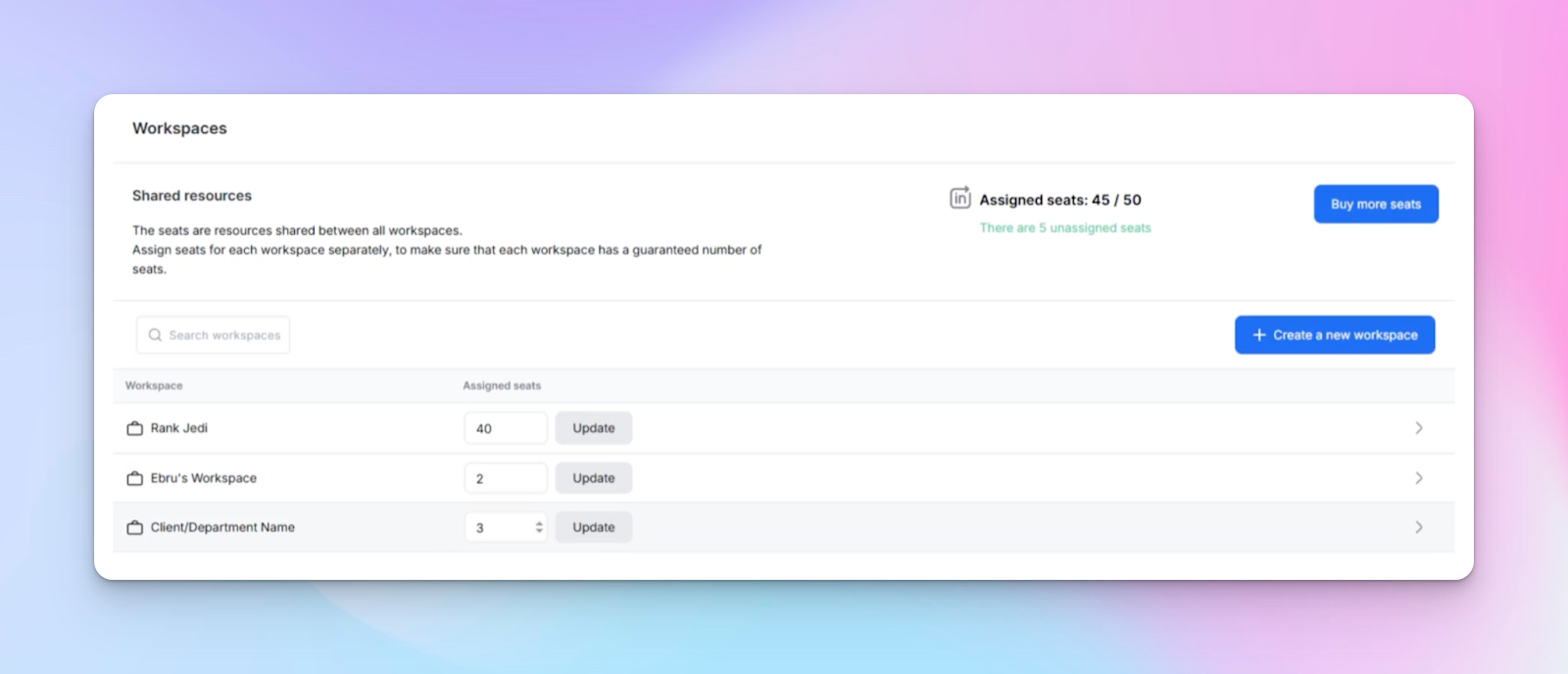
- Workspace Architecture – clean client containers (isolation)
- Seat Rotation – a seat management system that protects sender health (prevention)
- Delivery SLAs – daily and weekly guardrails (control)
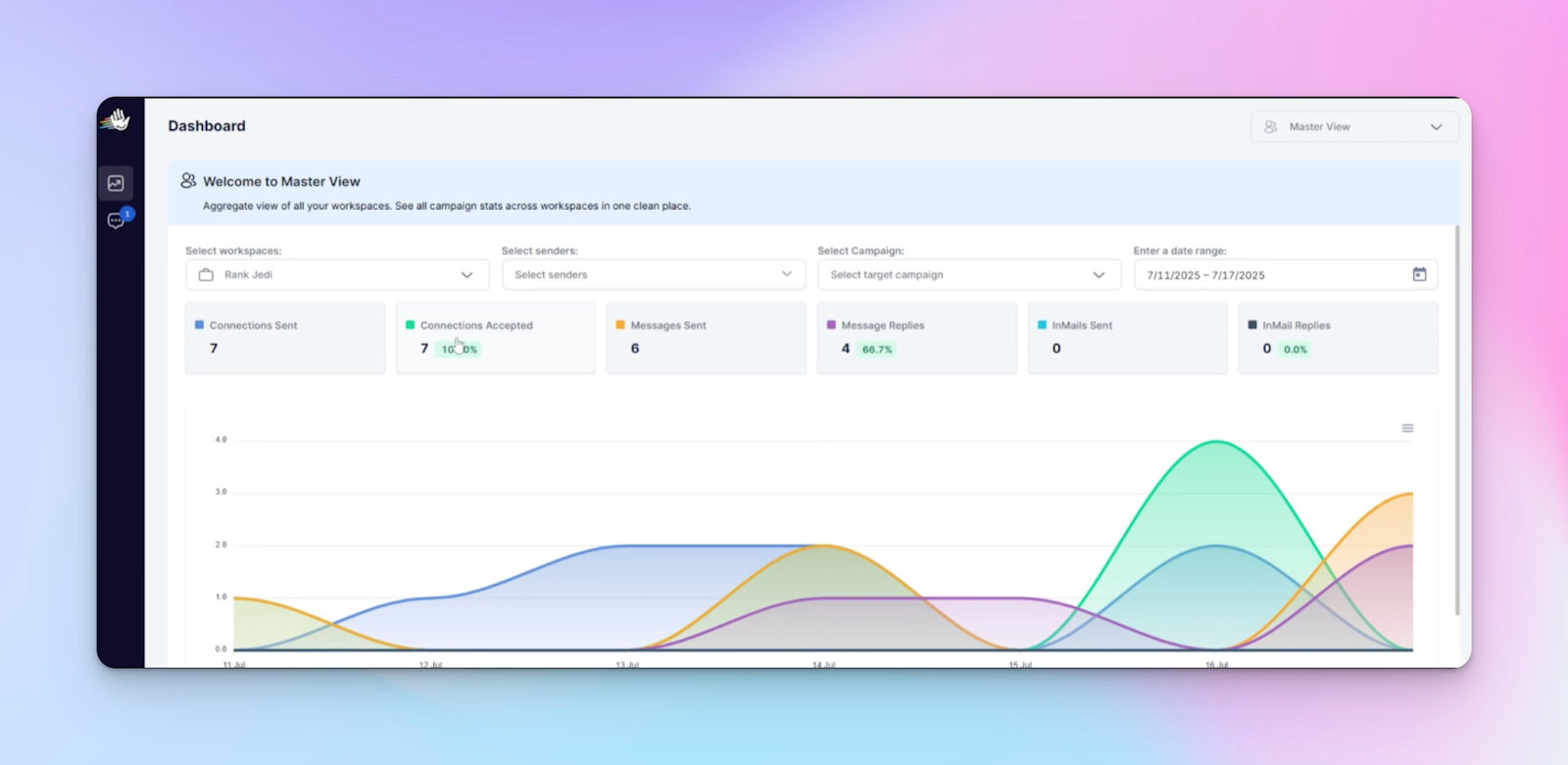
- Master View Monitoring – AI-driven cross-workspace visibility + early warning (detection)
- Troubleshooting & Continuity — fast diagnosis + multichannel backup (recovery)
This is delivery orchestration. Not campaign setup.
Most importantly, HeyReach provides strong safety controls you’d expect from a quality LinkedIn tool – sending limits, working hours, and sender rotation.
Layer 1: Workspace architecture: Build clean client containers
At scale, Workspaces aren’t about organization. They’re about risk containment.
In HeyReach, the cleanest agency rule is simple:
One workspace = One client OS
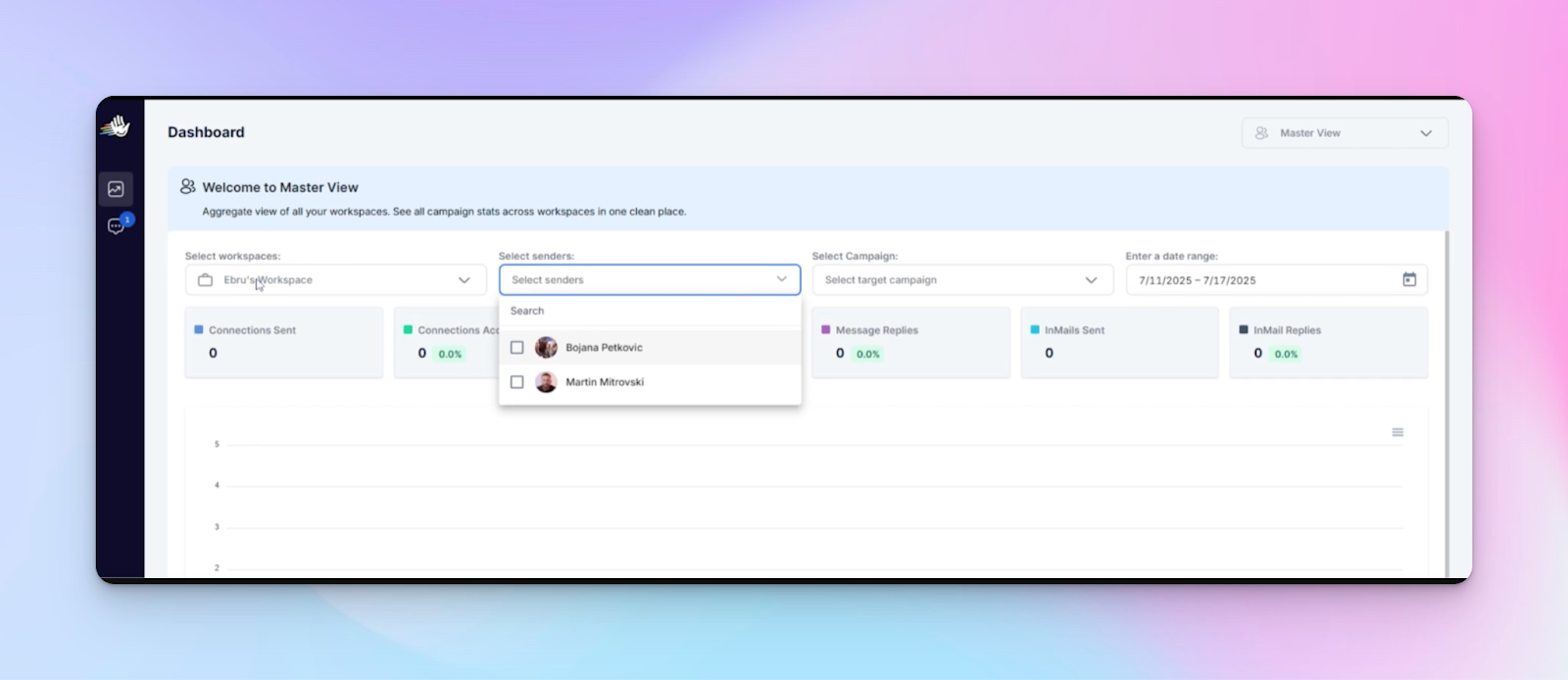
Each client gets a dedicated Workspace — with their:
- ICP lists
- outreach campaigns and sequences
- sender accounts
- inbox (Unibox)
- tags and segmentation
No mixing. No shared workspaces. No “we’ll be careful.”
When you isolate correctly, you prevent the most expensive mistakes: list contamination, messaging mix-ups, and reply handling errors.
Seat limits are not admin overhead – they’re delivery governance
When you create a Workspace, HeyReach lets you optionally set a Seat Limit (1 seat = 1 LinkedIn sender). Seat limits do two things:
- they prevent accidental over-allocation
- they make capacity planning predictable per client
This is especially important when your agency runs multiple clients with different volumes and SLAs.
Workspace architecture matrix
To fully understand my point, check the table mapping each Workspace component → how it should be configured → why it matters for delivery:
Practical naming conventions that actually scale
At 5 clients, naming doesn’t matter. At 50, it saves your operation.
Use boring, consistent patterns:
- ClientName_ICP_SaaS_Founders
- ClientName_List_Q1_Targets
- ClientName_Campaign_Intro_v1
- ClientName_Tag_HotLead
This makes cross-workspace monitoring and handoffs dramatically cleaner. Plus, there’s a much lower learning curve for new operators.
Inbox discipline: Stop letting replies leak across teams
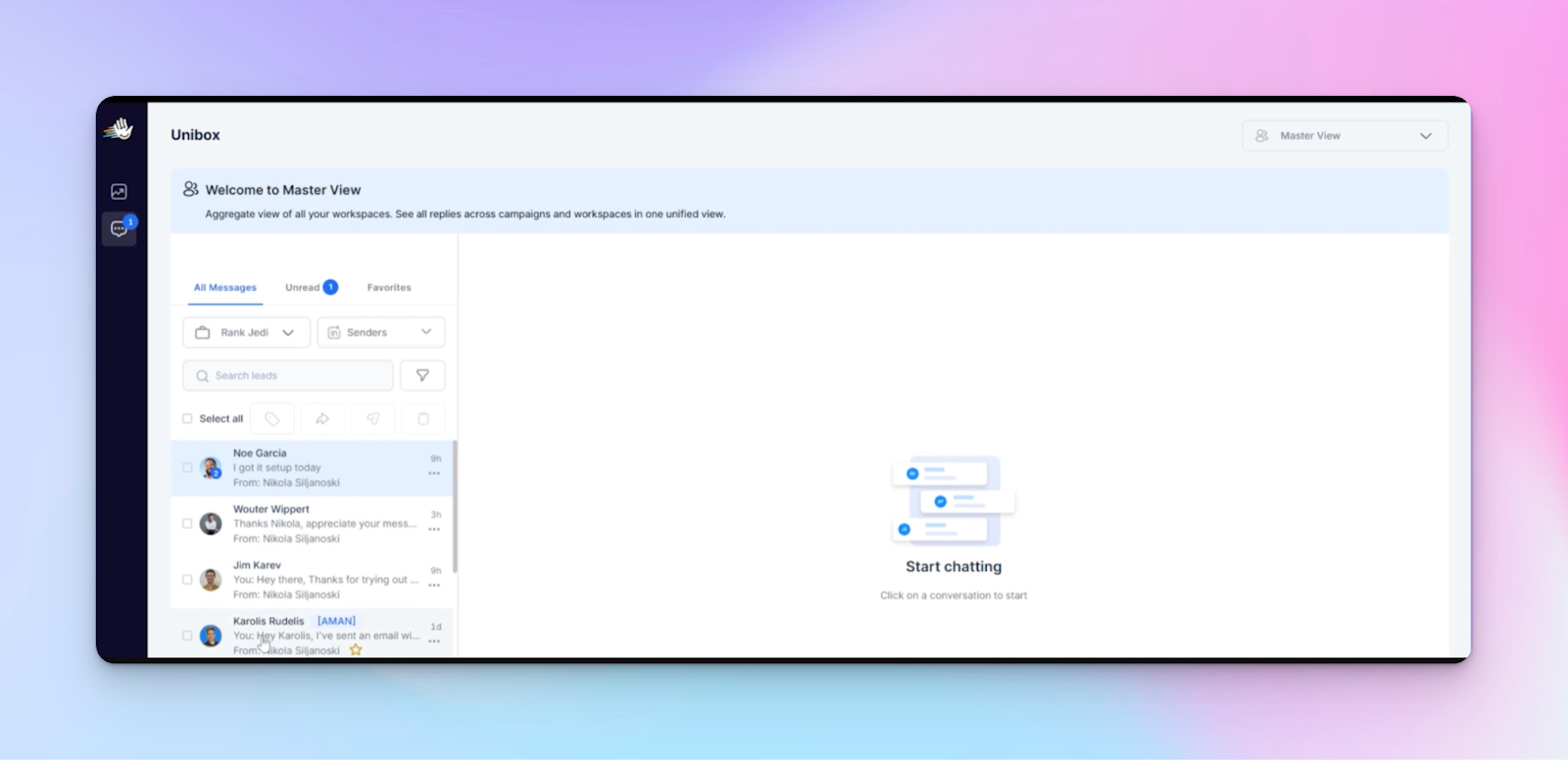
If you’re managing replies, use the Unibox correctly. It centralizes conversations so you’re not living in 12 LinkedIn tabs.
That’s why architecture always comes first.
Layer 2: Seat rotation system to protect every sender
Most agencies rotate seats too late. They wait for a problem, then scramble.
Sender health equals delivery stability. Rotate before LinkedIn forces a slowdown.
Seat rotation should be a governed protocol, not a “fix it when it breaks” action.
Rotation triggers (keep them short and measurable)
Rotate when you see any of the following:
- Acceptance rate drop >20% from baseline
- Failed sends spike (sudden increase vs usual)
- Pending LinkedIn connections/invites increasing week over week
- Safety caps approaching more frequently
- Multi-metric decline (acceptance + replies + volume softening together)
These aren’t “bad weeks.” They’re warning signals.
Rotation blueprint
Step 1: Assign seats into client-specific rotation pools
Treat each seat as dedicated to one client workspace.
Example:
- Client A: 3 seats
- Client B: 5 seats
This creates clean rotation pools per client and avoids cross-client contamination.
Step 2: Rotate on a manual review cadence
Use predictable cadences so rotation becomes normal operations:
- Light senders: every 2–3 weeks
- Heavy senders: every 7–10 days
- Rotate immediately when trigger thresholds hit
Step 3: Replace stuck/fatigued senders
Examples of fatigue:
- seat hits configured limits daily
- high failure rate
- acceptance < 10–15% (relative to baseline)
Swap it with a warm seat already allocated to that client.
Step 4: Rebalance within the workspace
If one client’s volume drops and another spikes, rebalance by adjusting send distribution across their own seats – not by stealing seats from other clients.
Quick-reference rotation system
- Trigger hit → pause sender activity
- Swap in a warm seat from the client pool
- Let the fatigued seat rest, reduce activity, and return later at lower limits
The goal isn’t maximum volume.
The goal is account restriction prevention with stable campaign velocity optimization.
Layer 3: Delivery SLAs: Your daily and weekly guardrails
SLAs make delivery observable and enforce operational discipline.
Most agencies track outcomes (reply & conversion rates in the first place). Fewer track delivery health.
Delivery SLAs are not client reporting metrics. They’re internal thresholds that support campaign performance optimization and tell your operators:
- what “healthy” looks like
- what needs intervention
- who owns it
- how often it’s reviewed
SLA matrix
To make it super clear, check a table with 7 delivery SLAs each with: definition, threshold, owner, and cadence:
Daily delivery loop (3 checks)
Daily monitoring should be fast, consistent and user-friendly:
- Sender health check
- are any seats repeatedly hitting configured action limits?
- any unusual failure patterns?
- Acceptance + reply movement
- are acceptance rates stable relative to baseline?
- are replies to your LinkedIn messages coming in at an expected pace?
- Failed sends + stalled sequences
- are sequences stuck (no progress for 24–48h)?
- are failures rising?
Weekly delivery loop (this is where agencies win 🔥)
Weekly reviews catch trends daily checks miss (before they turn into uncomfortable client conversations about performance or pricing):
- ICP drift
- list decay
- acceptance softening over 2–3 weeks
- workload imbalance between clients
This is also where you decide whether to rotate seats, change pacing, or reassess the target audience.
⚠️ Important: Sending limits are per LinkedIn account, not per campaign. Limits are shared proportionally across campaigns the account is active in. That’s why SLAs and seat allocation need to be managed at the account level.
Layer 4: Monitor delivery performance across accounts using Master View
Cross-workspace visibility in a cloud-based system is how you catch problems 3–5 days early.
The Master View is designed for this reality: it’s one unified dashboard + unified Unibox across all workspaces.
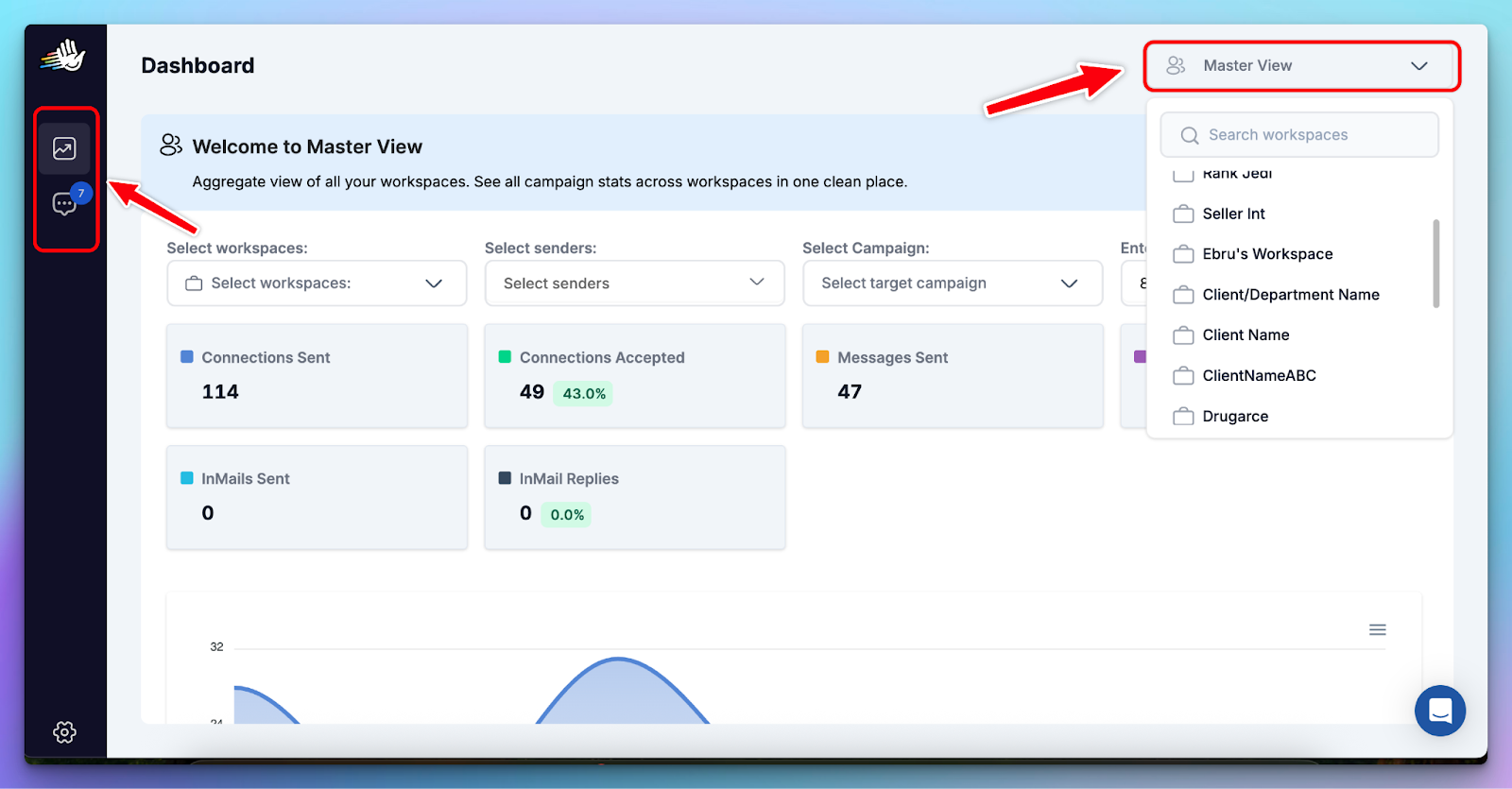
You can monitor real-time performance against KPIs and manage conversations without switching between client environments.
What to monitor weekly
In Master View, focus on patterns:
- volume changes (where delivery is softening)
- acceptance patterns (declines relative to baseline)
- reply distribution/response rates across workspaces
- workload distribution (which clients are accumulating inbox backlog)
- seat usage distribution (which seats are overloaded)
Your weekly monitoring dashboard
Here’s the early-warning system most agencies need:
- Export campaign performance data from the HeyReach dashboard (CSV)
- Drop it into a tracking sheet
- Use week-over-week formulas + conditional formatting
- Alert the team when thresholds are breached
💡I recommend copying and using a simple Google Sheets setup fed by HeyReach Dashboard CSV exports. It’s lightweight, fast to maintain, and – most importantly – actionable.
What goes into the dashboard?
Only delivery-critical metrics. No vanity stats. No client reporting noise or premature A/B testing conclusions.
Each row represents one sender account, for one week.
The template includes:
- Delivery volume: Total invites + messages sent. Used to detect sudden drops or unsafe spikes.
- Acceptance rate (%): Tracked week over week. The trend matters more than the absolute number.
- Replies: Directional signal for high-quality targeting and message relevance.
- Failed sends: Early indicator of pacing issues, account fatigue, or technical problems.
- Pending invites: One of the strongest predictors of upcoming restrictions if left unchecked.
A final Status column automatically evaluates these inputs and flags the sender as:
- 🟢 Healthy
- 🟡 Watch
- 🔴 Act now
This removes guesswork for operators and makes reviews faster.
How to populate it (weekly, not daily)
- Go to HeyReach Dashboard
- Select the relevant workspace(s) or use Master View
- Export the last 7 days as a CSV
- Paste the data into the sheet (one row per sender)
That’s it. No complex setup required.
Weekly cadence is intentional. LinkedIn delivery issues don’t reveal themselves reliably day-to-day.
Trends show up over several days, and weekly reviews reduce false alarms while still catching problems early.
How does conditional formatting help you act faster?
The template uses conditional formatting to surface risk visually:
- Acceptance rate
- Green → stable or improving
- Yellow → early decline
- Red → significant drop vs baseline
- Pending invites
- Yellow → approaching risk zone
- Red → unsafe buildup
You don’t need to analyze every number. You scan for color changes.
If a row turns yellow, you watch it. If it turns red, you act.
This is what allows delivery teams to manage 20–100+ accounts without micromanaging.
How teams actually use this in practice?
Most agencies run this as a Monday ops ritual to keep team management tight and predictable.
- Review all rows marked 🟡 or 🔴
- Decide whether to:
- rotate a sender
- rebalance volume
- slow down pacing
- clean up pending invites
Because the dashboard is cross-workspace, you’ll often spot patterns like:
- one client consuming too much sender capacity
- one sender consistently degrading faster than others
- acceptance dropping across a whole ICP, not just one campaign
A simple alert format is enough:
⚠️ Weekly Delivery Health
🟢 32 seats healthy
🟡 4 seats watchlist
🔴 1 seat needs rotation
This is what keeps you ahead of the client – with numbers you can endorse.
Layer 5: Troubleshooting & continuity workflows
Delivery issues can happen in any LinkedIn automation software.
A white-label OS is what makes them non-dramatic (not switching outreach tools mid-issue).
Even with a perfect system, seats fatigue, lists degrade, and inbox backlog builds up.
What matters is whether your sales teams can diagnose the issue quickly and recover without pipeline disruption.
Diagnose and fix delivery issues in under 5 minutes
Now take a look at the table below, which maps common delivery issues to their root causes, quick fixes + HeyReach advanced features that help resolve them:
Example logic:
- Blocked/declining seat → rotate it, reduce activity, let it rest
- List contamination → isolate lists inside the correct workspace, exclude overlaps
- Stalled campaign → check sender assignment + limits + sequence bottlenecks
- ICP mismatch → pause, refresh targeting, validate lead sources
- Cap violations → adjust limits + working hours
- Inbox overload → assign inbox triage and tighten tagging
Go multichannel when LinkedIn slows
Continuity isn’t “adding email because it’s trendy.” It’s operational continuity planning.
When LinkedIn delivery slows, you want a controlled fallback that:
- keeps outreach efforts moving
- protects SLAs
- keeps outcomes visible
A simple continuity workflow looks like this:
- Use email fields already stored on leads in HeyReach (from enrichment or client lists)
- Send stalled leads to Instantly using the HeyReach → Instantly flow
- Sync outcomes back by updating tags/lists (manually, or via Make, Zapier or n8n)
HeyReach even supports routing leads into Instantly campaigns or lists via its “Add to Instantly” action (documented in the integration guide).
This is how agencies keep automated outreach and delivery stable when one channel changes pace.
Role map: Who owns what in the OS
At scale, “everyone owns it” means no one does – a textbook example of broken team collaboration.
Systems fail without ownership.
Assign ownership by function:
- Ops Lead: governance, escalation, protocol enforcement
- Strategist: ICP definition + messaging alignment
- Operator: daily monitoring, Master View review, rotations
- Analyst: weekly reporting, spreadsheet trends, baseline maintenance, API & CRM hygiene
- VA: inbox triage in Unibox (tagging, routing, backlog control)
- Client: read-only visibility inside their workspace
This prevents missed rotations, dropped replies, and unclear responsibility when things get busy.
Final checklist: Your agency’s delivery OS
Use this as a quick “did we set it up right?” reference.
Architecture
- One client = one workspace
- No cross-client lists, campaigns, tags, or senders
- Clear naming conventions
- Seat limits set per workspace
Rotation
- Client-specific sender pools
- Triggers defined
- Rotation cadence documented
- Fatigued seat recovery process
SLAs
- 7 delivery SLAs defined
- Thresholds documented
- Owners assigned
- Daily + weekly loops in place
Monitoring
- Master View checked weekly
- Dashboard exports reviewed
- Early-warning sheet live
- Alerts routed to Slack/HubSpot
Troubleshooting
- 5-minute diagnosis matrix documented
- Clear “pause/rotate/rebalance” playbook
Continuity
- Instantly integration configured (if you offer email follow-up)
- Lead routing rules defined
- Outcomes synced back to HeyReach
Next steps (rollout plan)
Build the OS once. Then standardize it to streamline every client onboarding.
Let’s go through rollout plan that won’t overwhelm your team:
Week 1:
- Clean up workspace architecture
- Set seat limits per client workspace
- Confirm Unibox workflow ownership
Week 2:
- Define baselines + SLA thresholds
- Create your weekly monitoring sheet
- Add conditional formatting and watchlists
Week 3:
- Practice one controlled seat rotation
- Document the rotation protocol
Week 4:
- Add alerts via Zapier/Make/n8n
- Push alerts into Slack or create HubSpot tasks
Ongoing:
- Weekly monitoring ritual
- Monthly baseline recalibration
Predictable outreach requires delivery discipline
At scale, automated LinkedIn outreach becomes an operations problem. It’s no longer about publishing more LinkedIn posts or launching more campaigns. It’s about how delivery is governed, monitored, and recovered when things slow down.
Only agencies with mature delivery risk management practices keep sender health stable, catch issues early, and deliver predictable client outcomes.
That’s exactly what the 5-layer Delivery OS gives you.
Fewer surprises. Fewer emergencies. More consistency. A system you can rely on as volume grows.

Try it for free
Frequently Asked Questions
Can I manage multiple client LinkedIn accounts without triggering restrictions?
Yes – but only if you isolate clients, rotate seats proactively, and operate within defined delivery SLAs. You can manage to do all that safely and efficiently with HeyReach.
How does account or workspace isolation prevent cross-client contamination?
Workspaces keep lists, campaigns, inboxes, tags, and sender accounts separated so mistakes don’t leak across clients. You still have one HeyReach account, you just create a separate workspace for each client.
What’s the difference between rotating sender accounts and manually switching accounts?
Rotation is proactive governance (planned and triggered) that runs automatically within a single campaign. Manual switching between clients is reactive and usually happens after performance has already declined, and you need another sender to pick up the rest of the campaign
How do I monitor delivery performance across dozens of accounts at once?
Use Master View for cross-workspace visibility, and pair it with weekly dashboard exports + a simple monitoring sheet that highlights week-over-week declines.
Why not just manage all of this inside CRM systems?
Because CRM systems aren’t designed to detect delivery risk on LinkedIn. By the time an issue shows up in the CRM, it’s already client-facing. The Delivery OS exists to catch problems earlier.
.avif)