How to manage multiple LinkedIn accounts without getting flagged
Published:
November 17, 2025
Updated:
September 7, 2026
Managing multiple LinkedIn accounts for clients requires tool-level workspace isolation, not multiple browser logins. Agencies typically use a platform like HeyReach to run outreach across separate sender accounts per client, with each workspace keeping campaigns, leads, and activity data fully isolated.
Every restricted sender I have seen had a week of warning signs behind it. Acceptance drifting down a few points, pending invites piling up faster than they were getting accepted, daily activity higher than anyone had checked. None of it looked urgent, so it got missed.
Look at the numbers every Monday and you find the sender before LinkedIn does: pause it, move the campaign onto a healthy account, and leave the tired one to rest.
What follows is the whole system, and the version of it that fits your size, whether that's 5 senders or 50.
How many LinkedIn accounts can you manage?
LinkedIn's Terms of Service allow one account per individual. You cannot create multiple personal LinkedIn accounts. Doing so risks both accounts being restricted.
For agencies managing outreach across multiple clients, the right approach is to use a platform that supports sender seat management and workspace isolation. Each client gets their own workspace; each sender (a real person's LinkedIn account, typically a founder, SDR, or recruiter) is added as a seat. The agency manages outreach on their behalf, and not through fake or duplicate profiles.
In practice, agencies on HeyReach typically run 6–20 sender accounts per campaign across client workspaces. That range isn't arbitrary.

📊 Data point: Across 96,051 LinkedIn outreach campaigns analyzed in HeyReach over the past 12 months, campaigns using 6–20 senders showed the highest median reply rate at 25.00% — outperforming both single-sender campaigns (22.22%) and larger sender pools of 21–50 accounts (21.94%).
This range appears to be the sweet spot: large enough to distribute volume across accounts, small enough to keep targeting and messaging consistent.
Which setup is right for your agency size?
The steps in this playbook are written to be modular. Here's how to match the depth of implementation to your current scale.
A solo agency can implement Steps 1–3 manually with just a Google Sheet. A larger agency can layer in Steps 4–5 progressively as its sender count grows.
Why reactive monitoring costs you clients
The problem with reactive monitoring: Relying on HeyReach’s auto-freeze functionality or post-crash analytics means you’re discovering problems after they’ve already done some damage to delivery. Acceptance rates have tanked. Pending invites ratio for LinkedIn has climbed past safe thresholds. Client campaigns have stalled for days.
Here’s why proactive detection matters:
When a LinkedIn account starts showing warning signs, such as dropping acceptance rates, climbing pending invites, and activity creeping toward LinkedIn limits, there’s a 3–5 day window before the platform restricts it.
Catch those signals early through systematic monitoring, and you can pause the sender, rotate a fresh account in, and maintain velocity without clients noticing.
Miss those signals? Account restrictions hit mid-campaign. Outreach stops completely. Now you’re explaining to a client why their qualified lead flow dropped 40% and all the hassle of warming up a replacement and rebuilding momentum.
The damage compounds across your operation:
- Client trust erodes when they spot problems before you do
- Campaign momentum dies as you scramble to diagnose and redistribute
- Revenue delays while qualified leads stop flowing into their pipeline
- Your team burns time firefighting restrictions instead of optimizing campaigns
And here’s the context that matters: 89% of B2B marketers use LinkedIn for lead generation, with 62% saying it produces leads for them. When your LinkedIn account health monitoring breaks down across multiple social media accounts, you're disrupting actual pipeline generation that clients depend on for revenue.
📊 Data point: Analysis of 96,051 campaigns shows that 10.7% of campaigns with accepted connections got zero replies. The biggest funnel drop happens after acceptance, when outreach stalls before a conversation ever starts. Reactive account management accelerates this: by the time you're fixing a restricted sender, you've already lost the reply window for everyone who accepted.
This applies whether you’re managing personal profiles for founder-led outreach, company pages for brand campaigns, or separate LinkedIn accounts for recruiters and sales teams.
The fix isn’t applying more safety features. HeyReach already has those. What you need is a proactive detection system across multiple LinkedIn profiles that is built for agencies. This way, problems surface in your ops dashboard days before they surface in client Slack channels.
Best tools for managing multiple LinkedIn accounts
Choosing the right tool depends on what you need: pure browser isolation, full outreach automation, or both. Here's how the main options compare for agencies managing LinkedIn accounts across multiple clients.
Note: Browser isolation tools (GoLogin, Multilogin, SessionBox, Chrome profiles) keep LinkedIn sessions separated but don't automate outreach. For agencies running active campaigns across client accounts, outreach automation with built-in compliance controls is typically necessary alongside browser isolation. The two solve different problems, and most serious agencies use both.
Multi-account management system for agencies
What you need is five interconnected layers:
- Isolation
- Detection
- Diagnosis
- Rebalancing
- Automation
Each step builds on the last to create a multi-account LinkedIn agency workflow that scales as you add more clients and senders.
You don't need more LinkedIn automation tools in your stack. You already have what you need:
- HeyReach Dashboard shows you the metrics
- HeyReach Unibox lets you manage replies from all your sender accounts without logging into LinkedIn 20 times a day
- Google Sheets + Slack turn those metrics into alerts your team actually sees
- Add n8n or Zapier if you want to automate the whole thing
Voila! You've got a repeatable early-warning system that protects client accounts before problems surface.
See how Sönke Venjacob from Platinum Agency gets 57% acceptance and 48% replies, across his own profile and his clients' accounts 👉 Read the playbook
How Chrome profiles keep LinkedIn account data isolated and safe
A quick setup step before monitoring: Before you start tracking account health, set up isolated Chrome profiles for each LinkedIn account. This is a one-time safety setup that keeps monitoring data accurate, maintains LinkedIn compliance, and reduces the risk of cross-account issues.
If your team logs into LinkedIn manually for QA checks, content reviews, or client reporting, consider using separate Chrome profiles (or browser users) for each client seat. This keeps cookies, session data, and browser fingerprints for different email addresses isolated, reducing the risk of cross-account flags.
How to set it up:
- Open Chrome → Click profile icon (top right) → “Add profile”
- Name it clearly: “Acme Corp - Sender 1” or “Beta Inc - Founder Profile”
- Only log into that specific LinkedIn account from that specific Chrome profile
- Never mix different profiles within a single browser session
This takes five minutes per account and helps maintain clean and separate LinkedIn accounts across your operation.
Step 1: Detect early — monitor LinkedIn profiles before outreach performance drops
The goal: Track weekly trends, so you spot delivery problems 3–5 days before LinkedIn does. Early visibility saves time and client trust by catching issues before they become client-facing problems.
Here's the workflow:
Export from HeyReach Dashboard: Navigate to Dashboard → select workspace or campaigns → choose date range (last 7 days) → export as CSV.
Import into Google Sheets: Create a tracking sheet with these columns:
- Client name
- Sender (LinkedIn account)
- Week (date range)
- Invitations sent
- Acceptance rate (%)
- Pending invites (current count)
- Messages sent
- Reply rate (%)
- Total weekly activity
Set up week-over-week comparison formulas: Add a calculated column showing percentage change:
=(This_Week_Acceptance_Rate - Last_Week_Acceptance_Rate) / Last_Week_Acceptance_Rate
A 22% acceptance rate might look fine, but if it was 28% last week, you've lost over 20% of your acceptance performance. That's a clear red flag.
For context: The typical campaign lands at a 20.75% acceptance rate, with stronger performing campaigns reaching 31.78%. If you're tracking week-over-week change, the absolute number matters less than the direction and velocity of decline.
Apply conditional formatting for visual alerts
- 🟢 Green: Acceptance stable or improving (0% to +20% change)
- 🟡 Yellow: 15–20% decline from baseline
- 🔴 Red: >20% decline, or pending invites ratio crosses 35+, or approaching weekly volume thresholds
Metrics to track:
- Acceptance rate week-over-week % change
- Pending invites count relative to sent invitations
- Weekly invitation volume (community best practices suggest staying well below 80–100/week, though LinkedIn's official limits are undisclosed)
- Total daily activity (all actions combined: invitations + messages + views)
- Message reply rate (secondary indicator of targeting and messaging quality)
When building sequences in HeyReach, you can set a checkpoint to withdraw pending invites after 14–21 days. This automated cleanup workflow prevents buildup without manual intervention, and processes withdrawals gradually over time to maintain account health.
Metrics that actually predict account decline
Not all warning signs carry equal weight. Here's how to interpret the data:
- Declining acceptance rate (dropped from 28% to 18% over two weeks): Signals either a targeting problem (wrong ICP, bad list quality) or a warm-up issue (new account pushed too aggressively). Check your lead source — if you're enriching data from Sales Navigator, Clay, or RB2B, verify the filters match your client's actual ICP.
- Growing pending invites ratio (35+ sitting unanswered): Pacing mismatch. The sender is sending invitations faster than prospects accept them. LinkedIn's algorithm may interpret this as spam behavior. Solution: pause immediately, enable auto-withdraw for future sequences, and manually withdraw the oldest 10–15 pending to clean up the ratio.
- Sharp activity spike (weekly activity jumps significantly above your established baseline): Approaching LinkedIn outreach volume limits. Even if HeyReach's configurable sending limits are set conservatively, check whether this sender is active in multiple campaigns — limits are shared across all campaigns proportionally rather than per campaign.
- Baseline deviation without an obvious cause (acceptance suddenly drops 15%, but targeting hasn't changed): Account trust score issue. This could indicate LinkedIn's algorithm is adjusting its internal assessment for the account. Run a quick audit: Is the profile fully optimized with a professional photo? Is the sender engaging with their feed manually outside of automation to build their personal brand?
HeyReach's Dashboard exports visualize these trends automatically, making it easy to spot patterns across all your client accounts at a glance.
Step 2: Diagnose precisely — turn signals into decisions
What you're building: An Account Health Matrix that shows every sender's status at a glance using color-coded indicators. This transforms tracking data into a triage system so ops leads instantly see which senders need attention.
How to build it:
Open a new tab in your Google Sheets tracker and set up columns for: Client, Sender, Acceptance Rate (this week), Acceptance Rate (last week), % Change, Pending Invites, Weekly Activity, Status (🟢/🟡/🔴), Action Needed, Owner.
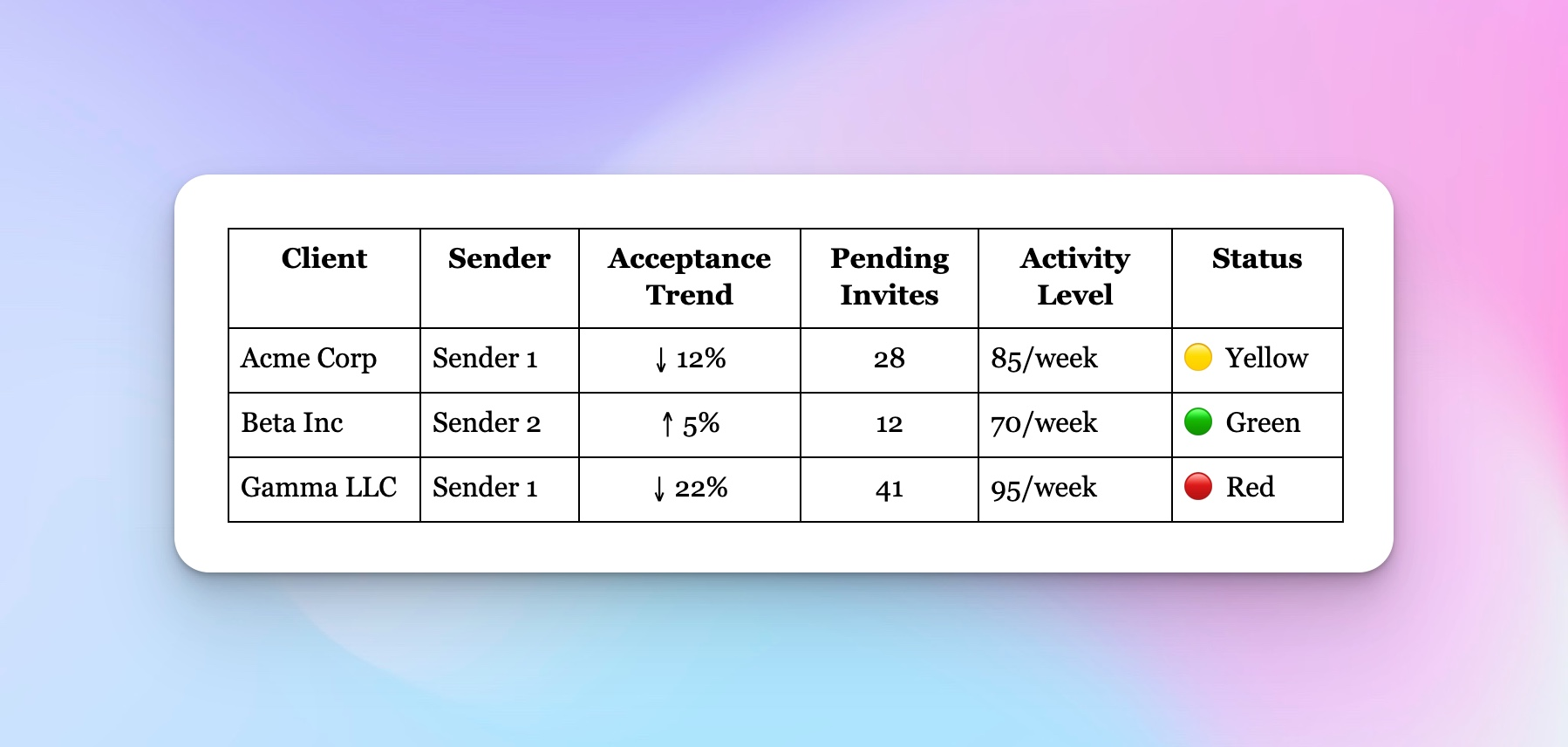
Apply your color-coding logic:
- 🟢 Green = Stable. Acceptance decline under 15% from baseline (or improving), pending invites <25, activity well below volume limits.
- 🟡 Yellow = Watch closely. 15–20% decline from baseline, OR pending invites between 25–35, OR activity nearing 90/week.
- 🔴 Red = Act now. >20% acceptance drop, OR pending invites >35, OR activity >95/week, OR any HeyReach pacing alert signaling potential restriction risk.
This matrix becomes your Monday morning ritual. Pull data from HeyReach's Master View (one unified dashboard showing all LinkedIn profiles across every workspace), update formulas, and review the color distribution across your entire operation.
Anything Yellow gets watchlisted. Anything Red gets immediate action.
Pro tip: Post a weekly Slack summary of flagged accounts:
Weekly Account Health — [DATE]
- 🟢 32 accounts healthy
- 🟡 4 accounts on watch (Acme Sender 1, Delta Sender 3...)
- 🔴 1 needs rotation (Gamma Sender 1 — acceptance dropped 22%, pending at 41)
Define your safe operating zones
Set guardrails using your baselines, not generic industry numbers. Every agency's performance varies — recruiters managing talent acquisition campaigns have different acceptance rates than SaaS agencies running cold outreach.
1. Acceptance-rate trend
Track the direction of change, not just the absolute number. Two consecutive weeks of decline signal a real problem, even if the current rate is still "acceptable" by general benchmarks.
If your baseline is 25% and you're at 18%, that's a 28% decline — Red zone. If your baseline is 15% (tougher vertical), then 12% is the Yellow zone for monitoring.
2. Pending invites count
LinkedIn's Terms of Service don't publish official limits on pending invites. From what we've seen across agencies and community reports, keeping pending invites under 30–35 is the safer play. Newer accounts, especially those under 6 months old, need even more caution since they haven't built up trust yet.
Don't bulk-delete pending invites all at once. Space out your withdrawals over a few days. LinkedIn's watching for sudden changes, and clearing 40 pending invites in one go looks just as suspicious as sending them all at once.
Guidelines:
- 🟢 Green: <20 pending
- 🟡 Yellow: 20–30 pending
- 🔴 Red: >30 pending (or >25 for accounts <6 months old)
3. Activity levels
Industry consensus based on thousands of accounts:
- ~80–100 invitations per week (based on community best practices; LinkedIn doesn't publish official weekly limits)
- 20–25 per day as safe pace
- Total daily activity (invitations + messages + views) kept conservative
Remember: HeyReach limits are per LinkedIn account, not per campaign. If Sender A is active in three campaigns, their 20 daily invitations are split proportionally (roughly 6–7 per campaign).
4. Reply rate
Pair the reply rate with the acceptance rate for a cleaner diagnostic picture:
- Below ~13% reply rate + below ~13% acceptance rate → likely an ICP or targeting issue
- Below ~13% reply rate + healthy acceptance rate → likely a messaging issue, specifically in your first message after connection
5. HeyReach safety signals
If HeyReach sends a pacing alert or shows an "approaching limit" notification, treat that as an automatic Red flag. The platform has built-in safety logic, so if it's warning you, listen.
Step 3: Rebalance your outreach load across different LinkedIn accounts
When a sender hits Red: don't just pause it and hope it recovers. Rotate the load. Pause the struggling sender, swap in a fresh one from your pool, and keep the campaign moving. Done right, clients never notice the switch.
The process:
- Identify the overused sender. Navigate to Master View to see all senders across workspaces. Find the flagged sender — let's say "Acme Corp Sender 2" with 38 pending invites and 22% acceptance drop.
- Pause the campaign via the Campaigns screen. Find the campaign → click the blue toggle button → Confirm. This immediately stops new actions from that sender to prevent further restrictions.
- Duplicate the campaign to clone settings. Three-dot menu → Duplicate → rename it (e.g., "Acme Q1 Outreach - Sender Rotation Nov"). This preserves your sequence structure, personalized messages, timing, and targeting without rebuilding from scratch.
- Assign a fresh seat using Seat Rotation. In the duplicated campaign → three-dot menu → Edit → Account Setup section → remove flagged sender → add a fresh, healthy sender showing Green status in your health matrix.
- Resume delivery. Click the toggle to resume. The campaign enters "Starting" status (a few seconds to 15 minutes), then becomes "Ongoing." The fresh sender picks up exactly where the flagged one left off, reaching the same leads with the same sequence. From the client's perspective, nothing changed.
Meanwhile, the flagged account rests. Use your LinkedIn account cleanup workflow to manually withdraw its oldest 10–15 pending invites (spacing withdrawals over several days), let it sit idle for 5–7 days to rebuild trust with LinkedIn's algorithm, then reintroduce at lower limits.
Optional: Wire Slack integration for automatic team updates:
⚠️ Acme Sender 2 paused — acceptance dropped 22%
✅ Rotated to Sender 4 — Campaign resumed
Time to execute: 10–15 minutes from detection to rotation.
Why this matters: clients care more about consistent lead flow than about specific acceptance rates. Deliver 48–52 conversations every month, and they're happy. Swing between 70 and 20 due to account restriction issues? They start shopping for new agencies.
Step 4: Automate account management alerts and scale safe lead generation
The goal: Make your monitoring system self-sustaining. When metrics breach thresholds, Slack or HubSpot automatically notifies your ops team — no daily spreadsheet checks required.
Option A: Semi-automated (most agencies)
Export CSV from the HeyReach Dashboard weekly.
Every Monday morning, pull the latest data and paste it into the tracking sheet.
Google Sheets formulas flag risky metrics:
=IF(OR(Acceptance_Rate < 0.15, Pending_Invites > 30, Weekly_Activity > 95), "ALERT", "OK")
Zapier watches flagged cells and triggers alerts:
- Trigger: Row where "Alert Status" = "ALERT"
- Action: Send Slack message to #ops-team or create a HubSpot task
Your alert format:
⚠️ ALERT: Acme Sender 1
Acceptance: 14% (20% below baseline)
Pending: 33
Action: Redistribute by Friday to maintain LinkedIn compliance
Setup time: 30–45 minutes.
Option B: Fully automated (technical teams)
- Use HeyReach API with n8n to pull data daily
Scheduled workflow queries the Dashboard API automatically and dumps fresh data into Sheets, streamlining the entire process. - Push to Sheets automatically: n8n workflow writes directly via the Google Sheets API, eliminating manual exports from your multi-account LinkedIn agency workflow.
- Formulas detect breaches → n8n fires alert
Same logic as Option A, but runs daily (or hourly) for real-time monitoring and faster response to suspicious activity.
Advanced tip: You can use HeyReach MCP to have Claude or other AI agents summarize weekly campaign health across managing multiple LinkedIn accounts for agencies, automatically find weak senders, or generate natural language reports of account health trends.
How it works: Trigger (breach detected) → Filter (row flagged Yellow/Red) → Action (Slack message or HubSpot task with account details and recommended action)
Option C: AI-powered health summaries with HeyReach MCP + Claude
If your team uses Claude, you can connect HeyReach MCP directly and skip the manual export step entirely. Instead of pulling CSVs and checking conditional formatting in Sheets, you prompt Claude to:
- Pull live campaign data across all workspaces
- Identify senders currently in Yellow or Red territory
- Generate a plain-English health summary ready to paste into your Monday standup Slack
- Flag those accounts that have acceptance rates more than 15% below their established baseline
Example prompt:
"Check all HeyReach campaigns from the past 7 days. Flag any sender where the acceptance rate dropped more than 15% week-over-week or pending invites exceed 30. Summarize which campaigns need rotation this week."
This pairs HeyReach's data with Claude's ability to reason about trends across multiple accounts simultaneously — without requiring Zapier, n8n, or a dedicated ops dashboard. It's the fastest path to natural-language health reporting at agency scale.
Step 5: Make account monitoring a weekly ritual
Transform monitoring into a sustainable team ritual. Lock it into your weekly ops cadence so managing multiple LinkedIn accounts becomes as automatic as client reporting.
30-minute Monday meeting structure:
Review Slack alerts from the past week (5 min). Which accounts triggered alerts? What actions were taken? Are they still flagged?
Check Dashboard and update tracking sheet (10 min). Pull the latest data from the Master View. Look for patterns: Is one client consistently showing lower acceptance? Are recruiters' LinkedIn profiles performing differently from sales team profiles? Is a specific sender type outperforming others?
Confirm redistributions from last week (10 min). If you rotated senders, verify the new sender is delivering smoothly. Check that rotated-out accounts have stabilized and pending invite counts have normalized.
Assign owners for flagged accounts (5 min). Every Yellow or Red account needs a specific person responsible for action by EOD Friday.
Roles:
- Ops Lead monitors dashboard, executes rotations, maintains LinkedIn compliance
- Account Manager handles client comms if needed
- Campaign Manager maintains sequences, adjusts targeting, and optimizes personalized messages
Why weekly, not daily?
Metrics need several days to show real trends. Daily monitoring creates noise and false alarms. Weekly cadence gives you enough data to act decisively without burnout, and aligns with LinkedIn's algorithm evaluation cycles.
Note: The same applies to campaign duration. Our data show that campaigns under 30 days consistently underperform; acceptance rises from 13.33% in the first week to 26.99% in the 180+ day bucket. But this is correlation, not cause: stronger campaigns survive longer because they were built well. Don't keep a weak campaign alive just to hit a duration benchmark — use short runtime as a diagnostic flag, not a direct optimization lever.
Client onboarding checklist: Adding a new LinkedIn sender in HeyReach
Use this checklist every time you onboard a new client sender to ensure a clean setup, LinkedIn compliance, and accurate monitoring from day one.
Before launch
- Create a dedicated Chrome profile (or GoLogin/Multilogin profile) for this sender
- Set up a separate HeyReach Workspace for this client
- Verify the sender's LinkedIn profile is complete: professional photo, headline, About section
- Confirm account age: accounts under 6 months need lower sending limits and stricter pending invite thresholds (keep pending under 25, not 35)
- Add the sender to the Google Sheets health tracker and set their baseline row
Warm-up phase (weeks 1–2)
- Set daily invite limit to 10–15/day for the first two weeks
- Ensure the sender is engaging organically on LinkedIn (likes, comments) outside of automation
- Monitor acceptance rate daily for the first 7 days — anything below 15% in week 1 signals a targeting or profile issue before scale
Campaign launch
- Configure HeyReach sending limits conservatively (20–25 invites/day max for new accounts)
- Enable auto-withdraw for pending invites after 14–21 days
- Add this sender to the Monday monitoring review
- Set Yellow/Red alert thresholds in Sheets based on this account's starting baseline (not generic benchmarks)
Ongoing
- Weekly: update health matrix with the latest Dashboard export
- Monthly: review sender load distribution — is any one account carrying disproportionate volume?
Common mistakes you can avoid
Waiting until clients complain about slow delivery
By the time a client notices, acceptance rates have typically already been declining for 3–5 days. Step 1's early-warning tracker detects declines across all your accounts well before they appear in client-facing reporting. React at the Yellow stage, not the Red.
Running multiple client accounts from one browser or IP address
LinkedIn can detect shared browser fingerprints and IP addresses across sessions. Even if individual accounts aren't restricted, shared signals can create cross-account risk. Use separate Chrome profiles or an anti-detect browser (GoLogin, Multilogin) for manual access, and keep HeyReach Workspaces isolated per client. Before logging in manually, run a quick IP lookup from each profile to confirm it isn't sharing an IP address with another client's account.
Ignoring the pending invites buildup
Pending invites don't sit harmlessly. LinkedIn's algorithm interprets a high ratio of unanswered requests as a signal that your outreach is unwanted. Stay under 30–35 pending at any time, and when you do withdraw, space it out over several days. Clearing 40 at once looks just as suspicious as sending them all at once.
Reusing the same high-performing sender nonstop
A sender account with a good acceptance history is an asset. Running it at maximum volume nonstop treats it like a disposable resource. Use seat rotation to distribute volume evenly and prevent overuse-related restrictions.
Relying on manual checks for every alert
Step 4's alert system (Sheets → Zapier/n8n → Slack/HubSpot, or HeyReach MCP + Claude) handles monitoring automatically, removing the dependency on someone remembering to check a dashboard every day.
Treating the first message after connection as an afterthought
The sharpest performance drop occurs after acceptance, not before — and first-message quality is usually the reason. Review the delay between acceptance and the first message, and check whether the opener asks one clear question rather than pitching immediately.
Scaling volume before fixing targeting
Scale doesn't break conversations; it exposes upstream targeting problems that were already there. Before increasing volume, verify ICP precision, list quality, and sender-account fit. Fix those first, then scale.
See how Ben Buaron from traxy took acceptance from 25% to 58% in two months 👉 Read the playbook
Next steps: Your rollout plan
Week 1: Export first CSV, build tracking sheet for managing multiple LinkedIn accounts for agencies, apply color formatting (1–2 hours)
Week 2: Define thresholds based on your LinkedIn compliance standards, create a health matrix, and add to the Monday meeting (30 min)
Week 3: Practice one sender rotation using seat rotation for LinkedIn outreach agency workflow (15 min)
Week 4: Set up automating LinkedIn campaign alerts via Zapier or n8n (30 min–1 hour)
Ongoing: Weekly ritual, refine thresholds based on your data
Start with Step 1 this week. Export your Dashboard CSV and see which accounts are already showing Yellow or Red signals. You’ll probably be surprised by what you find across your different LinkedIn accounts.
Stay ahead, stay safe, scale smart
You don’t need more tools. You need tighter visibility and repeatable systems.
HeyReach already gives you the safety rails — now it’s up to your team to build the dashboard rituals, automations, and triage logic that keep delivery smooth and clients happy.
Agencies that scale with confidence don’t wait for alerts. They set the benchmarks, spot the dips, and rebalance before problems surface. With HeyReach’s Master View, Dashboard Exports, Seat Rotation, and alert integrations, you’ve got the full stack to monitor, act, and scale, without risking sender health.
Build the system once. Protect every client campaign moving forward.

Try it for free
Frequently Asked Questions
Can agencies legally manage multiple LinkedIn accounts for clients?
Yes, as long as you’re using real profiles owned by the client or their team members, with proper written authorization. Don’t create fake profiles or automate accounts without the owner’s explicit consent. HeyReach operates within LinkedIn’s guidelines by respecting daily and weekly limits and requiring authenticated connections.
What are the safe practices for managing different LinkedIn accounts?
Use isolated Chrome profiles for any manual logins, stay well below 100 invitations per week and 20-30 per day, rotate workload across multiple senders instead of overloading one account, enable auto-withdraw for pending invites after 14-21 days, and track acceptance rates weekly to catch declining performance early.
What triggers LinkedIn to flag agency accounts?
Rapid account switching from the same browser or IP, sudden activity spikes, high pending-invite ratios (35+), low acceptance rates signaling spam behavior, and consistently exceeding daily or weekly limits. Proper Chrome profile isolation, gradual account warm-up, and staying within documented caps prevent most flags.
How should agencies monitor account health across multiple senders?
Export campaign data weekly from your automation platform, track key metrics (acceptance rates, pending invites, weekly volume) in a spreadsheet with trend formulas, set color-coded threshold alerts (Yellow = 15-20% decline, Red => 20% or pending >30), and review the matrix in weekly ops meetings. Automate Slack or HubSpot alerts when metrics breach thresholds.
What should I do if a LinkedIn sender gets restricted?
Immediately pause all campaigns using that sender, manually withdraw the oldest 10-15 pending invitations, let the account rest for 5-7 days with minimal activity, then reintroduce it at lower limits (10-15 invitations/day). Meanwhile, duplicate the paused campaign and rotate in a fresh sender so your client’s lead flow doesn’t drop.
.avif)