YouTube lead generation: How to turn comments into high-intent LinkedIn leads
Published:
March 27, 2026
Updated:
May 17, 2026
If you're publishing YouTube content regularly, there’s a good chance you’re sitting on a pile of high-intent prospects – and doing absolutely nothing with them.
People watch your videos.
They comment.
Sometimes they even ask questions.
And then… the interaction dies in the comment section.
That’s the invisible leak in most creator-led funnels.
Often, comments go beyond simple engagement and signal real buying intent – something you don’t want to miss. Someone discovered your content, consumed it, and cared enough to respond publicly. That’s a much stronger signal of intent than a random isolated engagement like a comment on one of your posts.
This is exactly why signal-based outbound is becoming such a powerful marketing strategy in modern GTM teams. Instead of manually replying to comments and hoping the conversation continues, you can build a system that automatically:
- Collects YouTube commenters
- Enriches their profiles
- Finds their LinkedIn accounts
- Connect with them automatically through HeyReach.
And the best part – this lead gen system runs in the background while you keep publishing content.
I’ll walk you through the exact YouTube lead generation workflow I built to automatically turn YouTube comments into qualified LinkedIn leads.
The stack is simple:
- Apify → collect YouTube comments and profiles
- n8n → automate the workflow
- Google Sheets → store and deduplicate leads
- HeyReach → send LinkedIn connection requests automatically
Once it’s running, every new video comment becomes a potential LinkedIn conversation.
Here’s a quick look at how the full system works:
- A scheduled workflow runs in n8n.
- YouTube comments are collected using Apify.
- Commenter profiles are processed to extract social links.
- The Parse Links node identifies platforms like LinkedIn.
- Google Sheets stores and updates all commenter data.
- Profiles with LinkedIn URLs are filtered.
- Those leads are automatically sent to HeyReach for outreach.
Why YouTube comments are a goldmine for YouTube lead generation
When someone comments on your video content, they’ve already done three things most cold prospects never do:
1) They discovered your expertise
2) They consumed your content.
3) They engaged publicly.
Most lead generation strategies start with a list, especially for small businesses that rely on outbound to find new prospects.
You export contacts.
Buy a dataset.
Collect profiles.
Then start outreach hoping someone cares.
The problem is simple – there’s no signal. You’re guessing who might be interested.
YouTube comments are the opposite.
They discovered your expertise
First, they found your video.
This might happen because your video ranks in YouTube search or other search engines through SEO, appears in suggested videos, or gets picked up by the recommendation algorithm. Either way, your topic matched something they were actively interested in.
That alone already filters out a massive portion of irrelevant audiences.
Instead of chasing random potential customers, you're generating leads by attracting people who self-selected into your niche.
They consumed your content
People rarely comment without watching at least a portion of the video.
They’ve heard your ideas, seen how you explain things, and already evaluated whether your content is valuable.
In many cases, they’re commenting because you invited them to – through a call to action maybe at the end of the video.
This is why content-led funnels convert so well – by the time someone interacts, the trust-building phase already started.
They engaged publicly
Finally, they decided to comment.
That’s effort.
Even a short comment like:
“Great video.”
“This was helpful.”
“How do you set this up?”
…is a strong engagement signal.
In modern outbound systems, these are called intent signals – behaviors that indicate someone is interested in a topic or solution.
Instead of cold outreach or paid ads, you’re acting on signals that already exist.
If you want to explore this concept deeper, this breakdown of intent-driven prospecting explains the idea well.
Why most creators waste this opportunity
Despite the value of these signals, most creators treat comments as simple engagement metrics.
They either:
- reply manually
- like the comment
- or ignore it entirely (which isn't right)
And that’s where the opportunity disappears.
Because the moment someone comments is actually the perfect moment to start a professional relationship.
They’re engaged. They’re thinking about your topic. And they’re already familiar with your content.
The challenge is scale.
If you’re publishing regularly, you might get dozens or hundreds of comments. Manually checking every profile, searching LinkedIn, and sending connection requests quickly becomes impossible.
That’s exactly the problem this system solves.
Once this system is live, every new comment becomes a potential LinkedIn conversation – increasing your overall conversion rate.
And that’s where your YouTube lead generation efforts become incredibly powerful.
The tech stack: Your automation engine
If you want to turn YouTube comments into LinkedIn leads without lifting a finger, you need the right set of tools working together. Think of this as your engine – each part handles a different stage of the workflow.
1. n8n: the central automation hub
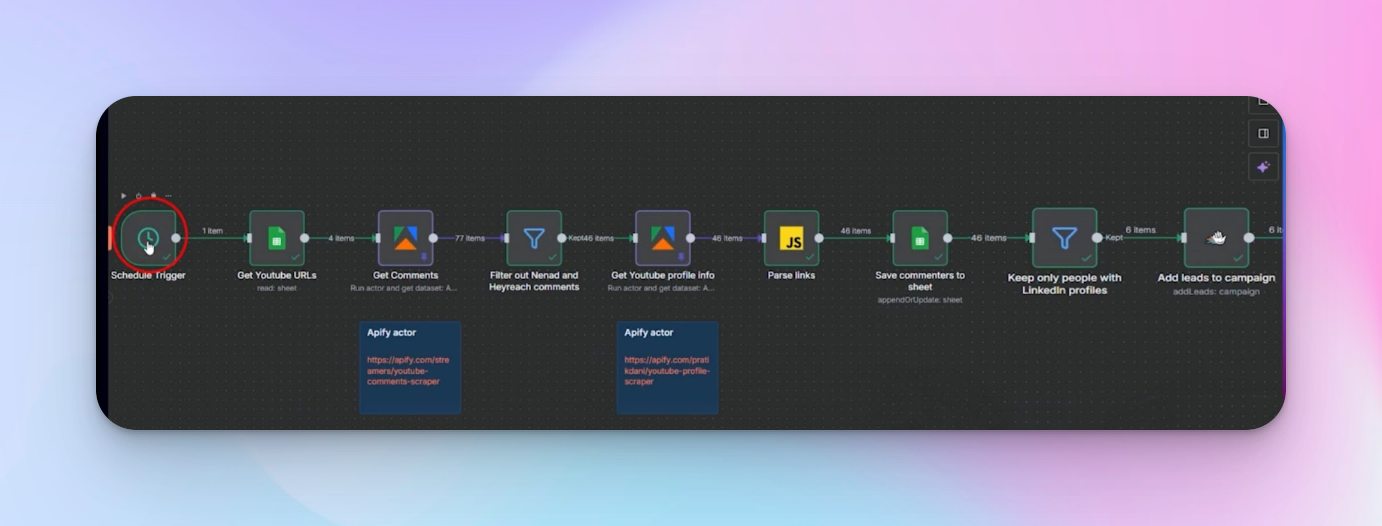
n8n (or Make, if you prefer) is the glue that keeps everything moving. It schedules workflow runs, passes data between tools, and ensures nothing falls through the cracks.
Why n8n:
- Run the workflow automatically on a schedule – daily, every few days, or weekly depending on your content cadence.
- Chain together multiple apps and processes without writing long scripts.
- Avoid duplicating work: it can check if a commenter is already in your database before adding them again.
Think of n8n as the conductor of an orchestra – it keeps your YouTube comment lead machine playing in perfect sync.
2. Apify actors: collecting YouTube data safely
To make the workflow work, you’ll need two Apify actors:
a) YouTube comments collector
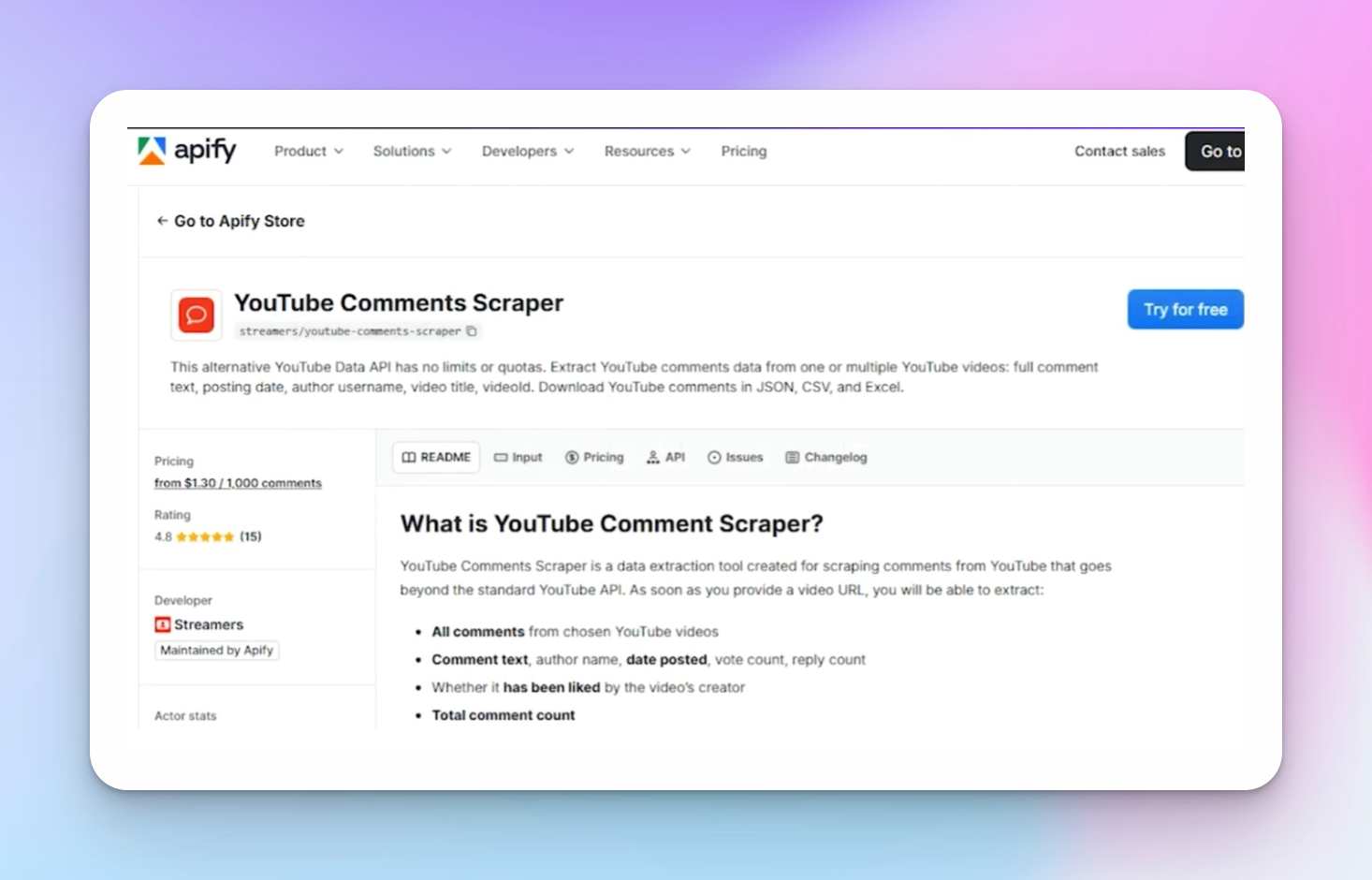
This actor collects all the comments from your videos:
- comment text
- author username
- date posted
- reply count, vote count
- URL of the video
You can even see if a comment was liked by the creator. This is critical because it allows you to track engagement at the comment level, not just the profile.
b) YouTube profile collector
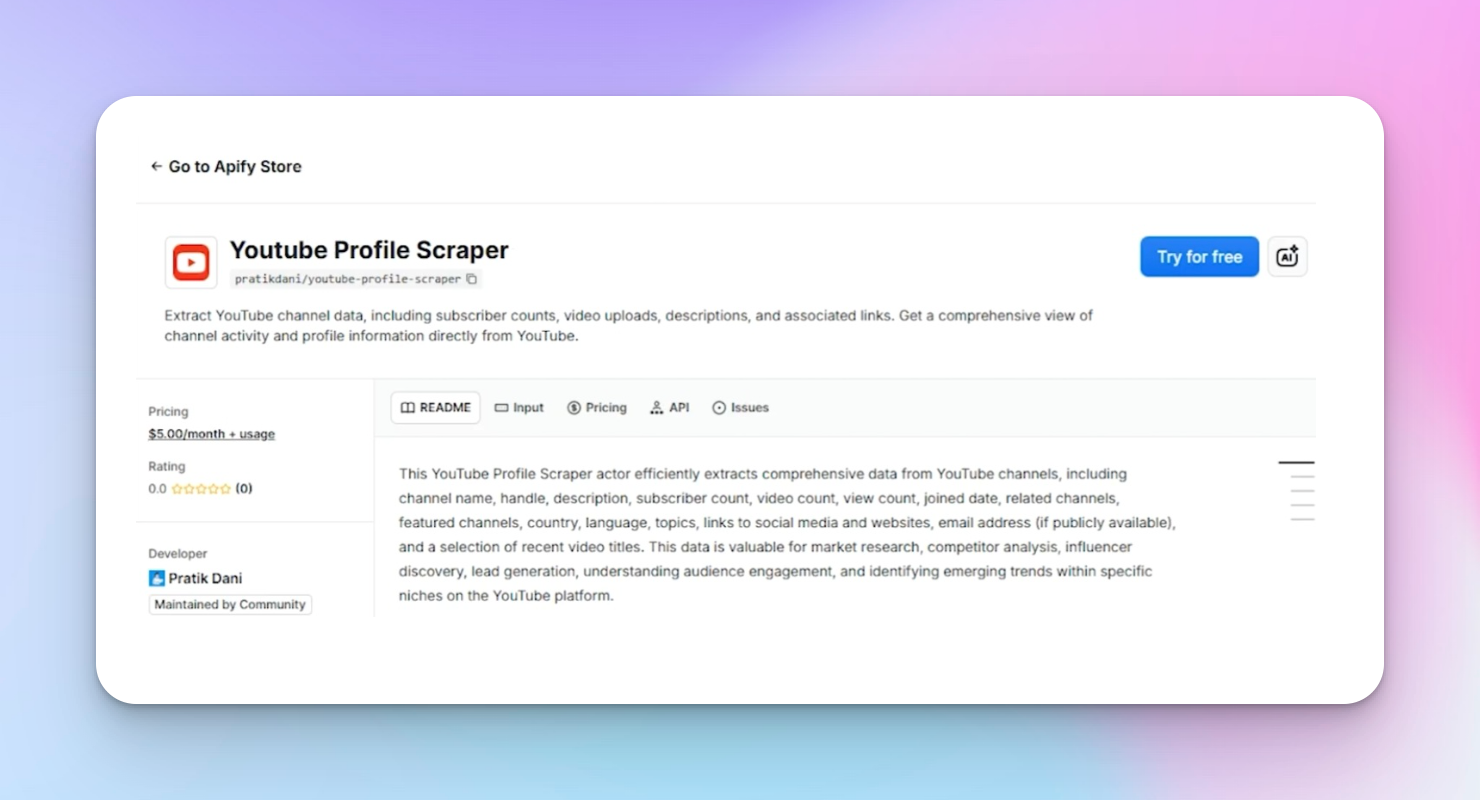
Once you have commenters, this actor digs into their profiles to collect:
- links to LinkedIn, X, Instagram, Threads, Facebook
- public website URLs
- other metadata like join date, subscriber count, or profile description
By the end, every commenter is a fully enriched prospect, not just a username.
These two actors are what let you move from “anonymous comment” to “qualified lead with LinkedIn profile” – safely and automatically.
3. Google Sheets: the self-cleaning database
Why Sheets? Because you need a central place – essentially a lightweight CRM, to track commenters and avoid duplicates.
What it does:
- Stores commenter info with a unique ID for each YouTube profile.
- Updates existing rows instead of creating duplicates.
- Keeps columns for video URL, comment text, LinkedIn link, and other social handles.
This ensures that every run of your workflow only pushes new leads to HeyReach.
4. HeyReach: automated LinkedIn outreach
This is where the leads turn into real connections. Once the workflow identifies commenters with LinkedIn profiles:
- It automatically adds them to a HeyReach campaign.
- Sends a connection request using a customizable script:
Optionally, you can integrate AI agents to personalize messages based on the video topic and the user’s comment.
HeyReach ensures that your engagement doesn’t stop at the comment – it becomes an actionable sales conversation with built-in follow-up.
How it all flows together
- n8n triggers the workflow.
- Comments are collected via Apify.
- Profiles are enriched via Apify Profile collector.
- Google Sheets stores and cleans the data.
- HeyReach receives the LinkedIn-ready leads and starts outreach automatically.
Each tool does one job perfectly, and together they create a completely hands-off lead funnel.
Step-by-step: building your YouTube-to-LinkedIn pipeline
Step 1: Schedule your workflow (n8n Trigger)
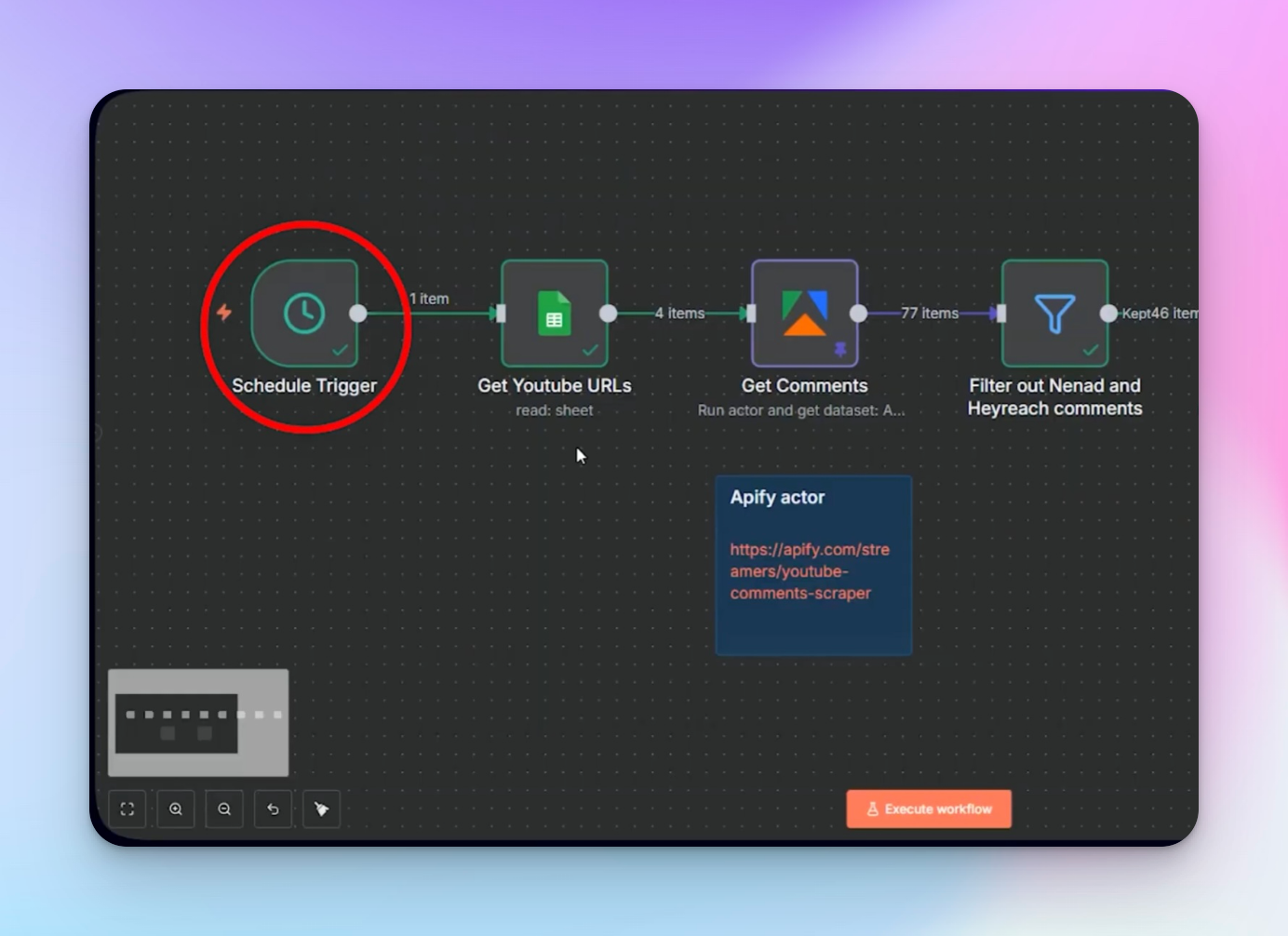
- Open n8n and create a new workflow.
- Add a Schedule Trigger node.
- Choose how often you want the workflow to run: daily, every 2–3 days, or weekly.
- This ensures new commenters are captured automatically, no matter when they leave a comment.
This sets your workflow to run continuously — so you’re always collecting leads without lifting a finger.
Step 2: Fetch YouTube URLs (Google Sheets node)
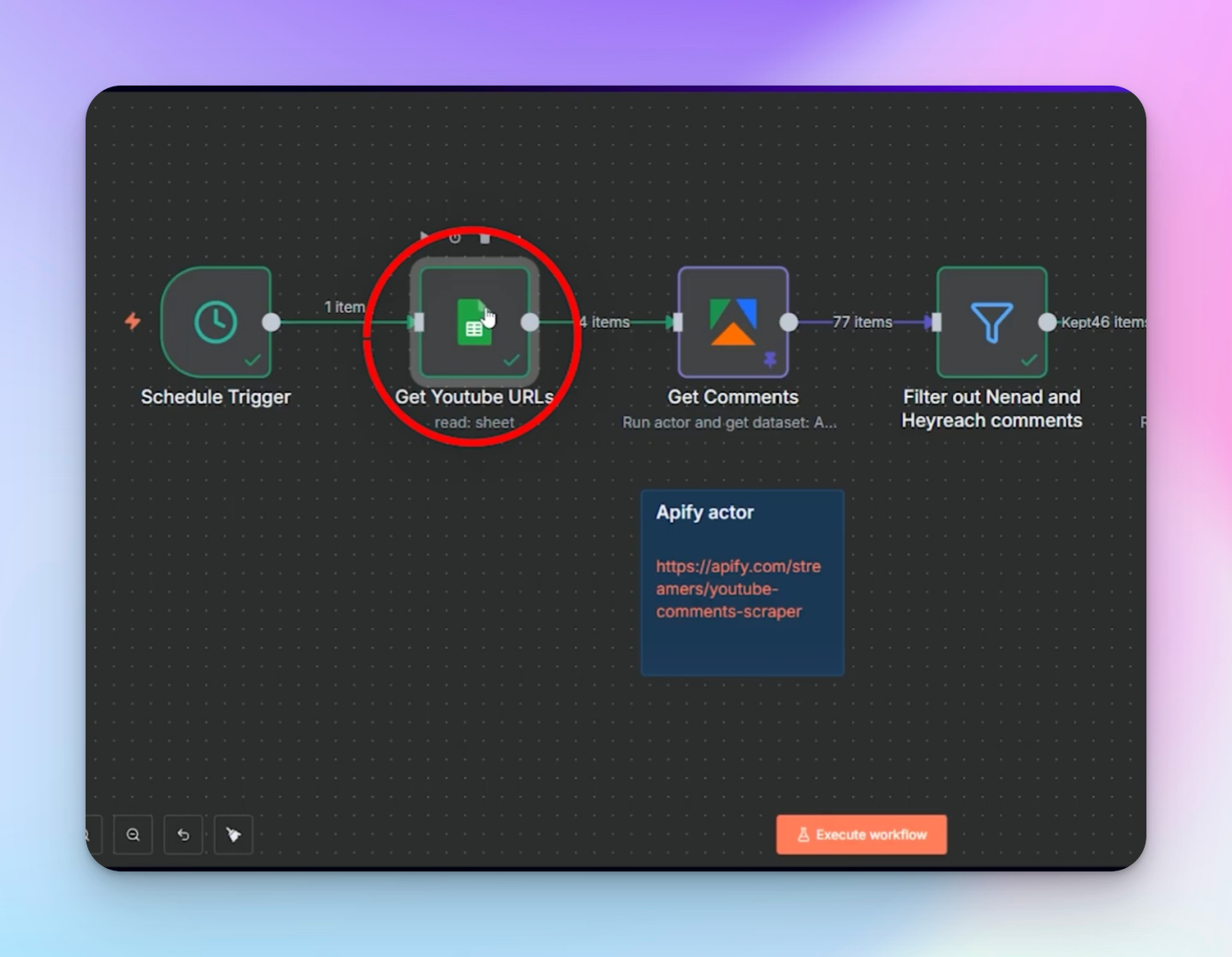
- Add a Google Sheets node to read your list of video URLs.
- Configure:
- Spreadsheet with video IDs or links.
- Set the sheet to read all rows.
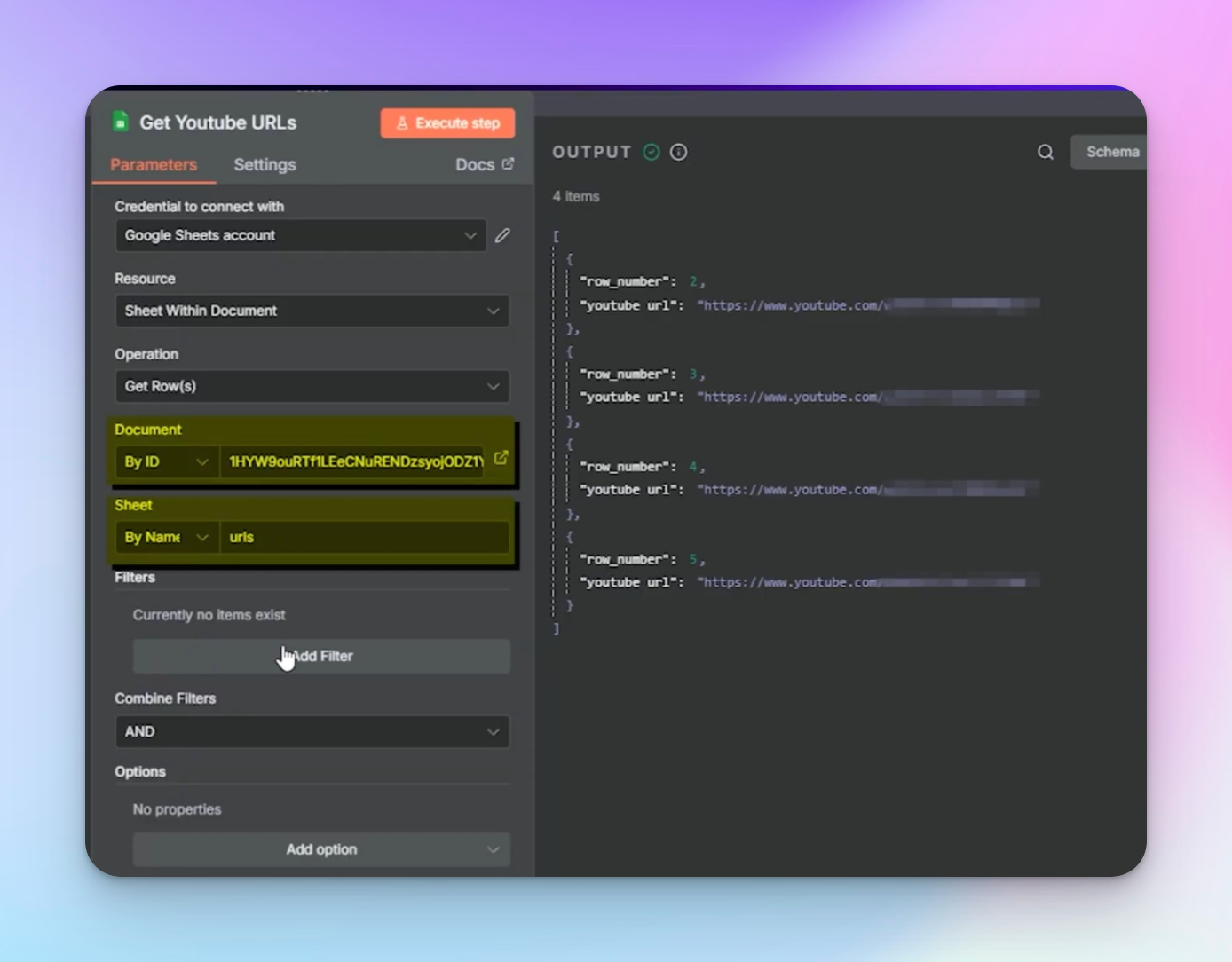
- Output: all URLs that will be processed by Apify.
Think of this as your “input list” – every video you want to capture leads from goes here.
Step 3: Collect comments (Apify – YouTube Comments collector)
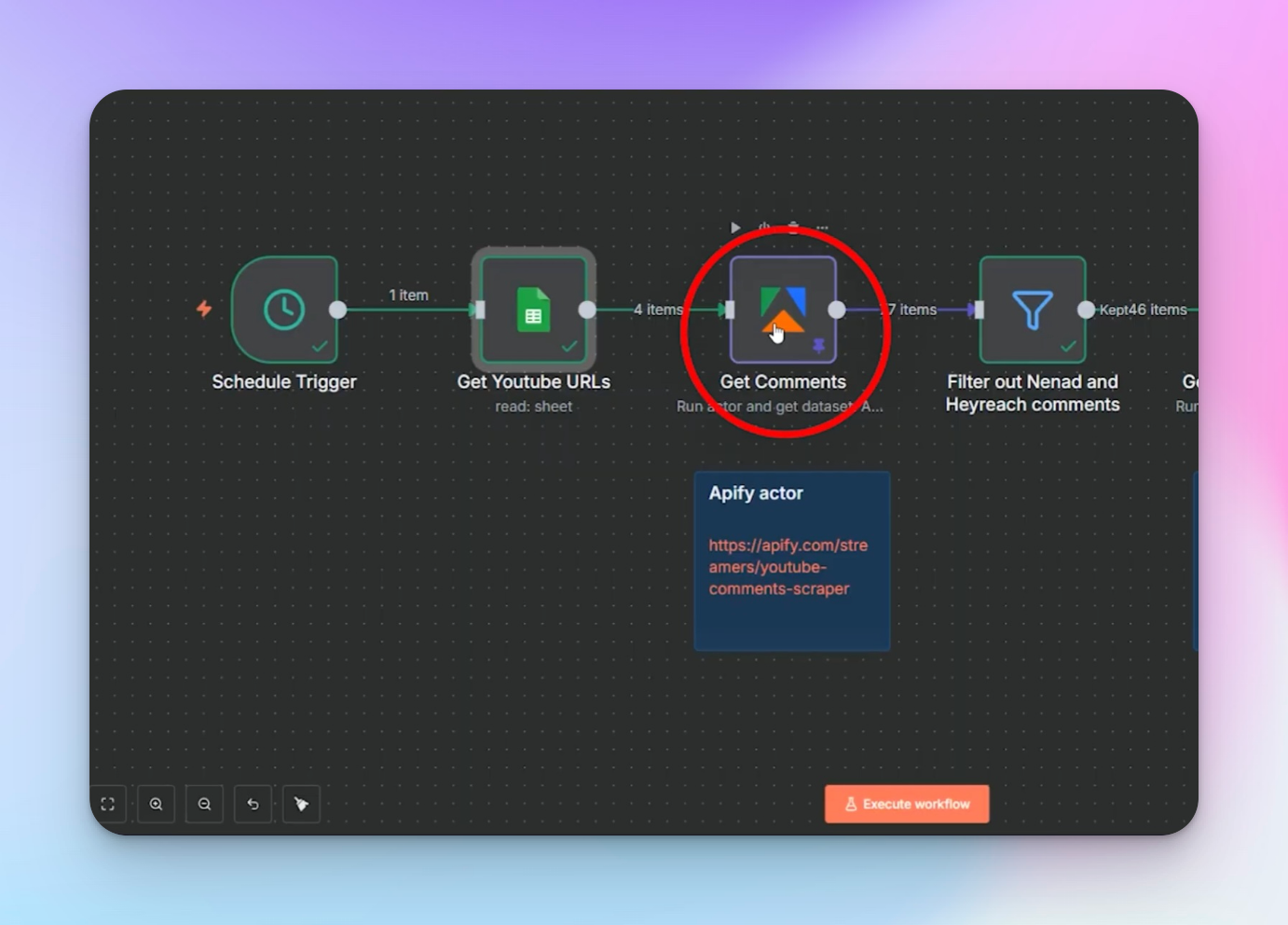
- Add Apify YouTube Comments collector node.
- Configure:
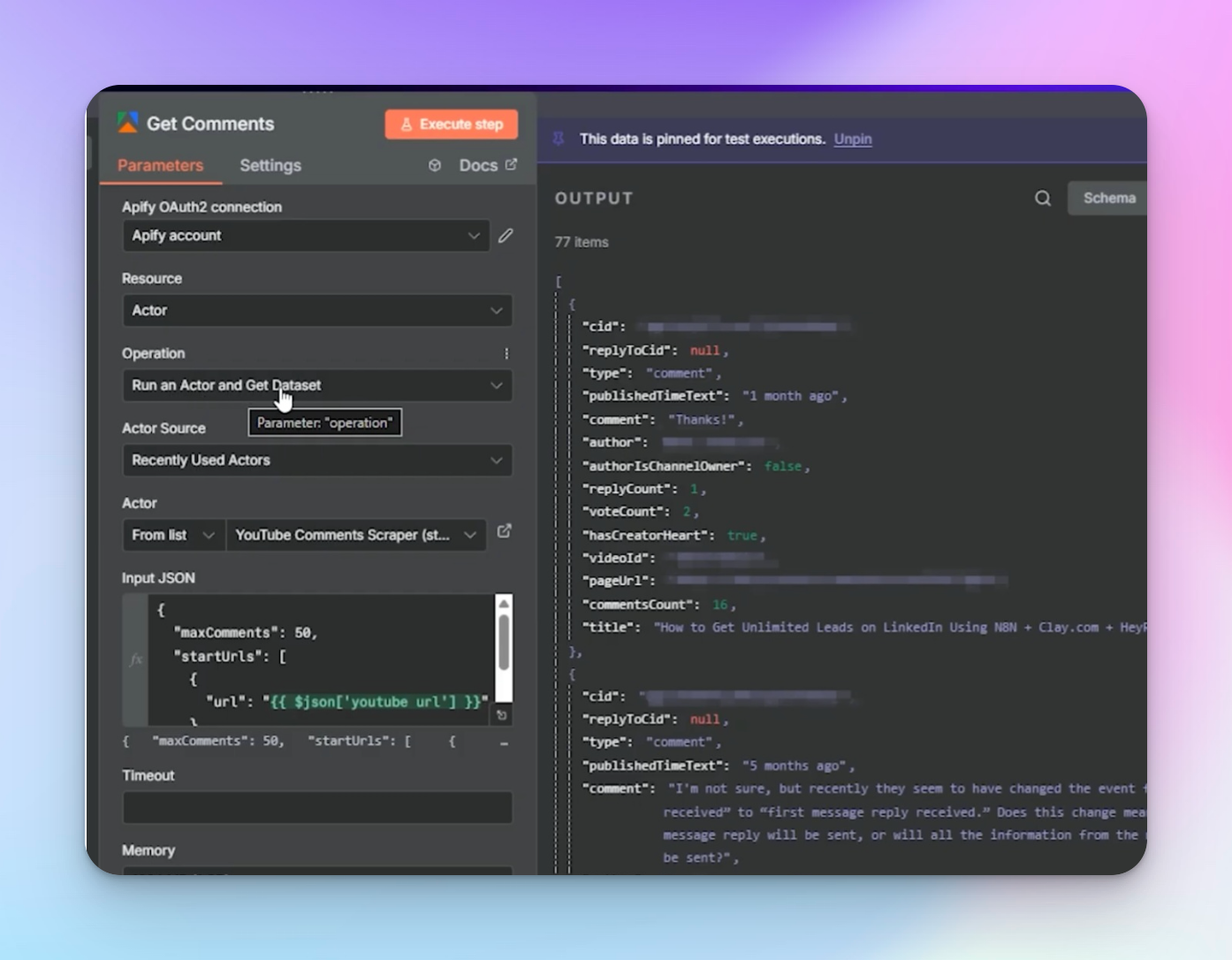
- Input: video URLs from the previous step.
- Use “Run an Actor and Get Data Set” so n8n waits until collection is complete.
- Output includes:
- Comment text
- Author name
- Comment type (top-level or reply)
- Date posted
- Reply count, vote count
Once the filter is in place, the remaining commenters move forward to the profile enrichment step, where their social links (including LinkedIn) are extracted (as seen in the image above).
Step 5: Collect profile social links (Apify – YouTube profile collector)
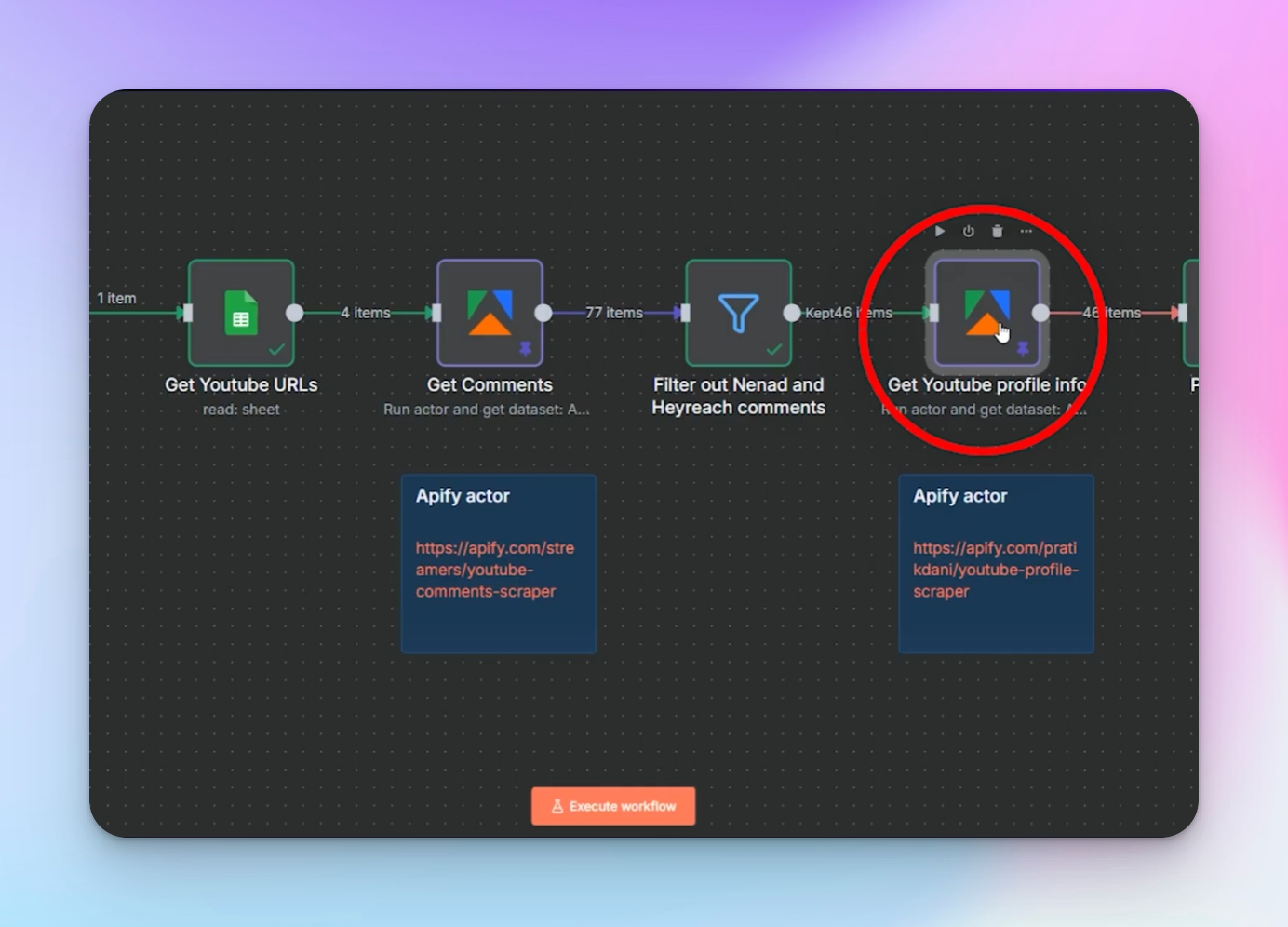
- Add Apify YouTube Profile collector node.
- Input: all unique YouTube profile IDs from the previous step.
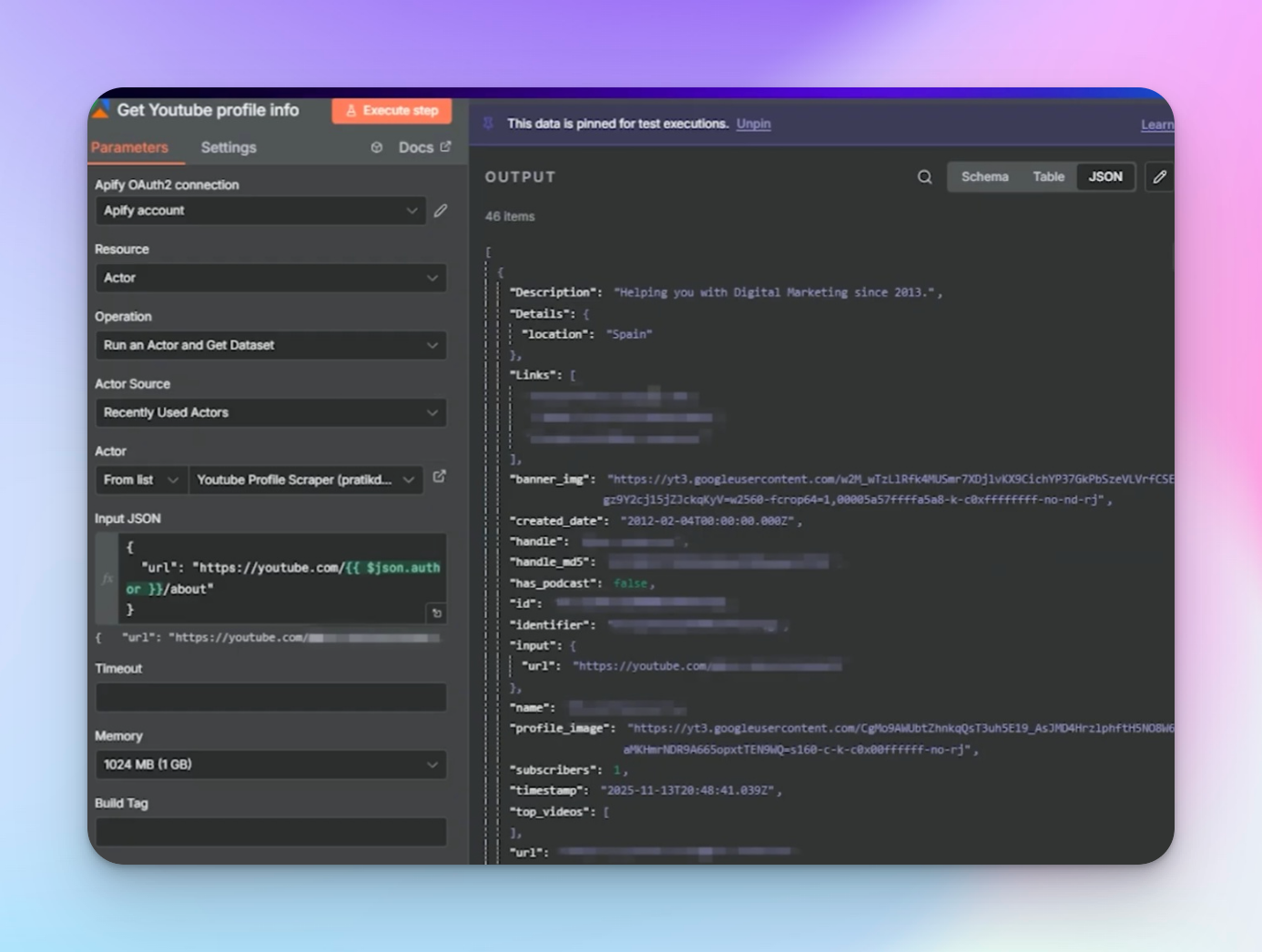
3. Output includes:
- LinkedIn URL (if available)
- X / Threads / Instagram / Facebook
- Website URLs (optional)
Step 5: Parse profile links and extract LinkedIn (parse links node)
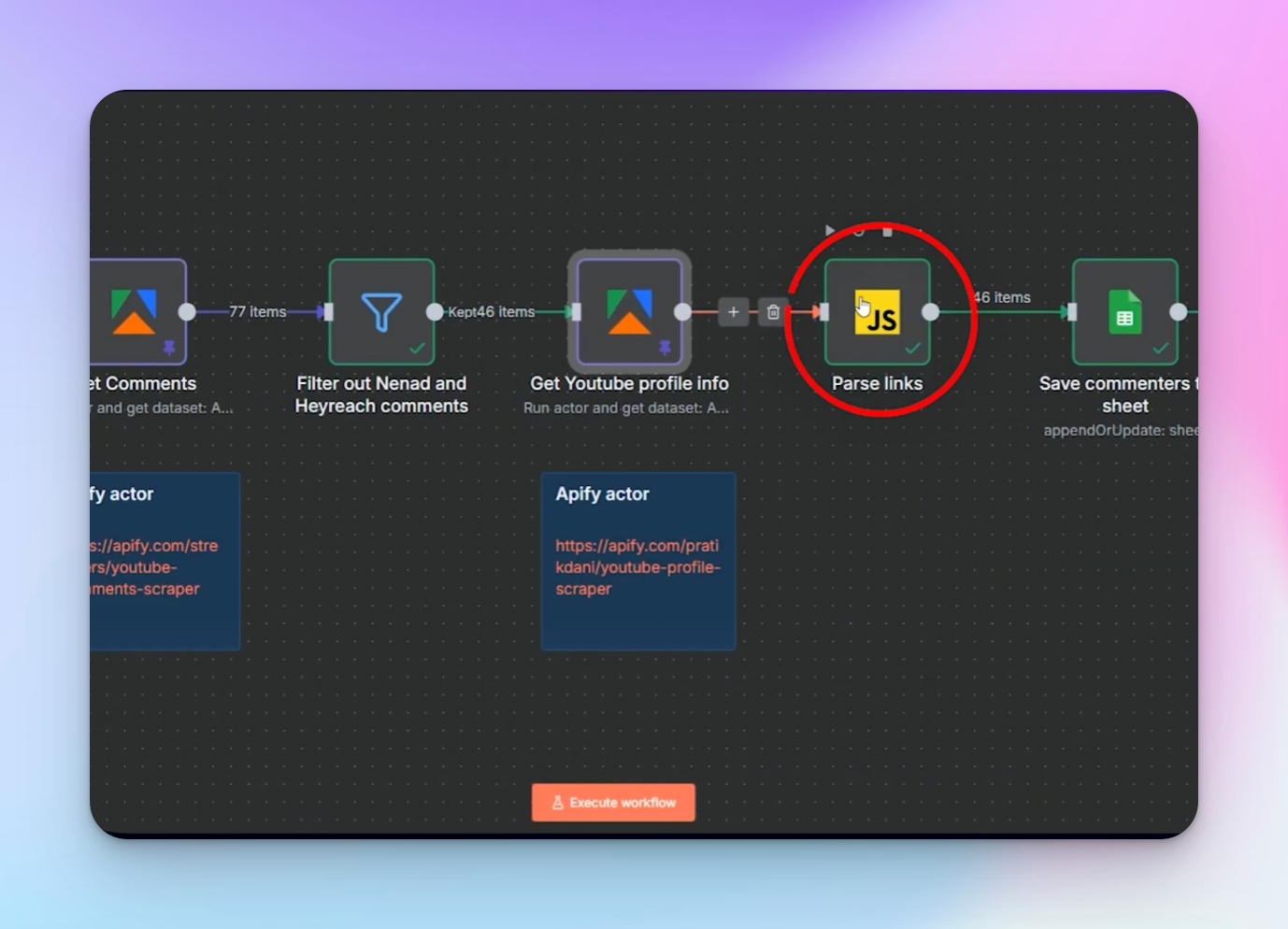
After scraping YouTube profiles, the workflow receives an array of links from each user’s profile. These links can include anything the creator added in the About section – personal websites, landing pages, social profiles, newsletters, and sometimes LinkedIn.
The problem is that these links arrive as a mixed list, which makes it difficult to filter prospects later.
That’s where the Parse Links node comes to the rescue 👀.
This step standardizes the data by scanning every link and assigning it to the correct platform field.
How to set it up:
- Add a Code node in n8n after the YouTube Profile collector node.
- Name the node Parse Links (or something similar so it’s easy to recognize).
- The code will loop through the array of links returned by the profile collector.
- For each link, it'll check whether it contains platform identifiers such as:
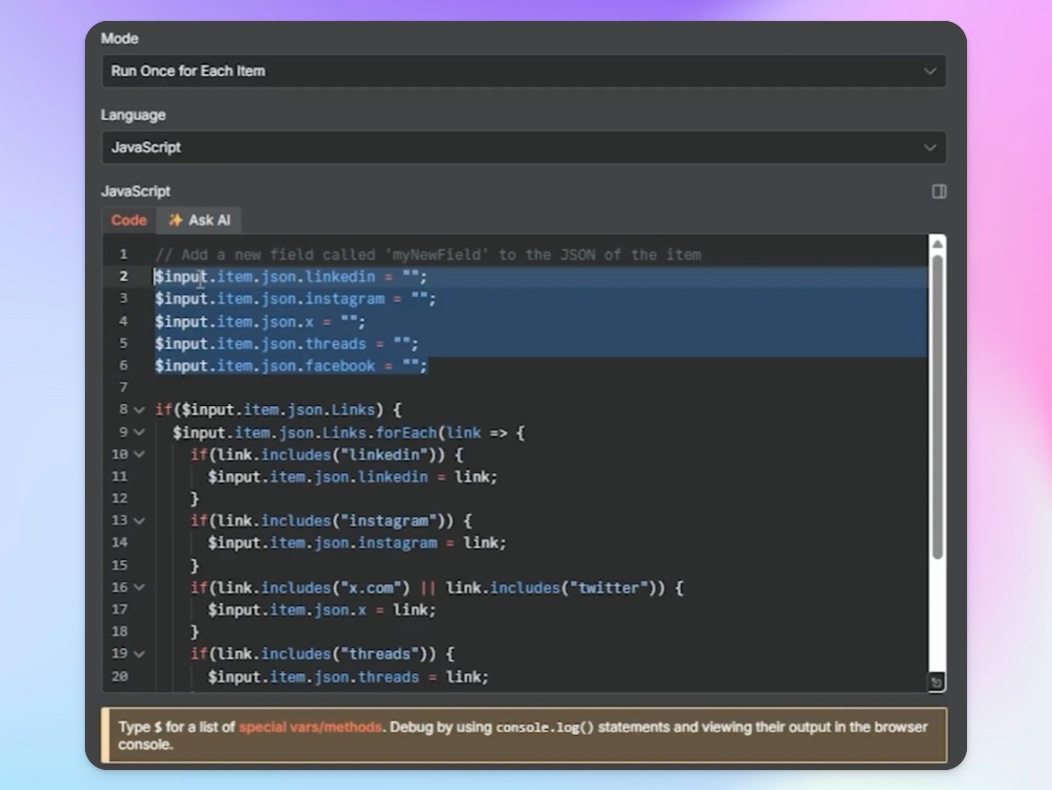
- linkedin.com
- twitter.com or x.com
- threads.net
- instagram.com
- facebook.com
When a match is found, it'll push that link into a dedicated field.
For example:
- LinkedIn links → LinkedIn column
- X/Twitter links → X column
- Threads links → Threads column
- Instagram links → Instagram column
- Facebook links → Facebook column
Any remaining links can still be preserved in a general All Links field if you want to analyze them later.
The result is a clean, structured dataset where every commenter profile has consistent properties like:
- X
- Threads
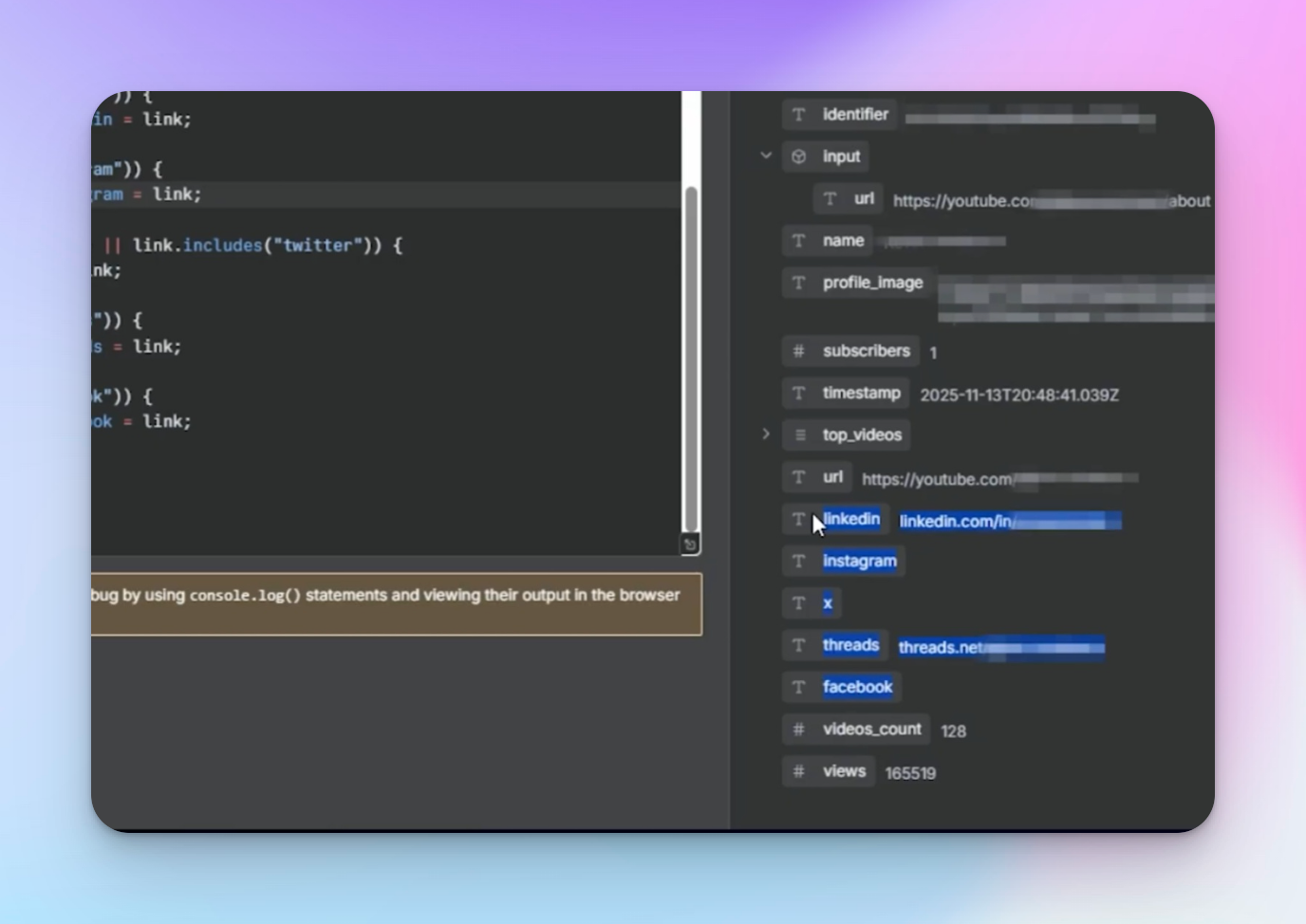
This structure is important because the next steps in the workflow will filter profiles that contain a LinkedIn URL, which are the ones sent to HeyReach for outreach.
Step 6: Store and update commenter data in Google Sheets
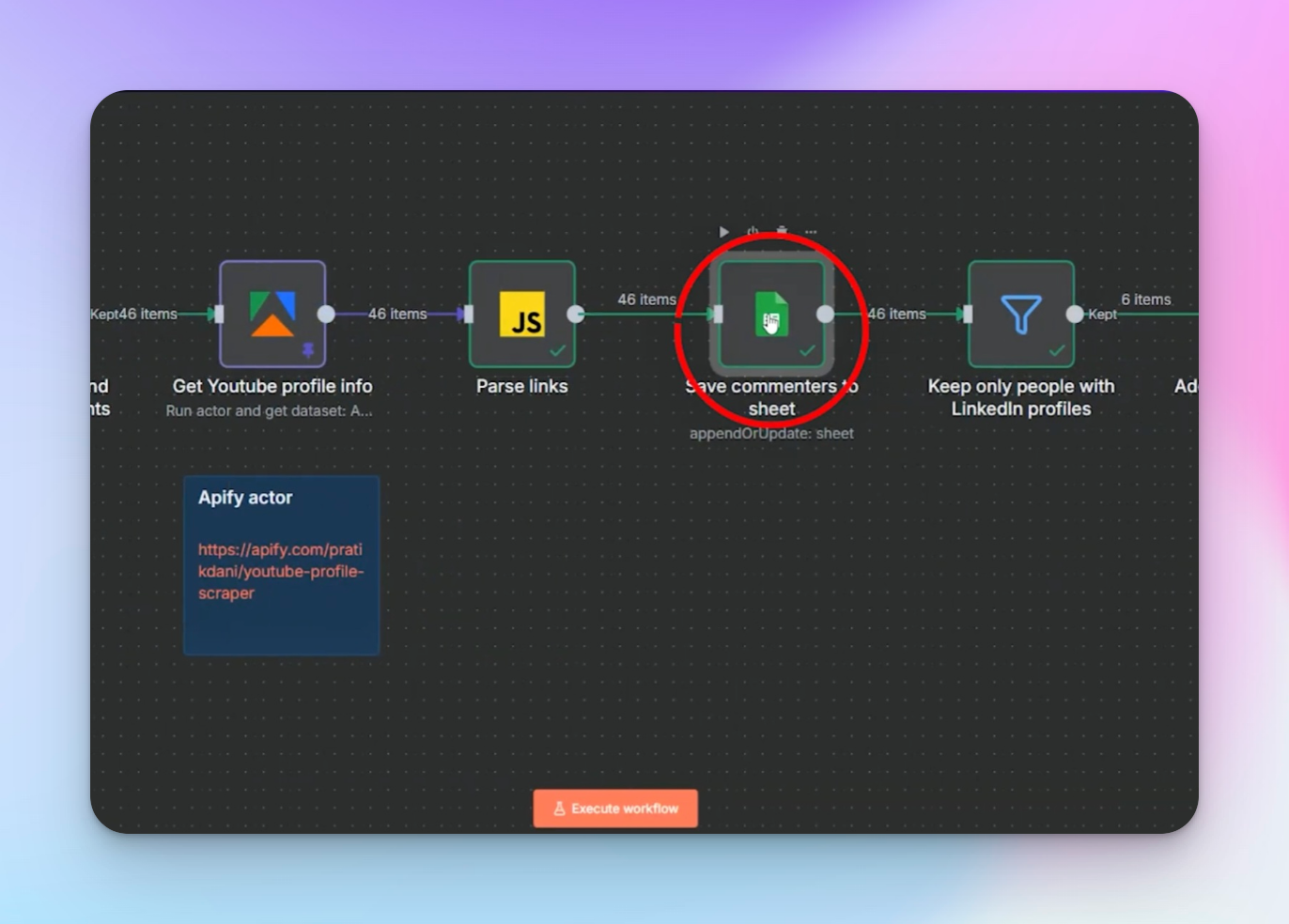
Once the workflow finishes enriching commenter profiles and parsing their links, the next step is to store that data in a structured database. This is where the second Google Sheet does its thing.
Instead of blindly adding rows every time the workflow runs, I configure the node so the sheet updates existing commenters and only adds new ones when necessary. This keeps the dataset clean and prevents duplicates.
How to set it up:
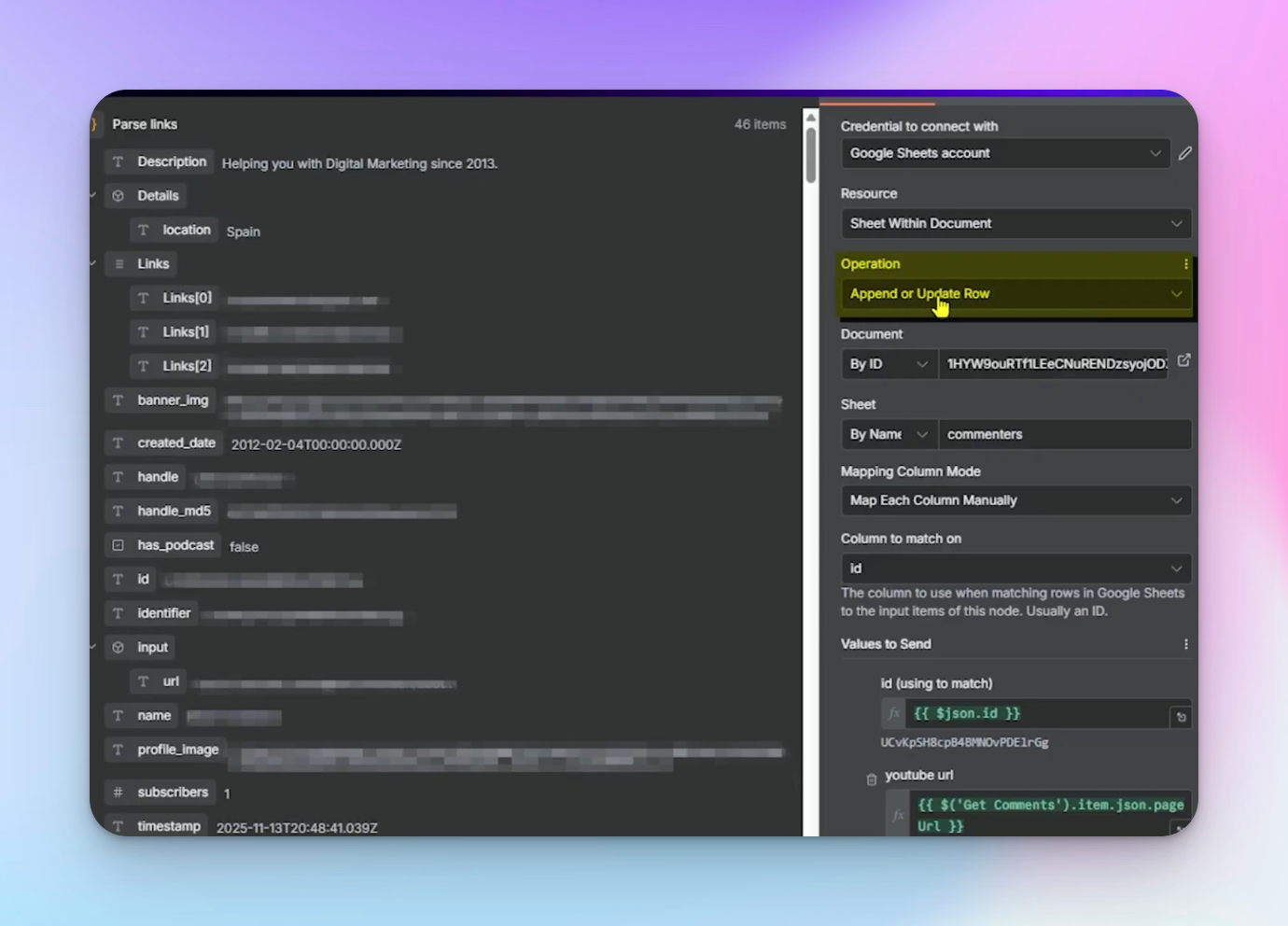
- Add a Google Sheets node after the Parse Links node.
- Connect your Google Sheets credentials so n8n can access your spreadsheet.
- In the Resource field, select “Sheet Within Document.”
- For the Operation, choose “Append or Update Row.” This setting is critical. It tells n8n to check whether the commenter already exists in the sheet before adding a new row.
- Select the spreadsheet document that will store your leads.
- In the Sheet field, choose the sheet where commenters will be saved (for example: commenters).
- Under Mapping Column Mode, select “Map Each Column Manually.” This lets you decide exactly which data fields from the workflow should be stored in which spreadsheet columns.
- Configure the Column to match on setting. Use the YouTube profile ID (id) as the matching column. This ID acts as the unique identifier for each commenter.
What happens next:
- If the workflow finds an existing row with the same ID → the row gets updated.
- If the ID doesn’t exist → a new row is created.
- Map the values you want to store in the sheet.
For example:
- id → YouTube Profile ID
- youtube_url → video where the comment appeared
- comment_text → original comment
- linkedin → extracted LinkedIn link
- other columns → X, Threads, Instagram, Facebook, etc.
Once this node runs, every comment processed by the workflow is automatically stored in your sheet, creating a continuously growing database of engaged prospects (as seen in the image below)
Because the workflow uses the profile ID as the matching key, the sheet stays organized over time – existing commenters are updated, and only genuinely new commenters are added. This makes it easy to track leads and ensures the next step only sends fresh prospects to HeyReach for outreach.
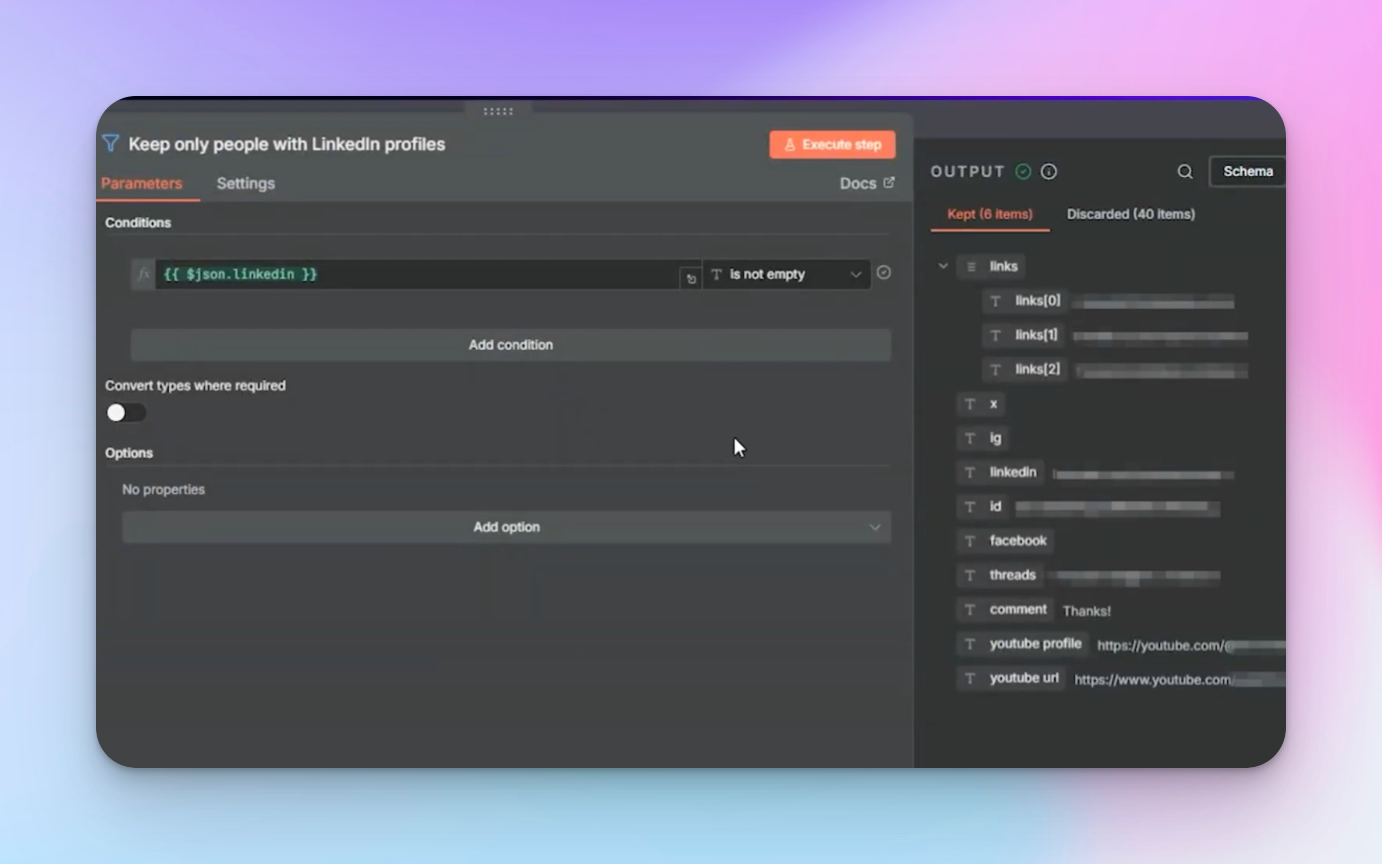
Step 7: Filter LinkedIn-ready leads (Filter node)
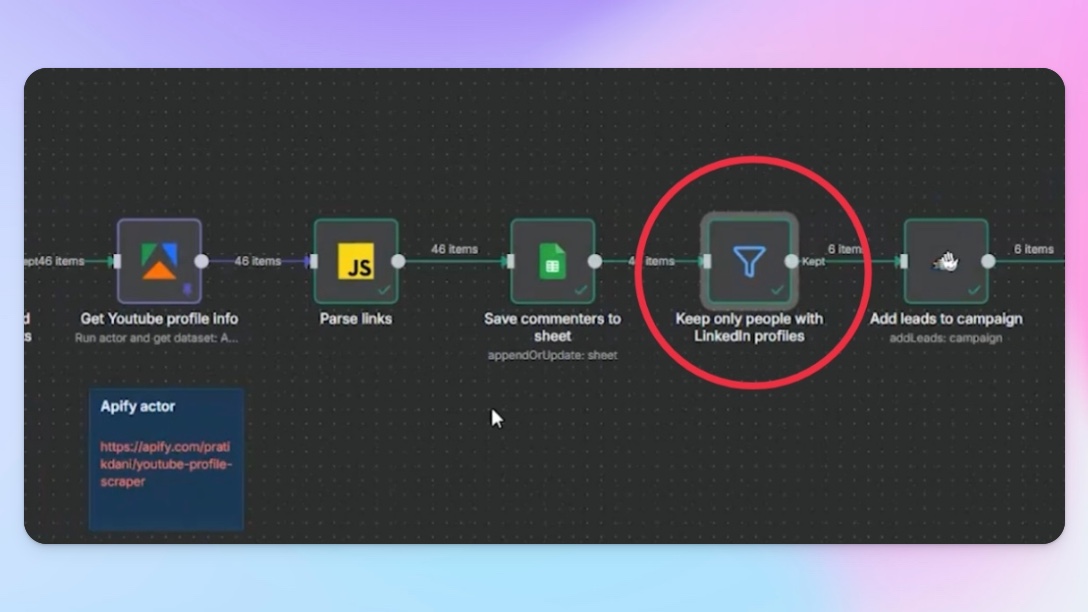
At this point in the workflow, you’ve already extracted all the social links from each commenter’s profile and organized them using the Parse Links (Code) node. However, not every commenter will have a LinkedIn profile.
This step ensures that only leads with a valid LinkedIn URL continue through the workflow.
- Add a Filter node after the Parse Links node
Connect the Filter node directly after the step where you standardized the links (the Parse Links / Code node). - Set the filter condition
Configure the filter to check whether the LinkedIn field exists and is not empty.
For example:
- Field: linkedin
- Condition: Is not empty
- Separate valid leads from incomplete ones
When the workflow runs:- Commenters with LinkedIn profiles pass through the filter and continue to the next step.
- Commenters without LinkedIn profiles are automatically excluded.
- Send qualified leads to the next step
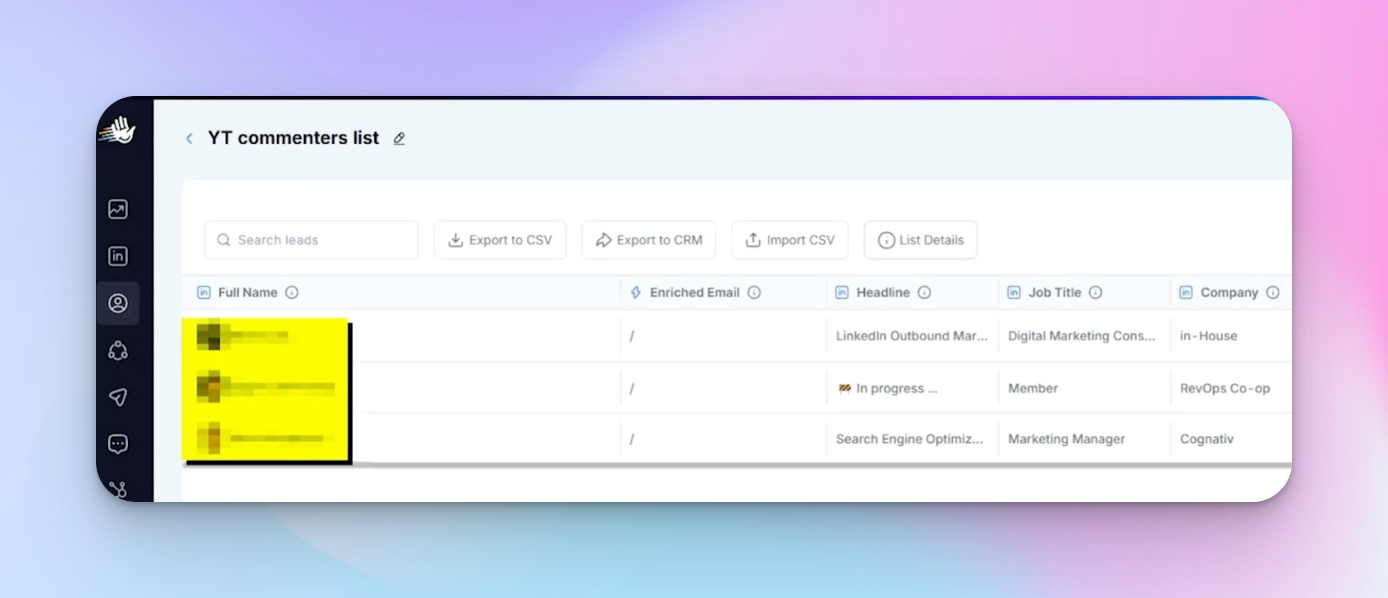
Only the filtered records (those containing LinkedIn URLs) will move forward to the HeyReach node, where they’ll be added to your LinkedIn outreach campaign.
This step keeps your automation clean and efficient by ensuring that only LinkedIn-ready leads enter your outreach funnel. Without it, the workflow might attempt to send connection requests without valid profiles, which would cause errors in the final step.
Step 8: Push leads to HeyReach (HeyReach node)
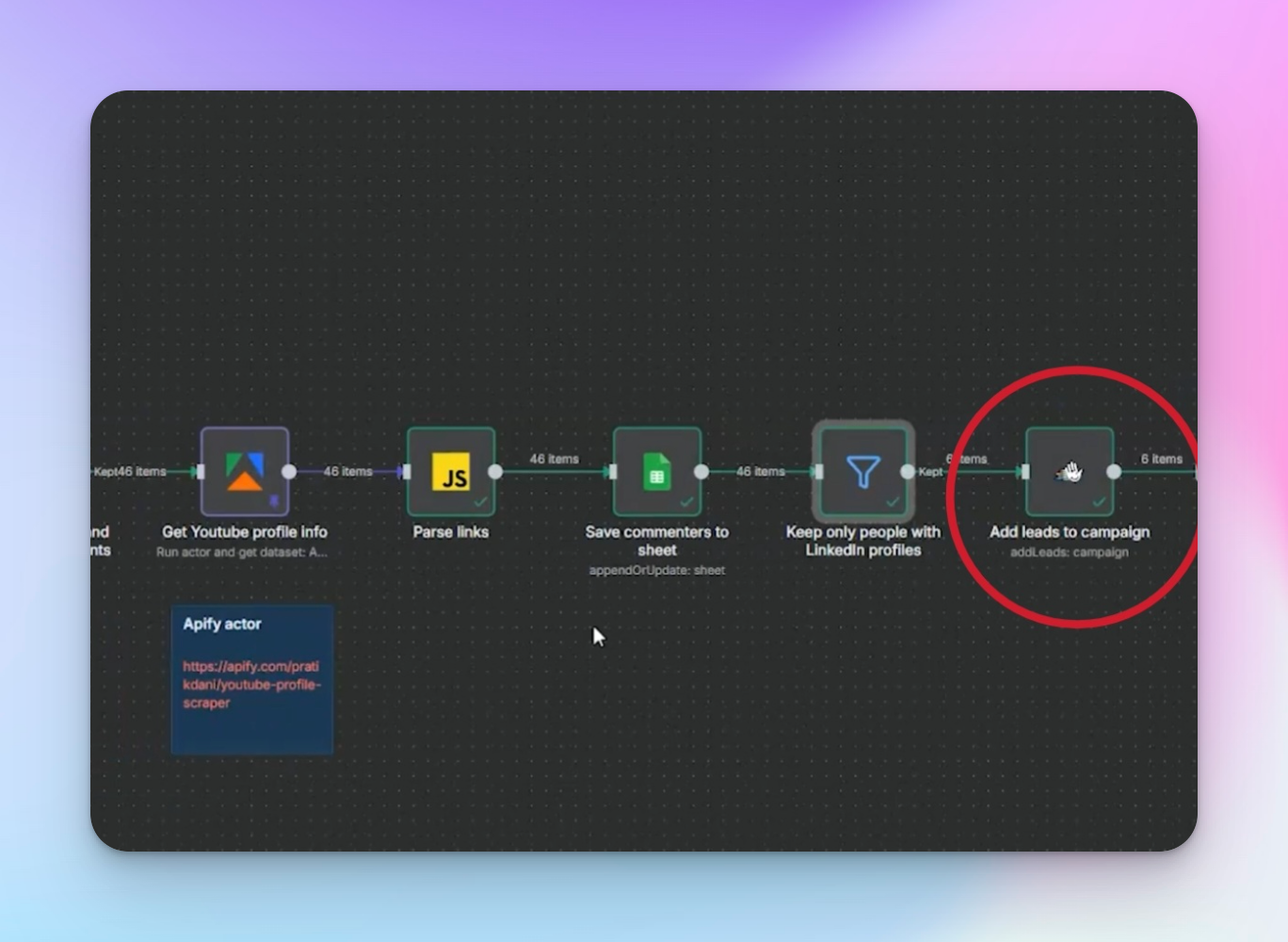
Now that you’ve filtered and structured the data, the next step is to send those leads into your LinkedIn outreach campaign.
- In your workflow, add a HeyReach node and connect it to the previous step where your filtered LinkedIn profiles are prepared.
- Inside the node settings, choose the HeyReach campaign that will send the connection requests. This campaign should already be configured inside HeyReach with a sequence that starts with a LinkedIn connection request.
- Map the LinkedIn URL field from your filtered workflow data to the LinkedIn profile field in the HeyReach node. This ensures each identified commenter is added to the campaign using their correct LinkedIn profile.
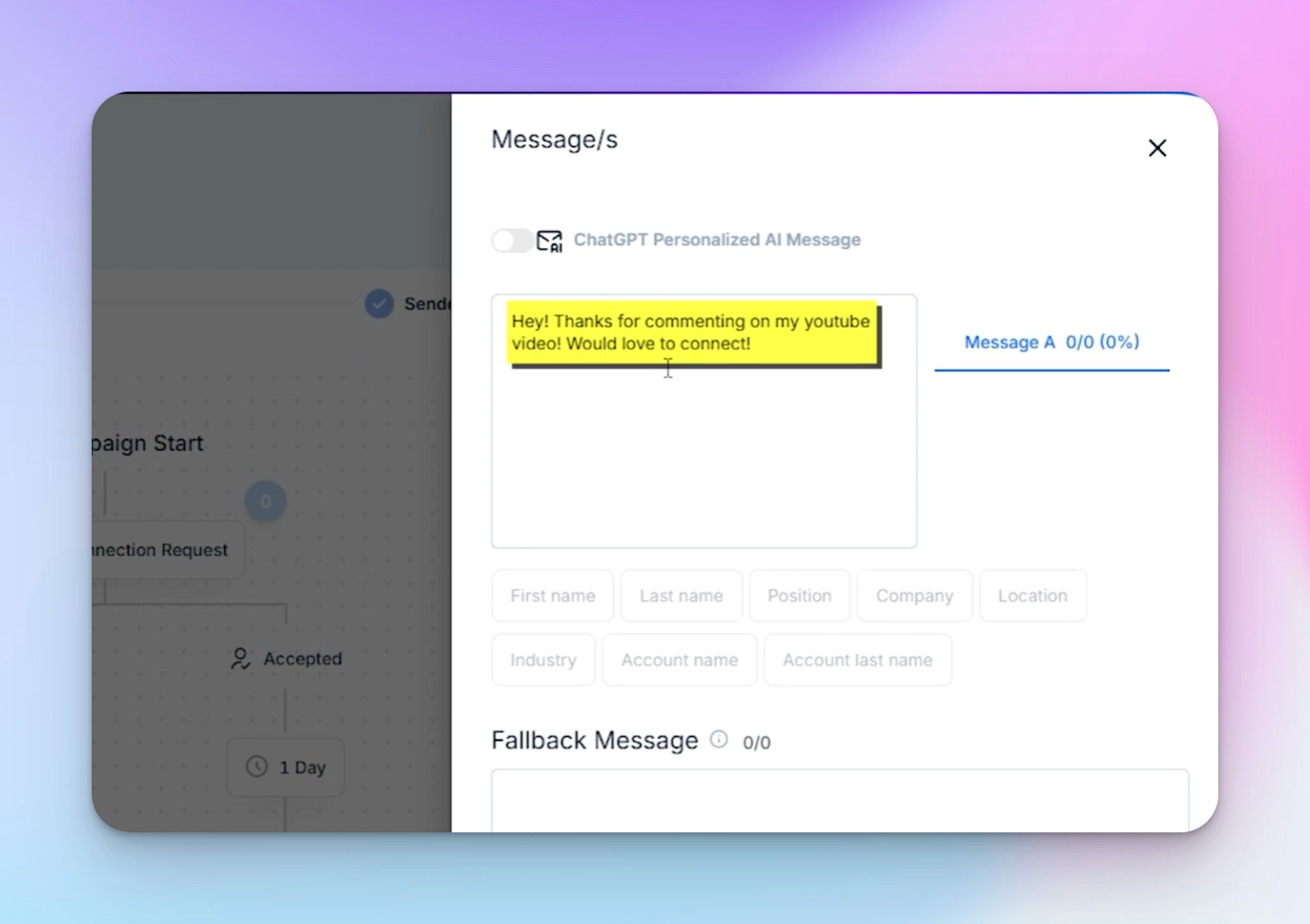
- In your HeyReach campaign, add a simple connection message. For example:
“Hey! Thanks for commenting on my YouTube video. Would love to connect!”
As shown in the example below, this message will be sent automatically when the lead enters the campaign.
The message should stay short and contextual, since the person already interacted with your content.
- (Optional)
You can add an AI agent before the HeyReach step to optimize each connection request by referencing the video title or the commenter’s message, which makes the outreach feel more natural.
For example:
“Hey, thanks for commenting on my YouTube video about [video topic]. Really appreciated your point about [comment context] – would love to connect here as well.”
Once this step is active, every qualified commenter identified by your workflow will be automatically pushed into your HeyReach campaign, where the connection request is sent as part of your LinkedIn outreach funnel.
Step 9: Test your workflow
Before letting the system run automatically, it’s important to test the workflow once manually to make sure every step works as expected.
How to do it:
- Run the workflow manually in n8n.
Use one or two video URLs from your input sheet and click Execute Workflow. This triggers the entire process – scraping comments, enriching profiles, parsing links, and storing the data. - Check your Google Sheet.
Open the sheet where commenter data is stored and confirm that:- new rows were created for commenters
- profile information (comment text, video URL, social links) appears in the correct columns
- duplicate rows were not created if the same commenter appears more than once
- Verify LinkedIn leads were filtered correctly.
Make sure the workflow only selects profiles that actually contain a LinkedIn URL. - Open your HeyReach campaign and confirm that the LinkedIn profiles from the test run were added as new leads.
Once everything looks correct, you can turn the workflow into a scheduled automation so it runs automatically at the interval you chose earlier. From that point on, every new comment on the tracked videos will be processed and turned into a potential LinkedIn connection.
Content for attention, automation for revenue
Most creators treat content and outbound as two completely separate worlds.
Content is for visibility.
Outbound is for sales.
But when you combine the two properly, something interesting happens – your high value content starts feeding your outbound pipeline automatically.
That’s exactly what this system does.
Whether the views come organically or through YouTube ads, the workflow still captures engagement signals from people interacting with the content and turns it into real conversations on LinkedIn.
Let’s quickly run through the full system.
- A scheduled workflow runs in n8n.
- YouTube comments are collected using Apify.
- Commenter profiles are processed to extract social links.
- The Parse Links node identifies platforms like LinkedIn.
- Google Sheets stores and updates all commenter data.
- Profiles with LinkedIn URLs are filtered.
- Those leads are automatically sent to HeyReach for outreach.
Want to turn engagement into conversations like this? Start with HeyReach’s 14-day free trial and set up your first campaign.
From there, you can plug the workflow into your outbound stack using the official template and start connecting with people who are already engaging with your content.

Try it for free
Frequently Asked Questions
Does this YouTube lead generation workflow only work with videos from my own YouTube channel?
No – it also works with videos from other channels. The workflow pulls comment data using YouTube’s public API through tools like Apify actors. As long as the video is publicly available, you can collect comments and analyze commenter profiles. This means you can run the workflow on your own YouTube videos, partner or collaboration videos and industry videos where your ideal audience is active. You don’t need admin access to the channel – the only requirement is that the video and its comments are publicly accessible.
Can I personalize LinkedIn connection requests automatically?
Yes. When leads are sent to HeyReach, you can use dynamic variables or AI agents to personalize connection requests. For example, your message can reference: the YouTube video topic, the comment they left or the problem discussed in the video. This makes the outreach feel natural – you're connecting because they interacted with your content, not sending a random cold request.
Will this YouTube lead generation workflow send duplicate leads to my outreach campaign?
No, if you configure the Google Sheets step correctly. By using the YouTube profile ID as the matching key, the workflow updates existing rows instead of creating new ones. This prevents the same commenter from being processed multiple times and ensures that only new leads are pushed to your outreach campaigns in HeyReach.
Can this YouTube lead generation workflow run automatically?
Yes. Once configured in n8n, you can schedule the workflow to run daily, weekly, or at any interval you prefer. After setup, the entire system runs in the background while your content continues attracting new engagement.
Can I use this workflow even if I don’t post YouTube videos myself?
Yes. The workflow works with any public YouTube video, not just your own content. If your target audience regularly comments on certain industry channels, podcasts, or influencer videos, you can add those video URLs to your workflow as well. The system will then collect commenters, analyze their profiles, and identify anyone with a LinkedIn account. Once those profiles are detected, they can be automatically sent to your outreach campaigns in HeyReach.