How to handle HeyReach replies programmatically with n8n
Published:
July 14, 2026
Most teams treat LinkedIn replies as a manual task — someone checks the inbox, copies the message into a spreadsheet or CRM, and tries to remember the context of the conversation. That breaks down fast at scale. In this guide, I'll show you exactly how I built an n8n automation that captures every LinkedIn reply from HeyReach outreach campaigns, analyzes the sentiment of the conversation using AI, and saves everything directly to HubSpot — automatically, every time a reply comes in.
Why handling HeyReach replies programmatically matters
HeyReach has webhook support, and until recently the only message-related event available was "first message reply received." That was limiting. The new event — every message/inmail reply received: changes everything. Now, whenever any reply comes in across any conversation, a webhook fires and your automation can act on it immediately.
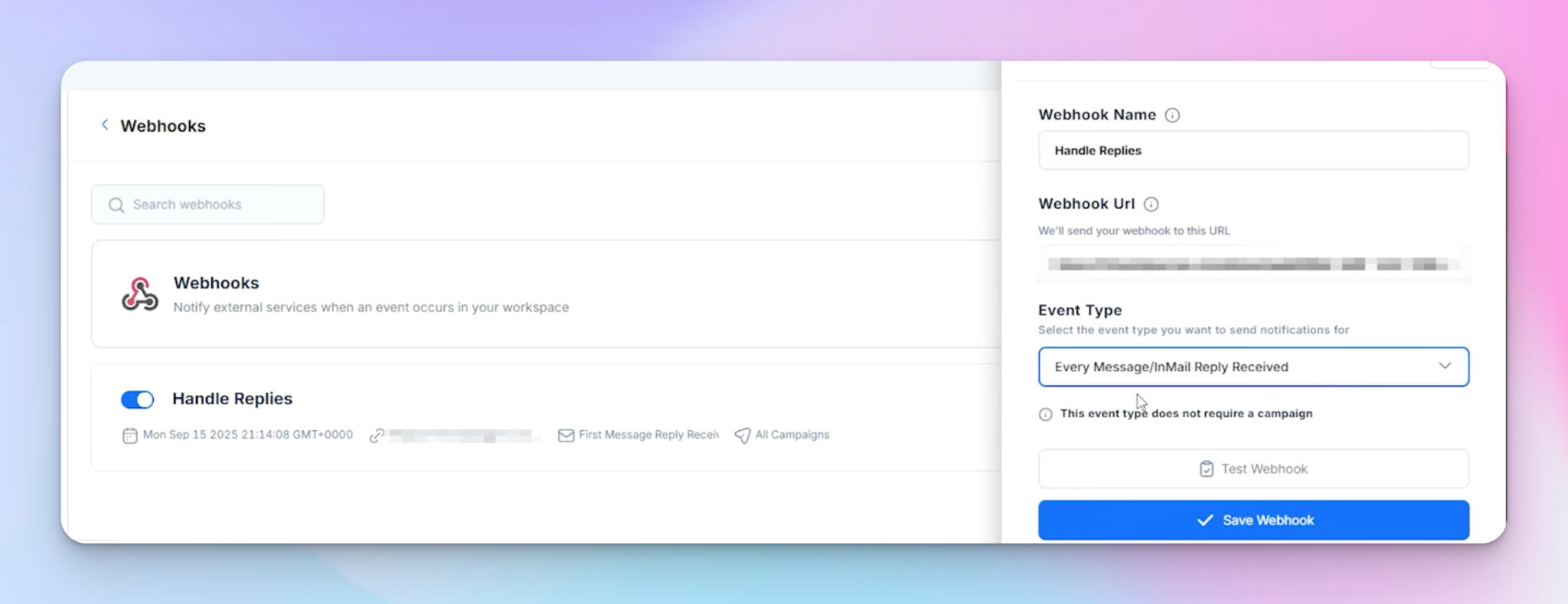
This matters because LinkedIn outreach is a back-and-forth. A conversation doesn't end after the first reply. Leads go cold, come back, shift intent. If you're only capturing the first message, you're missing most of the story.
The goal here is simple:
- Get notified the moment a reply lands in any campaign
- Pull the full conversation thread from HeyReach via API
- Analyze the sentiment of the entire thread with an AI agent
- Save the messages and the sentiment to HubSpot as custom fields
Setting up the n8n workflow for HeyReach reply handling
Before walking through each node, you can grab this exact n8n workflow template for free from the video description — it includes all API calls, the AI sentiment analysis prompt, HubSpot integration, and the evaluation setup covered below.
Step 1: Webhook trigger — get notified for campaign replies
The workflow starts with an n8n webhook node that listens for the "every message/inmail reply received" event from HeyReach. When a reply comes in, the webhook delivers a payload that includes:
- The message text
- A timestamp
- Whether it's a reply
- The conversation ID
- Campaign information
- Sender details (your LinkedIn account)
- Lead information
- The list the lead belongs to
- The event type
The conversation ID is the most critical piece here — it's what you'll use to pull the full thread in the next step.
When you start a conversation through HeyReach, you can choose whether to handle replies through LinkedIn or the HeyReach inbox. Either way, HeyReach tracks the conversation, shows it inside the HeyReach inbox, and fires the webhook. The HeyReach inbox management handles this transparently regardless of where you reply from.
Step 2: Set variables
The second node sets variables used across the workflow. In this case, the main one is the HeyReach API key. If you're building a more complex workflow with multiple API calls, centralizing your variables here makes maintenance much easier.
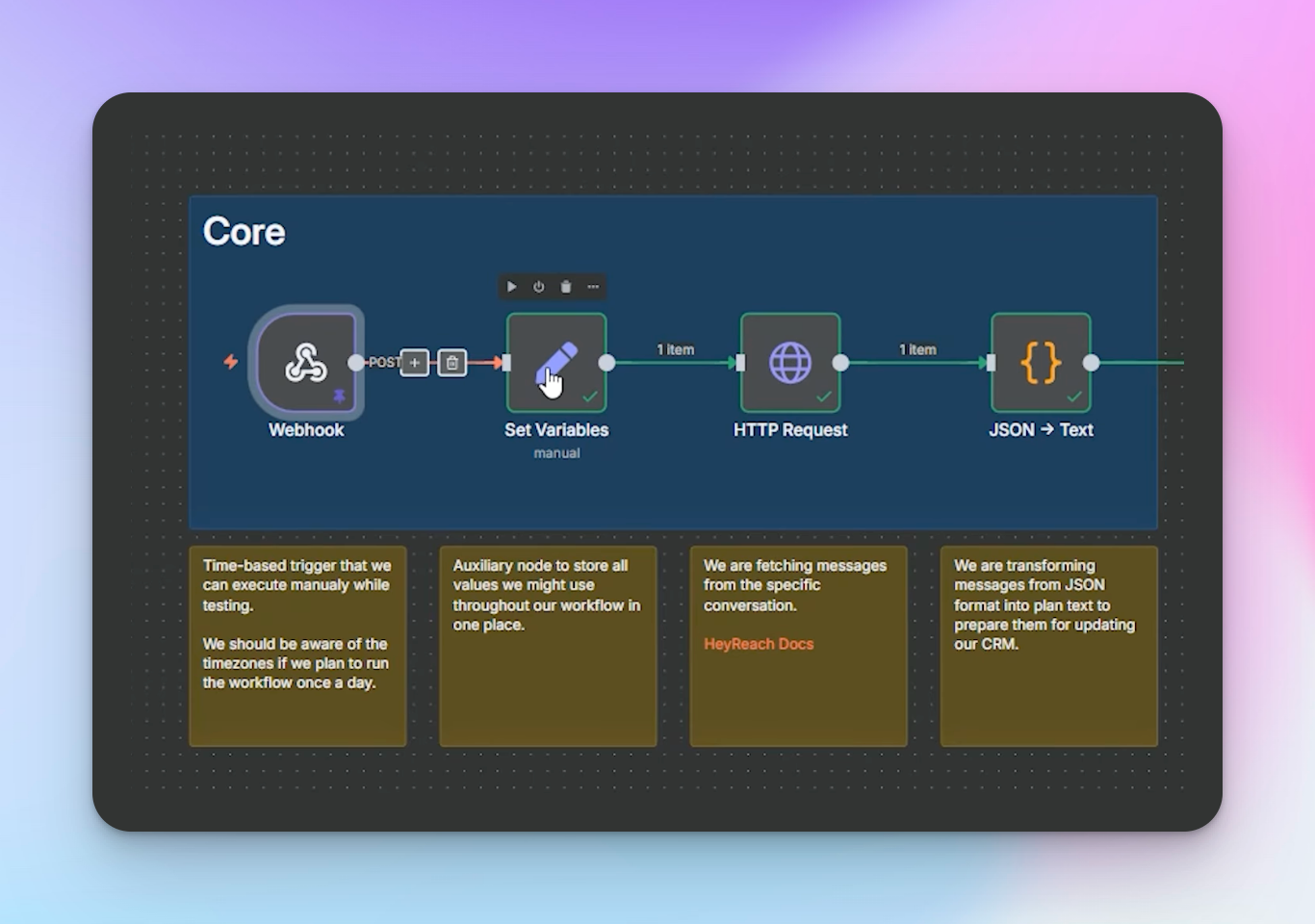
Step 3: Get the full conversation via API (get chat room)
The webhook payload gives you useful data, but not everything you need. Specifically, it doesn't include the full message history — just the latest message. To analyze sentiment properly, you need the entire thread.
I'm using HeyReach's get chat room API endpoint. It requires two parameters:
- Account ID — the ID of the LinkedIn account used to start the conversation
- Conversation ID — pulled from the webhook payload
Both are available from the webhook data, so this node is fully dynamic. The API response describes the complete conversation and, most importantly, returns all messages in the thread. That's what feeds the sentiment analysis.
This is also where LinkedIn automation with n8n really starts to show its value — you're not just reacting to events, you're pulling structured data to make intelligent decisions.
Step 4: Convert JSON messages to plain text
The API returns messages in JSON format. Before passing them to the AI agent, I run a short code node that iterates through the message collection and converts it to a plain text string.
The logic:
- If the sender property equals "me," use my first and last name (e.g., "Nana Pablo")
- Otherwise, use the correspondent's first and last name
- Format each message as: timestamp → sender name → message body → empty line
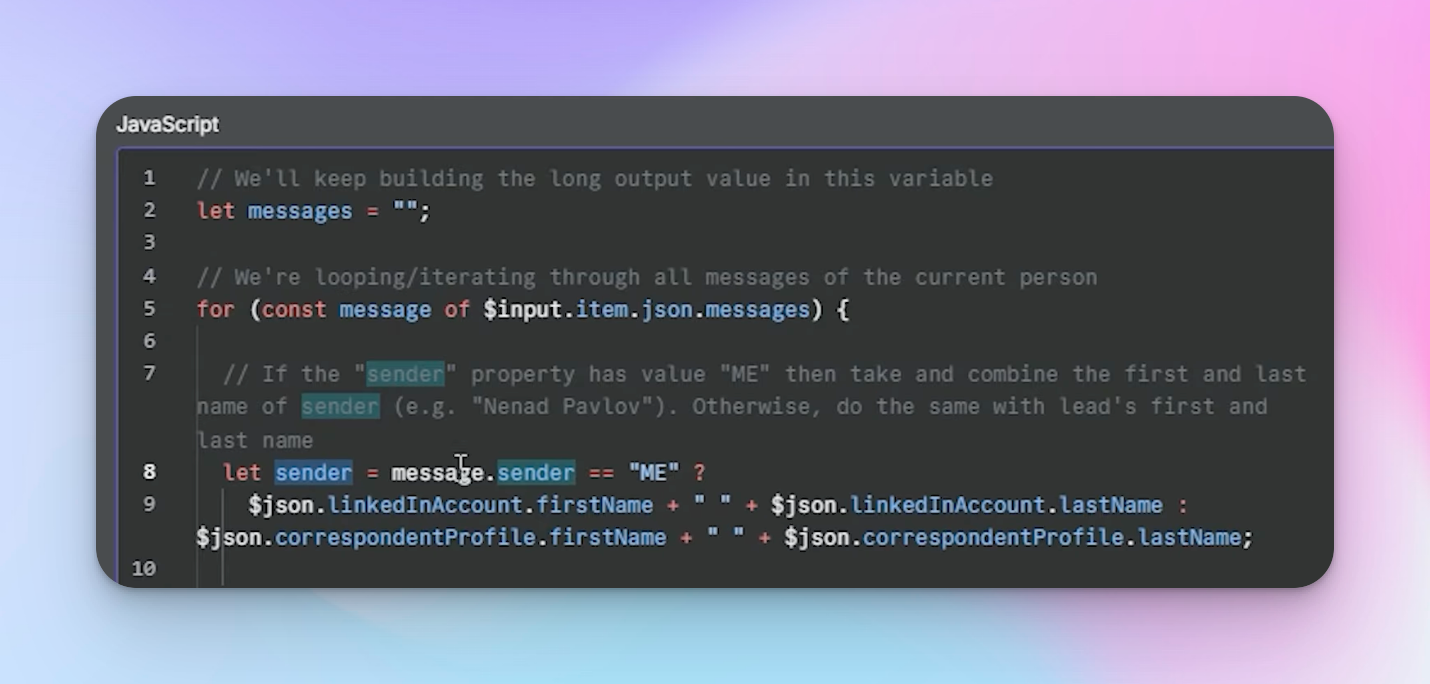
That's it. The output is a clean, readable thread that the AI can process reliably.
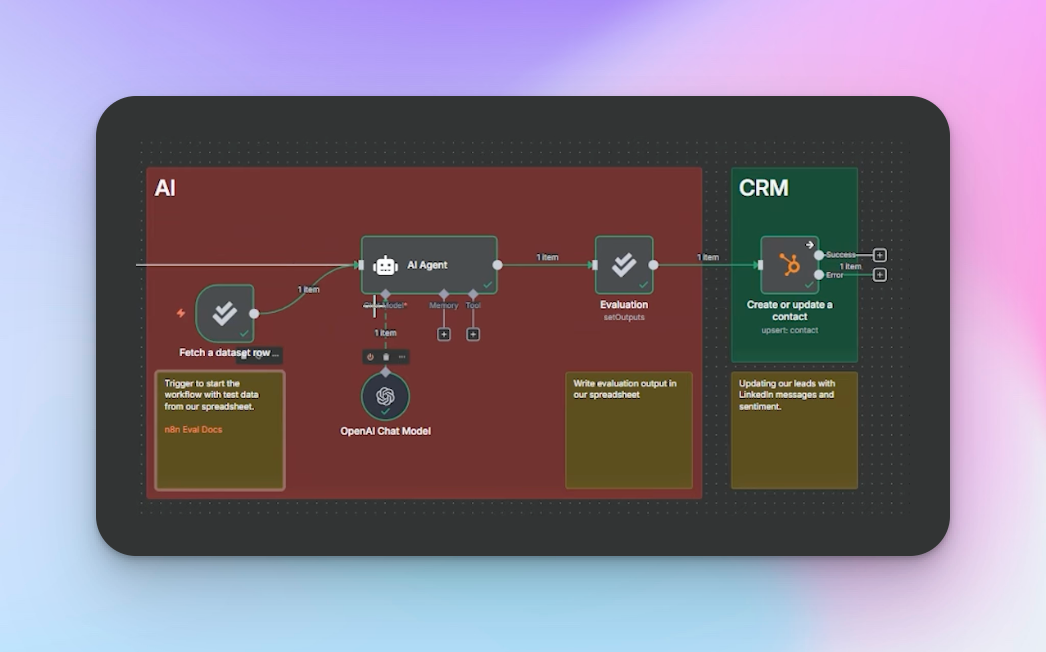
Step 5: AI agent for sentiment analysis
The AI agent has a simple system prompt: "You're an expert business assistant helping to determine the sentiment of LinkedIn communication."
It receives the plain text thread and outputs one of four values: positive, negative, neutral, or unsure.
The reason I'm feeding it the whole thread — not just the latest message — is that sentiment changes. Here's a real example of how a conversation evolves:
- You send a connection request with a question about their sales metrics
- They reply: "Yeah, sure" → positive
- They go quiet; you follow up
- They reply: "Sorry, we're busy, let's push to next quarter" → neutral/negative (not now)
If you only looked at message 4, you'd miss that this person already showed interest. Analyzing the whole thread gives you the actual state of the relationship.
The four-value output (including "unsure") is intentional — some conversations are genuinely ambiguous, and forcing them into positive/negative/neutral would introduce errors that corrupt your CRM data.
Step 6: Save to HubSpot
The final node writes two things to HubSpot under a custom contact property I've called "LinkedIn reply":
- The full conversation in text form
- The AI-determined sentiment
That's the complete workflow. Every time a reply comes in, HubSpot is updated with the full context and a sentiment score — no manual work required.
What you can build on top of this
The AI outreach possibilities here go well beyond sentiment tagging. A few directions worth exploring:
- Suggest a reply: Pass the full thread to an AI agent and have it draft a response for review
- Trigger lead magnets: If sentiment is neutral ("not now"), automatically send a relevant resource based on the lead's company size or role
- Human-in-the-loop via Slack: Push the AI-suggested reply to a Slack integration where someone can approve or decline before it sends
- Lead routing: Use sentiment as a signal to trigger lead routing rules — positive replies go to sales immediately, neutral ones queue for a follow-up sequence
The n8n integration makes all of these composable without custom code.
Why evaluations are non-negotiable for AI steps
Any time you have an AI node in a production workflow, you need a way to test it systematically. N8n's evaluation feature handles this directly inside the workflow.
How evaluations work in n8n
The setup uses a Google Sheet as your test dataset. Each row is one test case. In my sheet, I have:
- A messages column with fabricated conversations simulating different sentiment scenarios
- An expected sentiment column where I've manually labeled what the correct output should be
The evaluation trigger node connects to this sheet and feeds rows into the workflow one at a time. The AI agent processes each and the evaluation output node writes the result back to the sheet.
Once it's run, you compare the AI's output against your expected values. Mismatches tell you exactly where your prompt is failing — and you can iterate until results match expectations.
N8n offers two evaluation types:
- Light evaluations — recommended during workflow development; good for general prompt validation
- Metric-based evaluations — for production data; allows detailed performance tracking over time
Start with light evaluations while building. Once you have real reply data flowing through, shift to metric-based to catch prompt drift.
The campaign audit mindset applies here too — test before you trust.
Connecting this to your broader outbound system
This workflow assumes you already have conversations happening in HeyReach. If you're still building your lead pipeline, the next step is generating leads through an n8n + HeyReach + Clay workflow that handles prospecting at scale.
For outbound sales automation, this reply-handling layer is what separates a one-time blast from an actual system. Capturing sentiment in your CRM means your sales follow-up sequences can be triggered by intent signals rather than arbitrary time delays.
If you're running LinkedIn outreach for agencies and managing multiple clients across multiple LinkedIn accounts, this workflow scales without additional manual effort — HeyReach's webhook fires per account, and n8n handles the routing logic.

Try it for free
Frequently Asked Questions
What HeyReach webhook event should I use to capture all replies?
Use the "every message/inmail reply received" event. The older "first message reply received" event only fires once per conversation and misses all subsequent messages in the thread.
Why do I need the get chat room API call if I already have the webhook data?
The webhook payload only contains the latest message. To analyze sentiment accurately, you need the complete conversation history. The get chat room API endpoint returns all messages in the thread using the account ID and conversation ID from the webhook.
How do I handle LinkedIn replies programmatically if leads respond from LinkedIn instead of the HeyReach inbox?
It doesn't matter. HeyReach tracks conversations regardless of where replies come from — whether the lead replies in LinkedIn directly or via HeyReach's inbox. The webhook fires either way.
What happens when the AI agent's sentiment output doesn't match my expectations?
That's exactly what the n8n evaluation setup is for. You maintain a Google Sheet with test conversations and expected sentiment labels. Run the evaluation trigger to compare AI output against your expected values, identify mismatches, and improve your prompt until results are consistent.
Can I use a CRM other than HubSpot for saving the conversations and sentiment?
Yes. The HubSpot node at the end of the workflow can be swapped for any CRM that n8n supports. The upstream nodes — webhook, API call, code formatting, and AI agent — are CRM-agnostic. Just replace the final save node with your preferred destination.