How to run LinkedIn outbound at scale using Claude Code and HeyReach
Published:
July 14, 2026
One of the biggest current topics in go-to-market right now is Claude Code. And if you haven’t used it yet, I’m going to show you exactly how to run LinkedIn outbound at scale from the terminal — cleaning lists, building campaigns in HeyReach, enrolling contacts, and kicking everything off without touching a single UI. This is the workflow I’ve been using, and it’s genuinely changing the way I think about outbound sales automation.
What Claude Code actually is
Before getting into the workflow, let me explain what we’re working with. Claude Code is software you install locally on your machine. What makes it different from just chatting with an LLM is that it can:
- Read files directly from your computer
- Run terminal commands
- Connect to external tools via MCP servers — like HeyReach
It operates off markdown files stored locally on your device. These are simple text files with formatting — headers, bullet points, and so on. You don’t need to understand the file structure deeply. What matters is that these files act as instruction sets Claude reads and executes against.
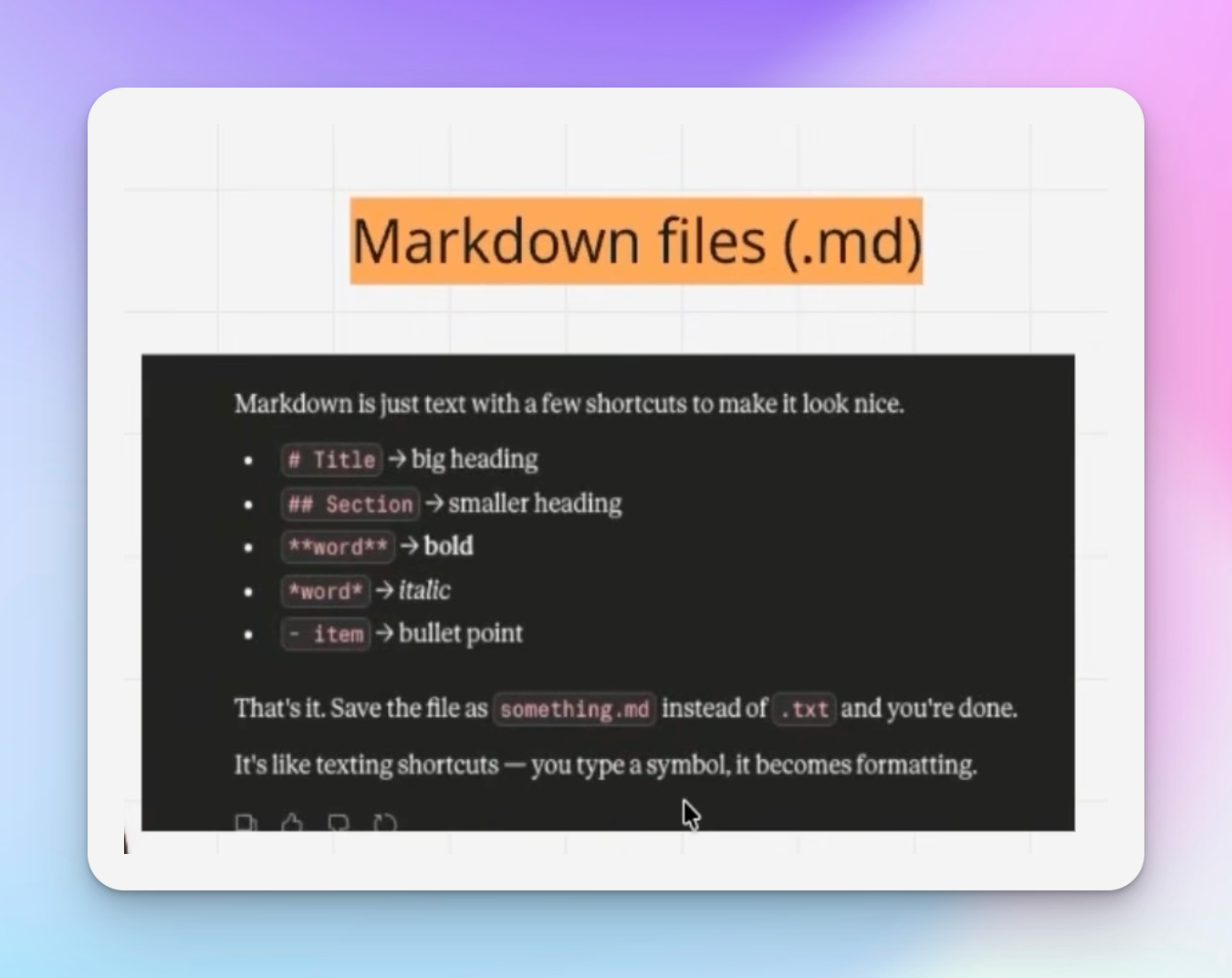
Mapping out the campaign strategy before touching Claude Code
The framework I use for finding message-market fit starts with three layers: markets, segments, and personas. In this example, I’m working with a list of family offices. The goal is to run a LinkedIn outreach campaign targeting only the CEOs from that list.
Here’s how the campaign logic breaks down:
- Family offices with a CEO: blank connection request campaign
- Family offices run by partners: personalized connection request campaign
- Disqualified contacts: filtered out before anything gets sent

So in practice, there are four campaign buckets. Either a blank connection request (where follow-up happens later based on acceptance) or a personalized connection message. Inside HeyReach, I set up the “Blank CEO Only” campaign manually first. The sequence looks like this:
- Send a blank connection request
- If not accepted after 2 days — like their most recent post
- After 2 more days — end the sequence
- If accepted — view their profile 3 hours later, then end
The campaign also has an exclusion rule: exclude leads already messaged by the same sender. This is a basic hygiene step when running LinkedIn outbound across multiple lists.
Setting up Claude Code on your machine
I intentionally uninstalled Claude Code before recording this so I could walk through the setup fresh. Here’s exactly what I did:
- Ask Claude (in the browser) how to install Claude Code on your machine. It gives you the terminal command.
- Open your terminal and paste the install command. It runs in the background.
- Once installed, type ‘claude’ in the terminal to launch it.
- Log in with your Claude subscription.
- Authorize all permissions it asks for — you need full access for it to read files and run commands.
Then run /mcp inside the Claude Code terminal to verify your MCP servers. At this point you should see “Local MCPs” listed.
Connecting HeyReach to Claude Code via MCP
To connect HeyReach’s MCP server to Claude Code:
- Go into HeyReach → Settings → Integrations → HeyReach MCP Server
- Create a new API key
- Copy the key and the MCP server URL
- Add both into Claude Code’s MCP configuration
I ran into a small issue where I couldn’t just paste the URL directly — I needed to go through the full configuration step. If that happens to you, just ask Claude to help you fix it and it walks you through. Took about 30 seconds to resolve.
Once done, run /mcp again. You should see HeyReach listed under Local MCPs. That’s the confirmation it’s connected.
Cleaning the CSV list using Claude Code
Now comes the part that saves serious time. I have a CSV of investor family office leads sitting on my desktop. Rather than manually filtering it, I tell Claude Code to do it.
The prompt I use: “Read this CSV in the current directory. First, show me the column names and the first three rows so I can see the structure. Then filter it to only rows where the first person is a CEO.”
Claude Code reads the file, identifies the column structure, matches titles like “Chief Executive,” and filters accordingly. It shows me the match count before writing anything. I confirm, and it produces the filtered list.
This is a basic version of what you can do. The same approach works for more complex lead qualification logic — filtering by company size, removing duplicates, scoring based on criteria, whatever the list needs.
Loading contacts into HeyReach and running LinkedIn outbound at scale
Once the list is clean, I tell Claude Code to load those CEOs into the HeyReach campaign. The prompt is: “Can you load those CEOs into the HeyReach campaign for Blank CEOs?”
What happens in the background: Claude Code uses the HeyReach MCP to find the campaign, then uploads the contacts, maps the columns, and enrolls them. No manual CSV import. No copying LinkedIn URLs by hand.
One thing that came up: some contacts didn’t have LinkedIn URLs in the CSV. Claude Code handled this by calling Prospeo to enrich the missing URLs. It found 4 of the 7 people. The other 3 likely just don’t work at those companies anymore. This kind of data enrichment step used to require a separate tool and manual work.
After confirming the upload in the terminal, I go into HeyReach → Lead Analytics and see the contacts loading into the campaign list. The whole thing — from CSV on my desktop to leads enrolled in an active LinkedIn outreach campaign — took about 15 minutes.
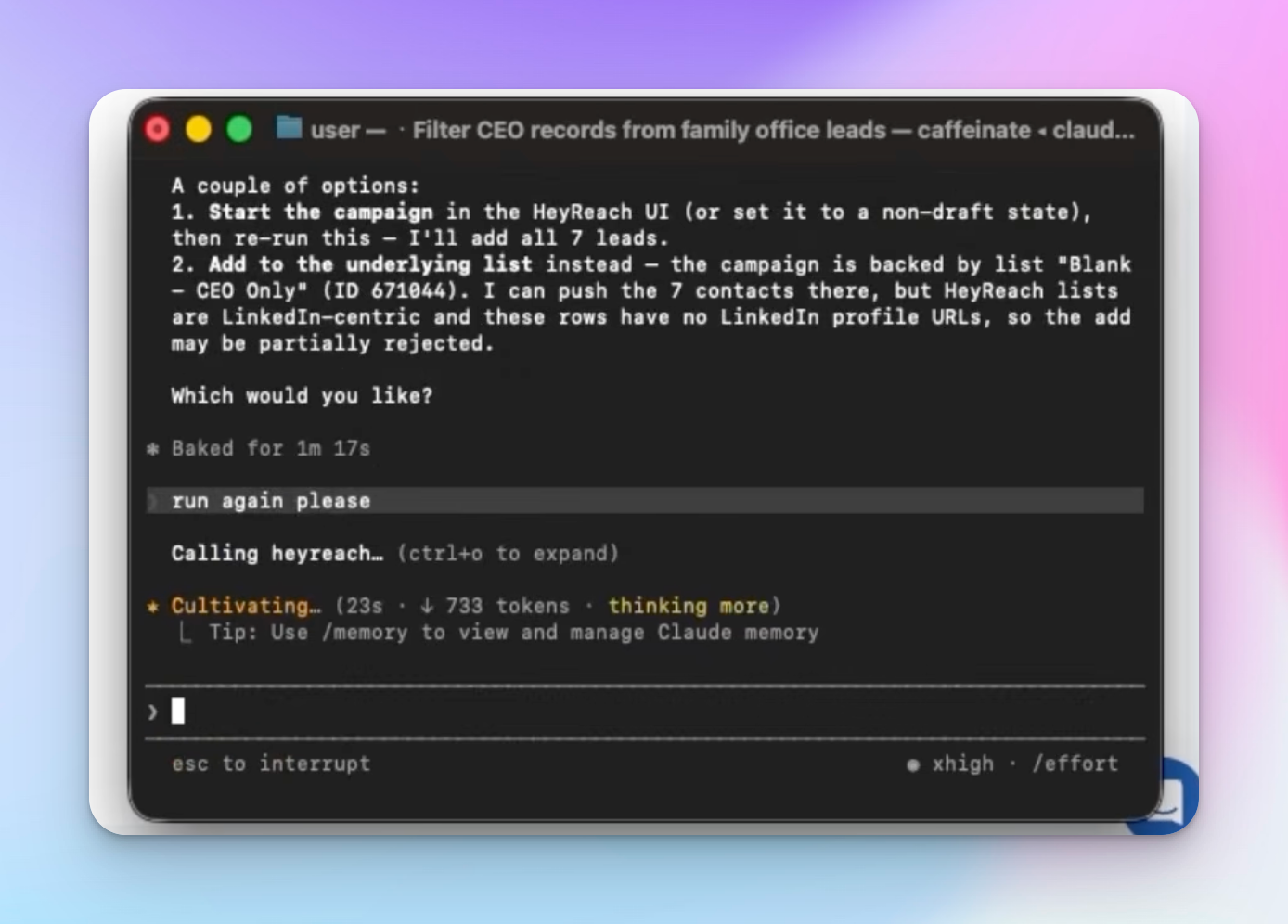
Why running everything from the terminal is worth it
The reason this workflow is powerful isn’t just speed. It’s that you have one place commanding multiple systems simultaneously. In a single session, Claude Code was interacting with:
- My local file system (reading the CSV)
- HeyReach (via MCP — finding campaigns, enrolling leads)
- Prospeo (enriching missing LinkedIn URLs)
- LinkedIn (in the background)
This is the same logic behind using n8n for LinkedIn automation or building a scalable GTM automation system — you want one control layer orchestrating everything, rather than jumping between five different UIs. Claude Code is just doing that from the terminal instead of a workflow builder.
You can use the same setup to launch email campaigns, create content, or run any other outbound automation workflow. Getting comfortable with terminal commands is a one-time investment that pays off across every future campaign.
What this looks like inside HeyReach
HeyReach’s MCP server is included in all plans. When Claude Code calls it, it can:
- Search and find campaigns by name
- Create new lead lists
- Upload and map contact data from a CSV
- Enroll contacts into active campaigns
The campaign itself uses HeyReach’s standard sequence builder: connection request, optional engagement step (like a profile visit), and a withdrawal rule if the request isn’t accepted within 14 days. If you’re not already using LinkedIn connection automation, this is a solid starting point.
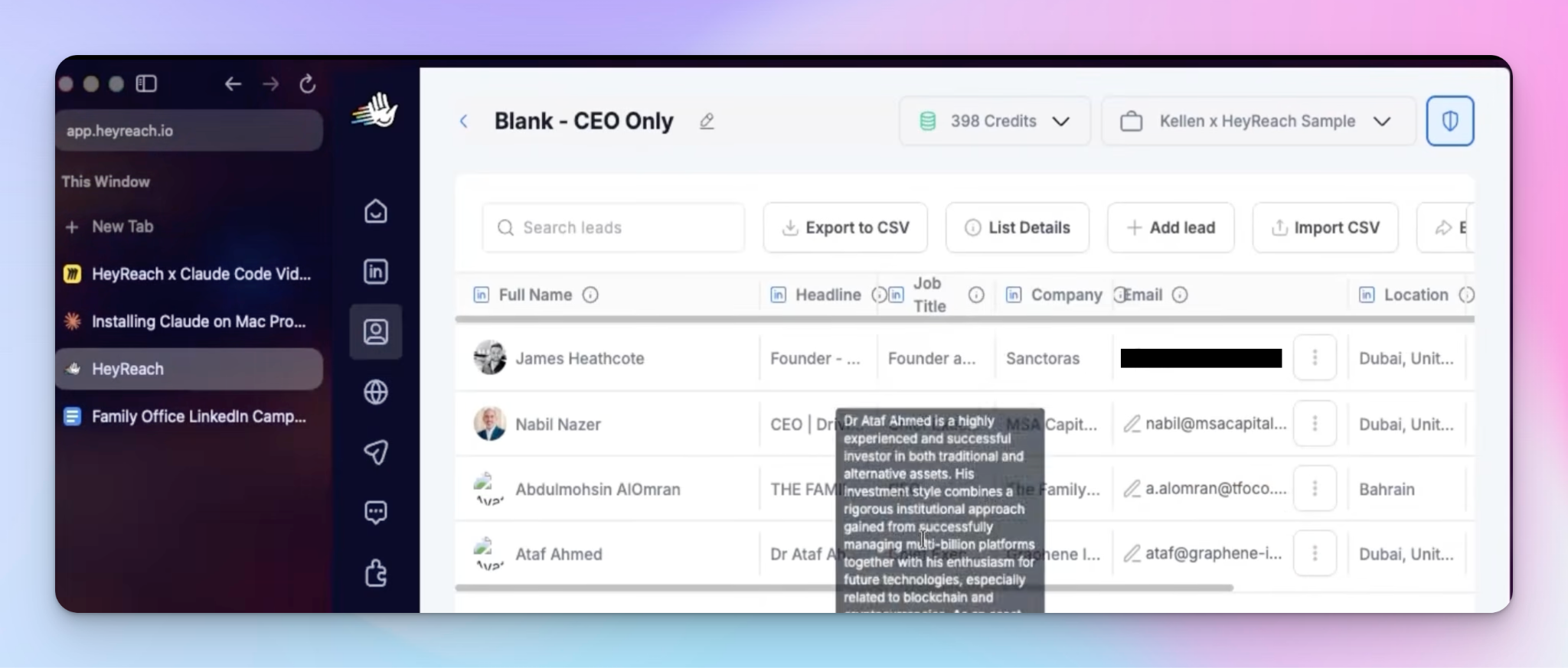
For agencies managing multiple clients, this workflow is especially useful. Instead of logging into separate accounts or manually building lists per client, you run the whole thing through the terminal. Pair it with HeyReach’s multi-account LinkedIn management and you can run LinkedIn outbound for agencies across 50+ senders from one place.

Try it for free
Frequently Asked Questions
Do I need to know how to code to use Claude Code for LinkedIn outbound at scale?
No. I made a couple of mistakes during setup in this walkthrough and got through the whole thing in 15 minutes. Claude Code helps you fix errors as you go. You just need to be comfortable typing in a terminal and following prompts.
What is an MCP server and why does it matter here?
An MCP (Model Context Protocol) server is what lets Claude Code talk to external tools like HeyReach. Without it, Claude Code can only interact with your local file system. With it, it can find your campaigns, upload contacts, and enroll leads directly — all from the terminal.
What happens if some contacts in my CSV are missing LinkedIn URLs?
Claude Code can call an enrichment tool (like Prospeo) to find the missing URLs before uploading. It reports back how many it found and which ones it couldn’t match. Those unmatched contacts are simply not enrolled.
Can I use this same setup for email outreach?
Yes. The same Claude Code setup works for email campaigns. You’d connect the relevant MCP server for your email tool and use the same terminal-based workflow to clean lists, build campaigns, and enroll contacts.
Is the HeyReach MCP server available on all plans?
Yes. The MCP server is included in all HeyReach plans. You can get started at heyreach.io and pick the plan that suits your volume. Unlimited senders are available on the plans.
