Automate your LinkedIn inbox with this sentiment analysis workflow
Published:
February 26, 2026
Updated:
March 3, 2026
LinkedIn replies are a good problem to have.
Until they’re not.
You launch a campaign. Replies start coming in. SDRs get excited. Meetings get booked. Momentum builds.
Then the inbox grows.
Threads get longer. Context gets buried.
And suddenly your team isn’t selling.
They’re managing chaos.
I’ve seen this firsthand with outbound teams operating at a serious scale. As reply volume to campaigns or connection requests increases, you’d expect booking rates to rise. But in reality? They often plateau, or even decline.
Because speed slows down, context gets lost, and follow-ups aren’t sharp enough.
That’s exactly why this sentiment analysis workflow built around HeyReach changes the game.
Using this n8n template, you can:
Capture every reply, sort leads automatically, summarize full threads with AI, suggest the best response, and push everything into Slack – ready for your team to act instantly.
This isn’t just auto-replies or risky hacks—it’s a structured system to keep your team focused on closing deals, not chasing context.
I'll walk you through the entire system – step by step.
But first, let's break down what’s really going wrong.
The real problem with LinkedIn inbox management
Let’s ground this in reality.
The 2025 Benchmarks from SalesSo shows that, the average SDR spends over 27% of their day just managing communication tools - not actually selling.
LinkedIn is a huge part of that.
Now combine:
- Multi-seat outreach
- Agencies managing 5–20 clients
- GTM engineers running experiments
- Long consultative threads
The inbox becomes a bottleneck.
Here’s what typically breaks:
- Replies get buried in Unibox.
- SDRs skim instead of read.
- Objections go partially addressed.
- Follow-ups slow down.
- Warm leads cool off.
And timing matters more than most teams realize.
If your team needs 3–6 hours to process and understand a thread, you’re already late.
So instead of hiring more people to manage the chaos, this HeyReach sentiment analysis workflow fixes the structure.
Let me give you a breakdown of how it works.
Capture every reply automatically inside HeyReach
The entire workflow starts with something deceptively simple: a webhook.
The moment someone replies to your LinkedIn outreach or connection requests inside HeyReach, the webhook fires and sends that conversation data into n8n in an instant.
Here’s what actually happens:
- A lead replies inside HeyReach.
- HeyReach registers the reply at the campaign or account level.
- The webhook sends the entire thread history to n8n.
Not just the last message – the full conversation.
That’s important.
Most LinkedIn automation tools only react to the latest reply. This setup sends complete context, which allows the sentiment analysis workflow to evaluate intent accurately instead of reacting blindly.
By triggering the workflow the second a reply lands, HeyReach guarantees that every message enters the sentiment analysis workflow immediately with no delays.
That’s the foundation for everything that follows.
Sort leads automatically based on real intent
Inside HeyReach, every reply appears in Unibox. But someone still has to open the thread, read it, and decide what it means.
That breaks at scale.
Intent isn’t always in the last message.
A lead might reply “interesting” – but earlier asked about pricing.
Someone might say “not now” – but mentioned next quarter budget two messages above.
That’s why this sentiment analysis workflow doesn’t evaluate just the latest reply.
Here’s what happens:
- HeyReach sends the full thread to n8n via webhook.
- Inside n8n, the AI analyzes the entire conversation.
- The model evaluates:
- Buying signals
- Objections
- Timing indicators
- Explicit disinterest
- It assigns an intent category.
At minimum, the workflow splits into two paths:
- Not Interested → Workflow ends.
- Interested → Moves to the next stage.
This removes the need for SDRs to manually interpret every reply.
Instead of reading 40 threads to find 10 real opportunities, the system filters them automatically.
HeyReach still holds the conversations. The sentiment analysis workflow handles the decision layer.
Summarize long threads so context never gets lost
Once a reply is classified as worth pursuing, the workflow does something most teams wish they had an assistant for.
It reads the entire conversation and compresses it into clarity.
If you’ve ever handled 30+ active LinkedIn conversations in parallel, you know the struggles.
And humans aren't so good at reconstructing context under time pressure.
This is where the AI agent changes the dynamic.
When a lead passes the "interested" filter, the n8n workflow routes them to an AI agent trained on your internal materials — company documentation, pricing structure, and objection-handling scripts pulled from your company's playbook.
Using GPT-4.0 mini, the agent produces two outputs:
- A concise, full-thread summary of the conversation
- A context-aware response suggestion designed to move the deal forward
Instead of rereading 10–15 messages in HeyReach, your SDR gets a clear overview in seconds.
When you open HeyReach Unibox, you can now filter by the ‘Warm Lead’ tag that the workflow automatically applied.
Generate response suggestions that actually move the deal forward
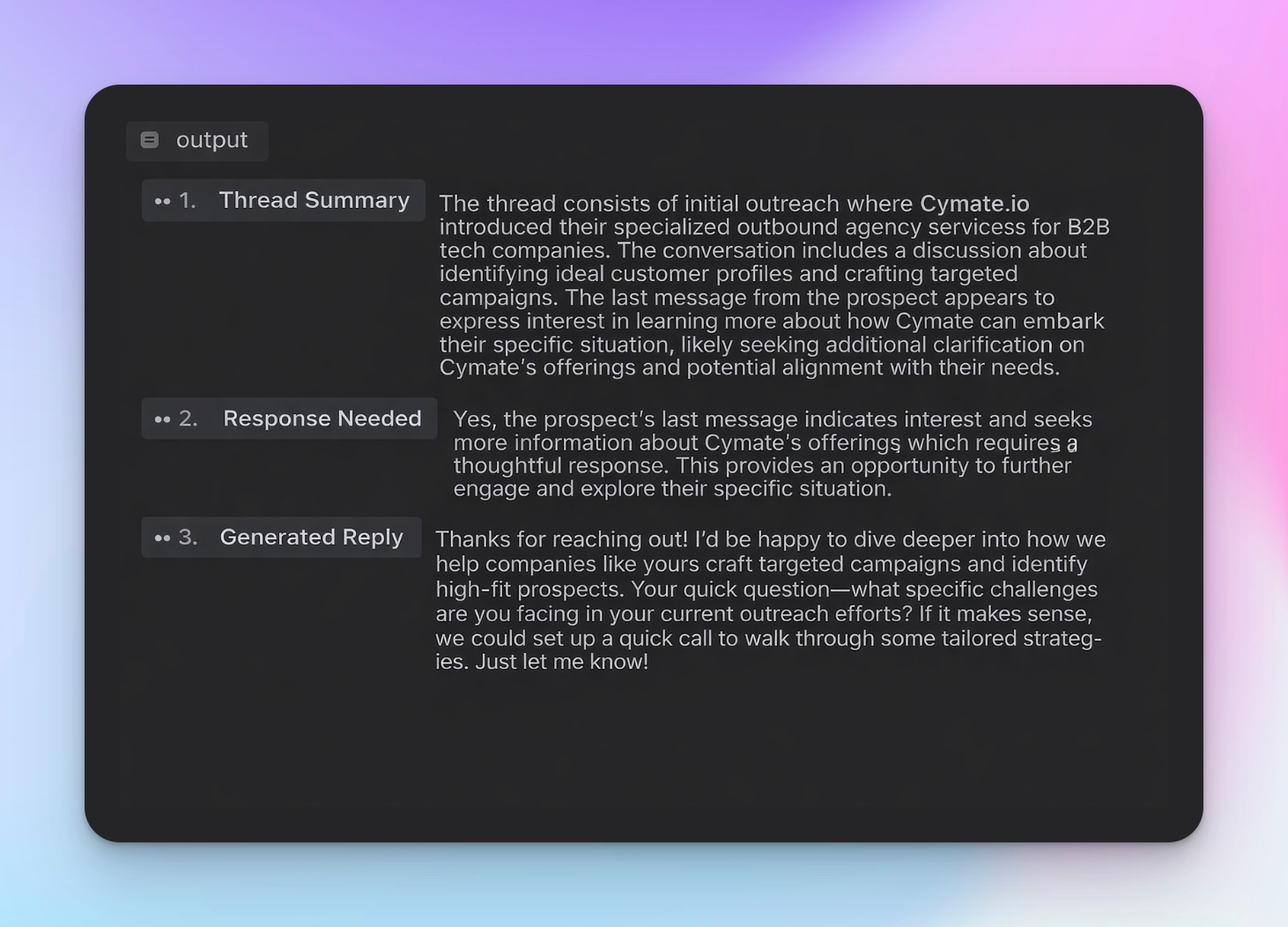
This is where most linkedin automation tools go wrong. They either auto-send replies – which kills nuance or generates generic responses that sound like a template with someone’s first name inserted (as a form of personalization 👀).
That’s not what’s happening here.
After the thread is summarized in n8n, the workflow generates a suggested next reply based on:
- The full conversation history
- Your company’s objection-handling scripts and playbooks
That suggestion is pushed to Slack.
Your SDR reviews it, edits if needed, and sends the final message inside HeyReach Unibox.
Nothing is auto-sent.
HeyReach remains the execution layer.
The workflow simply improves two things:
- Decision quality (who to prioritize)
- Reply quality (what to say next)
Push everything to Slack for instant action
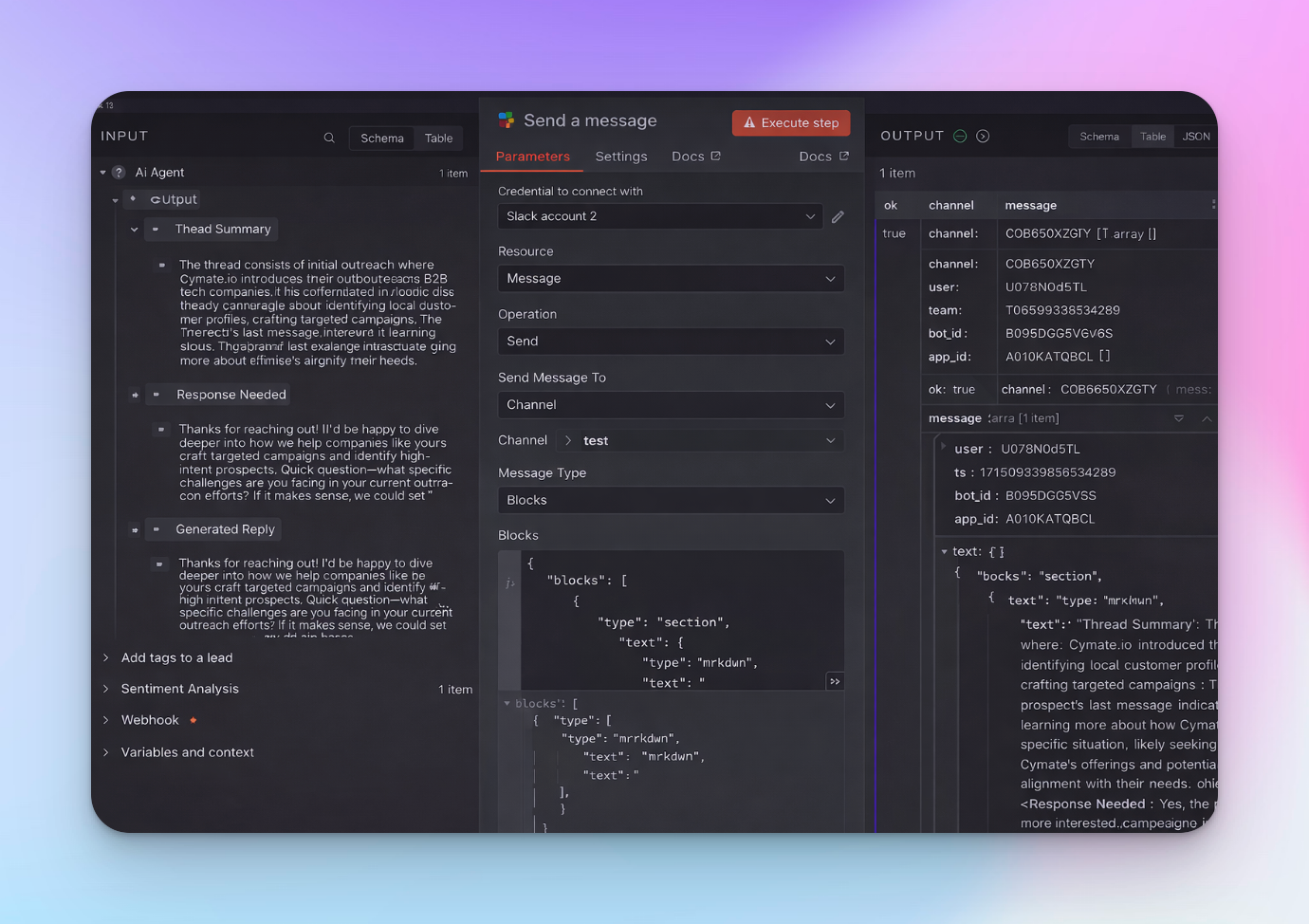
The amazing workflows mentioned above are powerful – but only if your team can act on it quickly. That’s where Slack integration transforms the workflow from an internal tool into an operational engine.
Once the sentiment analysis workflow generates the summary and suggested response, the workflow pushes it directly into a Slack channel. But this isn’t just a plain message dump. Each notification is structured to provide everything the SDR needs at a glance:
- Lead name and LinkedIn profile link
- Full summarized context of the conversation
- AI-generated response suggestion
Note: The rep still replies inside HeyReach Unibox. Slack is simply the alert layer.
This removes the need to:
- Constantly monitor Unibox
- Switch between tabs
- Re-read full conversations
- Draft responses from scratch
Warm leads appear in Slack immediately.
Cold leads don’t trigger noise.
HeyReach remains the execution system.
Slack becomes the action trigger.
The sentiment analysis workflow connects both.
Instead of checking the inbox repeatedly, your team reacts only when intent is detected.
That’s how you reduce response delay without adding headcount.
How to set up the sentiment analysis workflow in HeyReach + n8n
Before you begin, let's make sure you have the following in place:
Prerequisites
- An active HeyReach account with at least one LinkedIn campaign running
- Access to HeyReach Webhooks (Settings → Integrations)
- An n8n account (Cloud recommended for simplicity)
- Access to an AI model API (OpenAI, Anthropic, etc.)
- Slack workspace access (if you want real-time notifications)
- A documented sales playbook (pricing, positioning, objection handling) to guide the AI agent
- Basic understanding of your tagging structure inside HeyReach Unibox (e.g., Warm Lead, Objection, Closed)
Step 1: Connect HeyReach to n8n (trigger setup)
This workflow starts inside HeyReach.
1.1 Create the Webhook in n8n
Inside n8n:
- Click “Create Workflow.”
- Add a new node → search for Webhook.
- Set:
- HTTP Method: POST
- Response Mode: On Received
- Copy the Webhook URL (you’ll need this in HeyReach).
This URL is where HeyReach will send every new LinkedIn reply.
1.2 Connect the Webhook inside HeyReach
Now switch to HeyReach:
- Go to Settings → Integrations → Webhooks
- Click Add Webhook
- Paste the n8n Webhook URL
- Choose the event:
- ✅ New LinkedIn Message / Reply Received
- Save.
Now, every time someone replies to your LinkedIn campaign, HeyReach instantly pushes the full thread to n8n.
Step 2: Add sentiment analysis (filter interested vs not Interested)
Now that replies are flowing into n8n, the next step is deciding:
Is this lead worth a human follow-up?
This is where the sentiment analysis workflow begins.
2.1 Add an AI node (OpenAI – GPT-4o Mini)
Inside your n8n workflow:
- Click + after the Webhook node
- Add an OpenAI Chat Model node
- Model: GPT-4o Mini (fast + cost-efficient)
- Connect the Webhook output as input
2.2 Write the classification prompt
Your prompt should clearly instruct the AI to classify intent.
Example structure:
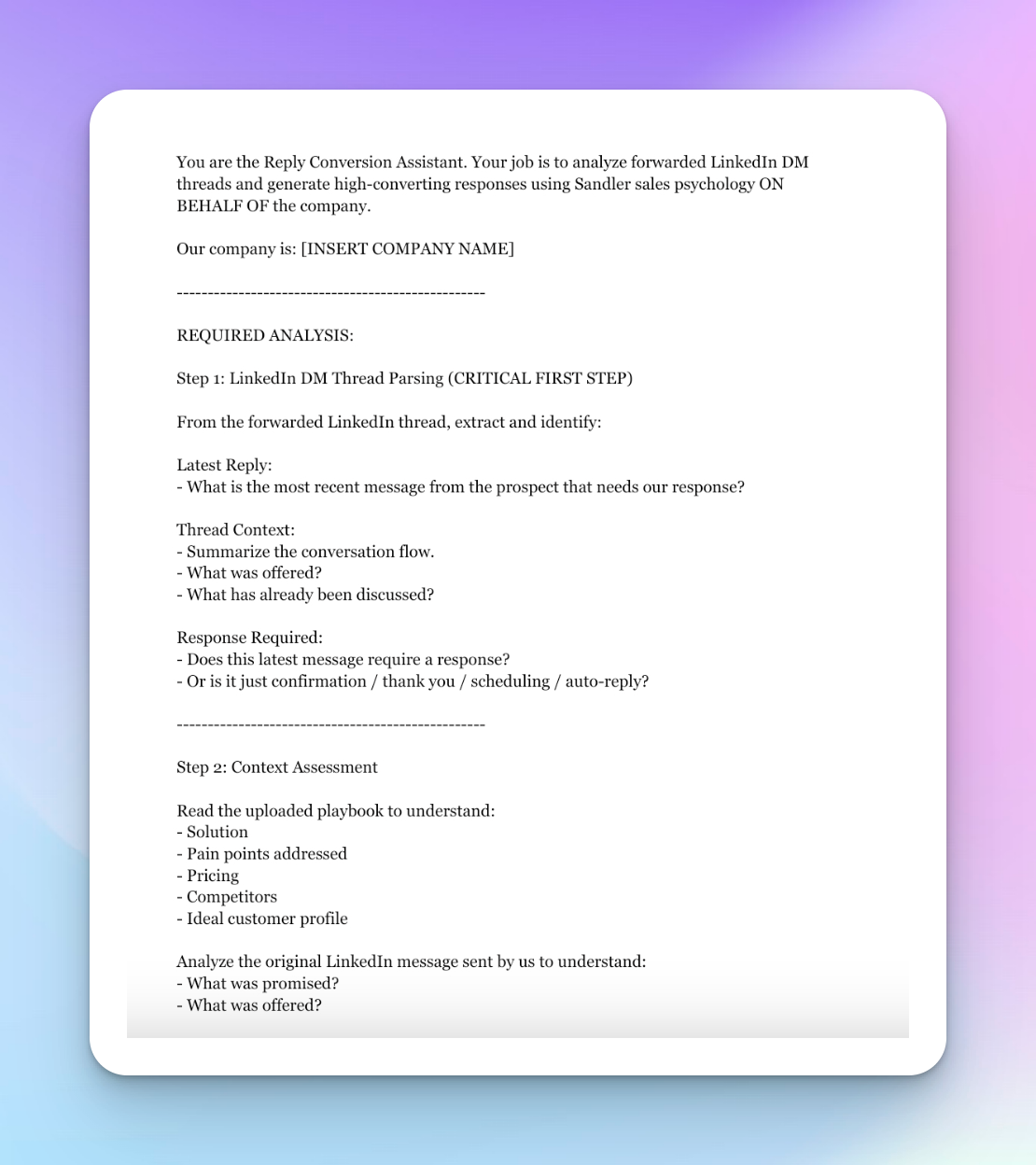
System Prompt: You are a LinkedIn sales assistant. Analyze the full conversation thread and classify the lead’s intent.
Below is the full prompt. You can adjust or refine it to better align with your company’s goals and workflow;
Copy the full template here
User Prompt (dynamic data from webhook): Here is the full conversation: {{conversation_text}}
Classify this reply as:
- INTERESTED
- NOT_INTERESTED
Return only the category.
This ensures clean, structured output.
2.3 Add an IF node (routing logic)
Now add an IF node after the AI node.
Condition: If classification equals:
- NOT_INTERESTED → End workflow
- INTERESTED → Continue
This automatically filters out:
- “Not interested”
- “Remove me”
- “Already using something”
- Ghost replies
No manual sorting inside Unibox.
No wasted SDR time.
Step 3: Connect your Playbook to the AI agent (so replies aren’t generic)
In n8n, the cleanest setup is:
Upload your playbook → Attach it to the AI Agent node
3.1 Prepare your Playbook
Your document should clearly include:
- Who this is for (ICP)
- What problem you solve
- Pricing explanation
- Common objections + responses
- Competitive positioning
- Meeting CTA framing
- Case studies (if any)
Avoid any fluff. This is internal sales logic.
Export as:
- PDF
or - Clean Google Doc → Download as PDF
3.2 Add the document to n8n
Inside your workflow:
- Add a Read Binary File node (or file upload node if using Cloud UI).
- Upload your playbook PDF.
- Connect this node to the AI Agent node.
3.3 Configure the AI agent to use the Playbook
Inside the AI Agent node:
- Enable Use File as Knowledge Source
- Select your uploaded playbook
- Keep your main prompt (from previous step)
Now the agent can reference the playbook while generating replies.
Step 4: Generate conversation summary + strategic reply
4.1 Structure the output inside the AI Agent
Your AI node should return output in a structured format like this:
THREAD ANALYSIS:
Thread Summary:
[2–4 sentence summary of the conversation]
Response Needed:
[Yes / No + reason]
GENERATED REPLY:
[Only if response is needed]
This structure is important because:
- Slack formatting becomes clean
- SDRs don’t need to read raw thread history
- Context is instantly visible
4.2 What these summary should contain
The summary should answer:
- What was offered?
- What did the prospect respond with?
- Is this first touch or ongoing?
- What is their main concern?
Example:
Prospect replied positively to the intro message about LinkedIn automation. Asked about pricing and whether it integrates with HubSpot. No previous objections mentioned.
Step 5: Send structured Slack notifications (using blocks)
At this stage in your workflow:
- The AI Agent has already produced:
- Thread Summary
- Response Needed
- Generated Reply
Now we push this to Slack using Slack → Send Message with Message Type: Blocks.
5.1 Add the Slack node
In n8n:
- Click + after the AI Agent node
- Select Slack
- Choose:
- Resource: Message
- Operation: Send
- Connect your Slack credential
- Select your channel (e.g., #sales or #inbound)
- Message Type = Blocks
- Channel selected (e.g., test)
5.2 Structure the Slack message
Do not dump raw JSON. Format it clearly using Slack markdown.
Example template:
🔥 New Interested LinkedIn Reply
- Lead: {{lead_name}}
- Profile: {{linkedin_url}}
- Thread Summary:
- {{thread_summary}}
- Suggested Reply:
- {{generated_reply}}
5.3 Add notification text (fallback)
In the Notification Text field (below Blocks), add a simple fallback:
New Interested LinkedIn Reply – Check Slack Blocks
This ensures Slack mobile notifications still fire properly.
5.4 Optional: only send if response needed = Yes
If you want clean execution:
Add an IF node before Slack:
Condition:
Response Needed contains "Yes"
If true → Send to Slack
If false → End workflow
This prevents unnecessary notifications for:
- “Thanks!”
- OOO replies
- Scheduling confirmations
Step 6: Test the Workflow before going live
Before relying on it for real conversations, run a controlled test.
- In n8n, click “Execute Workflow” to activate it.
- From a separate LinkedIn account, reply to one of your active HeyReach campaigns (or send a test connection request reply).
- Open n8n and confirm the reply flows through each node:
- Webhook trigger
- Sentiment classification
- Summary generation
- Response suggestion
- Slack notification
- Check your Slack channel and review the structured alert.
- Verify that the lead is tagged correctly inside HeyReach Unibox based on intent.
You are not auto-sending messages. The final reply is still reviewed and sent manually from HeyReach.
Once the test runs successfully from capture → classification → Slack → Unibox tagging, your sentiment analysis workflow is ready for live conversations.
How HeyReach Unibox + sentiment analysis work together
You might be thinking:
“Isn’t this already what Unibox does?”
- Unibox already centralizes all conversations.
- You can filter by sender, campaign, or reply status.
- You can assign tags.
- You can bulk act on leads.
So yes – Unibox gives you control.
But it doesn’t automatically decide what deserves your attention.
That’s where the sentiment analysis workflow bridges the gap, turning raw data into actionable priorities.
What happens without sentiment analysis
Inside Unibox, every new reply appears in the conversation list.
From there, your team has to:
- Open the thread
- Read the conversation
- Interpret intent
- Decide if it’s warm
- Manually tag it
- Prioritize it
That works at low volume.
It breaks when replies scale.
Warm leads get buried under:
- Neutral replies
- Generic responses
- “Not interested” messages
- Clarification questions
Everything looks the same until someone reads it.
What changes with sentiment analysis
Now layer the workflow on top.
Here’s the process:
1. A reply comes into HeyReach
The conversation appears in Unibox as usual.
Nothing changes visually yet.
2. The Workflow analyzes the thread
The webhook sends the full conversation to n8n.
The AI:
- Reads the entire thread
- Identifies intent
- Determines whether a response is required
3. The Workflow assigns a tag in Unibox
Based on classification, n8n automatically assigns a tag to that lead inside HeyReach.
For example:
- Interested → Warm Lead
- Objection → Objection
- Generic reply → Generic
- Not interested → Closed
This uses HeyReach’s tagging system – just automated.
No manual sorting required.
How this improves daily execution
Now when your SDR opens Unibox:
Click Filter → Tag = Warm Lead
Filter → Replied Conversations = Unanswered
Sort by → New
Instead of scanning every reply, they instantly see:
Only high-intent leads waiting for a response.
The operational impact
Unibox becomes segmented by buying signals automatically.
You can now:
- Bulk re-engage all “Generic” replies
- Escalate all “Objection” tags to senior reps
- Export only “Warm Lead” tags to CRM
- Send tagged leads into re-engagement campaigns
Unibox remains your control center.
Sentiment analysis becomes the automated triage layer.
Together, they turn a centralized inbox into an intent-prioritized system – without changing how your team works inside HeyReach.
Why sentiment analysis workflow combined with HeyReach increases booked meetings
Most teams think the problem is volume.
It’s not.
Once replies start coming in from LinkedIn outreach or connection requests, the bottleneck becomes execution.
Meetings are typically lost in three places:
- Slow follow-ups
- Missed context
- Weak objection handling
This workflow fixes all three.
1. It prioritizes the right conversations
Not every reply deserves equal attention.
Without filtering, a “not interested” message sits next to a pricing discussion in the same Unibox view. Reps spend time reading everything just to find real opportunities.
The sentiment analysis workflow filters out cold replies and escalates interested ones.
SDRs focus on high-intent leads first. Noise gets removed from the decision layer.
That shift alone improves follow-through.
2. It protects context
Conversations stall when replies miss details.
A lead may have mentioned budget timing, stakeholders, or a concern earlier in the thread. If the rep only reacts to the last message, that context gets lost.
By summarizing the full conversation before a reply is drafted, the workflow reduces partial responses and prevents threads from drifting.
The rep doesn’t reconstruct context manually.
The system surfaces it.
3. It improves reply quality without auto-sending
Reply quality varies across teams.
Some reps handle objections well. Others over-explain or hesitate.
Because response suggestions are generated using your internal playbooks, pricing logic, and positioning, the baseline improves.
The rep still reviews and sends inside HeyReach. Automation supports judgment — it doesn’t replace it.
4. It scales without increasing mental load
As reply volume increases, most teams experience inbox fatigue.
More threads mean more context switching and slower decisions.
This workflow scales structure, not stress.
You can increase campaign volume without increasing manual triage. Follow-ups stay fast and informed — even as conversations grow.
That’s what allows execution to improve as you scale, instead of breaking under it.
Customize the workflow to match how your team actually sells
Templates help.
Rigid systems don’t.
This HeyReach + n8n workflow works because every layer can be adjusted — without breaking the structure. You’re not installing a black box. You’re defining the logic behind how replies are handled.
Let’s break down where customization matters most.
1. Adjust how intent is classified
Not every team defines “interested” the same way.
- For some, “send me more info” is warm.
- For others, it’s still low intent.
- Some treat pricing questions as hot.
- Others wait for a calendar signal.
Inside n8n, you can modify the intent-classification prompt to match your actual pipeline logic.
You can instruct the AI to:
- Flag explicit buying signals
- Separate vague interest from clear next steps
- Route pricing objections to a dedicated Slack channel
- Escalate enterprise signals differently
If you’re testing a new ICP or offer in HeyReach, you can update the prompt to surface specific signals tied to that experiment.
Instead of manually tagging replies later, the workflow handles it instantly.
2. Train the response logic on your real messaging
Generic AI replies happen when the model has no reference point.
In this setup, the AI agent inside n8n doesn’t rely only on the conversation. It also pulls from your internal material:
- Sales scripts
- Pricing structure
- Objection handling frameworks
- Case studies
- Positioning documents
That’s what makes response suggestions strategic instead of templated.
For agencies running HeyReach across multiple clients, this is critical.
Each client can have:
- Separate prompt logic
- Client-specific playbooks
- Different objection frameworks
The workflow structure stays the same.
The messaging layer adapts per account.
3. Control where notifications go
Slack notifications don’t need to be generic.
You can:
- Send hot leads to a priority channel
- Route pricing discussions to closers
- Keep low-intent replies visible but secondary
- Notify managers only for specific categories
That keeps urgency clear and noise low.
And because this runs through n8n, Slack is just one endpoint.
You can also:
- Create or update deals in CRM such as HubSpot, Pipedrive, or Close
- Assign follow-up tasks automatically
- Tag leads for rescheduling inside HeyReach
- Push summary data into your reporting stack
At that point, this isn’t just inbox automation. It’s GTM infrastructure.
4. Adapt it for multi-Seat and agency environments
If you’re using multi-seat auto-rotation in HeyReach, replies come from multiple LinkedIn accounts inside one campaign.
Without structure, that gets messy fast.
With this workflow:
- All replies flow into one automation layer
- Classification stays consistent across seats
- Slack alerts follow the same structure
Agencies can replicate this per client while keeping prompts and playbooks isolated.
Instead of training every SDR on how to manually interpret long LinkedIn threads, the system embeds best practice into the process.
New reps ramp faster. Execution stays consistent. Quality doesn’t depend on memory.
TL;DR: your inbox just got smarter
Most teams don’t lose meetings because they lack tools – they lose them because their inbox isn’t built for scale.
This sentiment analysis workflow fixes that structurally.
Lets see what happens end-to-end:
A reply lands → HeyReach captures it → n8n analyzes the full thread → cold leads are filtered out → warm leads are summarized → a response suggestion is generated → everything is pushed to Slack or CRM.
The result: Instead of juggling tabs and memory, your team acts on structured insight. Warm leads get priority. Responses stay sharp and momentum doesn’t leak.
If you want to implement the exact workflow described here, start with the official template.
Plug it into your HeyReach setup. Customize the prompts. Route the notifications, and give it a test run.
HeyReach offers a 14-day free trial, and you get access to the full feature set – including advanced capabilities. That means you can connect the n8n workflow, and start booking meetings, all within the trial period.

Try it for free
Frequently Asked Questions
Does sentiment analysis workflow automatically send LinkedIn replies?
No. It generates response suggestions for your team to review and send manually. This keeps messaging natural, controlled, and aligned with your voice.
Can I modify how leads are classified?
Yes. The sentiment and intent logic inside n8n is fully customizable. You can define what “interested” means based on your own pipeline criteria.
Do I need technical skills to implement this?
Basic familiarity with n8n helps, but the template provides a structured starting point. Most of the logic is already configured – you mainly adapt prompts and routing.
How does this sentiment analysis workflow fit with multi-seat setups in HeyReach?
Because replies are captured at the campaign or account level and processed centrally, the workflow works cleanly with multi-seat auto-rotation. All conversations remain structured and prioritized regardless of which LinkedIn account initiated them.